

Your website's header is like a digital handshake. It’s often the very first thing visitors see, and it’s home to your logo, navigation, and brand identity. So, how do you actually change it in WordPress? The answer depends entirely on your theme, but it usually comes down to one of three tools: the Theme Customizer, the Site Editor, or a page builder.
Before you start clicking around, it's really important to figure out which tool your site uses. Picking the wrong one is a fast track to frustration, but once you know where to go, making changes is a breeze.
The Three Main Ways To Edit Your Header
Think of these as three different paths you can take, each one built for a specific type of WordPress theme.
- The Theme Customizer: This is the old-school, traditional method. It's perfect for straightforward tweaks on classic themes, like swapping out your logo or changing the site title in a simple, settings-based panel.
- The Block-Based Site Editor: If you're using a modern block theme, this is your playground. It gives you a visual, drag-and-drop experience where you have full control over every part of the header. It’s all done with blocks.
- Page Builders (like Elementor or Divi): For sites built with a page builder, this tool almost always takes over. Page builders offer the most creative freedom, letting you design and build a completely custom header from the ground up, ignoring the theme’s default options.
This handy decision tree can help you figure out which method is right for you.
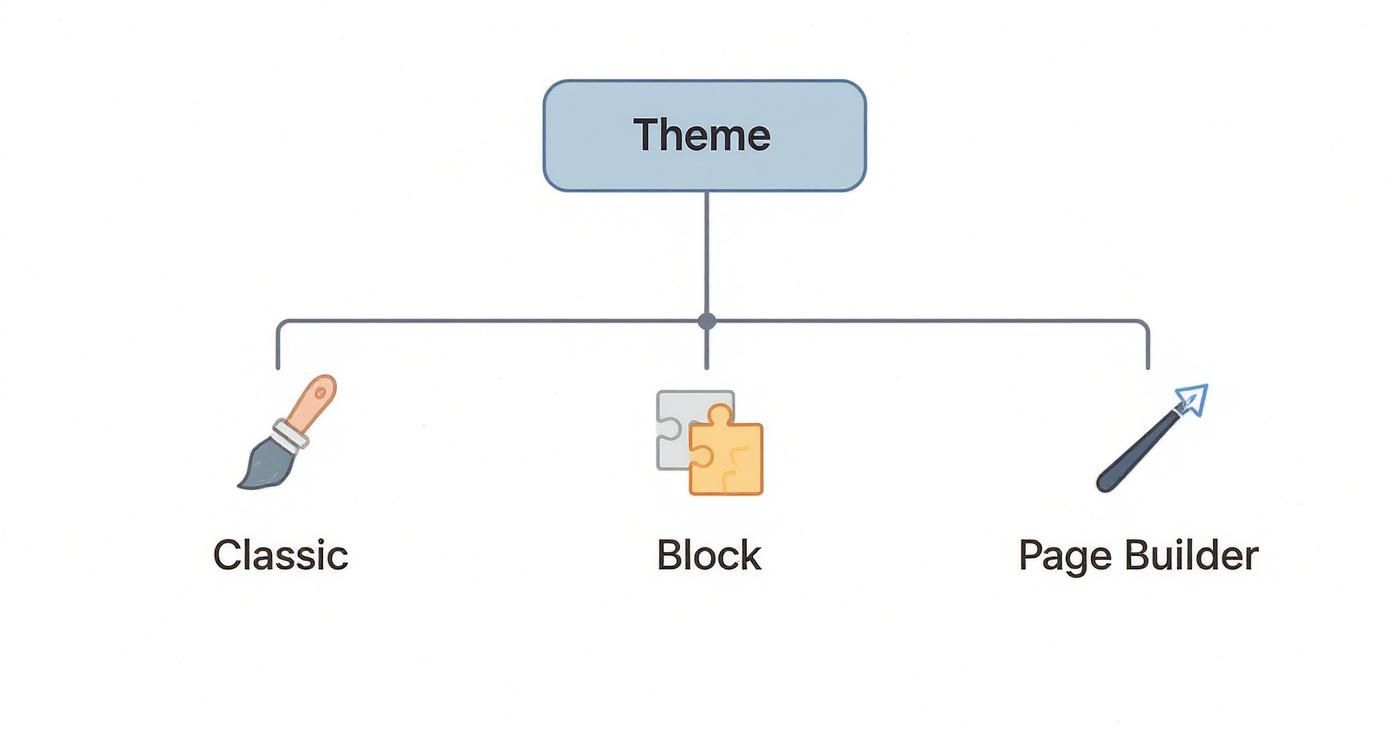
As the infographic shows, it’s all about connecting your theme type—whether it's a Classic, Block, or Page Builder theme—to the right tool for the job.
Which Header Editing Method Should You Use?
Feeling a bit lost? This table breaks it down to help you pinpoint the right tool for your setup.
| Method | Best For | Common User |
|---|---|---|
| Theme Customizer | Simple logo, menu, and tagline updates on older themes. | Users with classic themes like Twenty Twenty-One or Astra (without Pro). |
| Site Editor | Full drag-and-drop control over header layout and elements. | Users with modern block themes like Twenty Twenty-Four. |
| Page Builders | Building completely custom, visually rich headers from scratch. | Users with themes powered by Elementor, Divi, Beaver Builder, etc. |
Ultimately, identifying your theme's setup is the most important first step. It saves you time and makes the whole editing process much smoother.
This big push towards visual editing is changing how we all manage our sites. With Full Site Editing (FSE) now a core part of WordPress, header customization is more accessible than ever. In fact, it's projected that by 2025, over 53% of WordPress users will be using block editors for their site layouts, leaving the old, code-heavy ways behind.
This is great news because it means you can make powerful design changes without ever touching a line of code. If you're just getting started, getting a handle on these basics is key; this guide to starting a WordPress blog is a great place to build that foundation. You can also dive deeper into the platform and learn more about how to edit WordPress websites in our comprehensive guide.
Using the WordPress Customizer for Classic Themes
If you're working with a site that uses a classic WordPress theme—like the trusty Twenty Twenty-One—your best friend for header edits is the Theme Customizer. This is the traditional, tried-and-true method for making design tweaks without having to touch a single line of code. It’s all about working with the options your theme developer has already built for you.
You'll find it by heading to Appearance » Customize in your WordPress dashboard. This brings up a live preview of your site with a control panel on the left, which is fantastic because you can see every change you make in real-time before you hit "Publish."
Adjusting Your Site Identity
Most of the time, the first things you'll want to change are your brand's core elements. Look for a section in the Customizer called "Site Identity" or something similar. This is home base for the essentials.
- Your Logo: Swap out the default text-based site title for your brand's logo. Most themes will even let you tweak its size right then and there.
- Site Title and Tagline: Don't have a logo? No problem. You can edit the text for your site's name and add a catchy tagline that tells visitors what you're all about.
- Site Icon (Favicon): This is where you upload that tiny little icon that appears in browser tabs. It's a small detail, but it makes a huge difference for brand recognition.
Navigating the Menu and Widget Options
Your header is more than just a logo; it's your site's main navigation hub. The Customizer gives you control over this through a "Menus" tab. Here, you can decide which menu shows up, create new ones, or just reorder the links. It's a simple, drag-and-drop affair.
Some classic themes also have widget-ready areas in the header. If yours does, you’ll see a "Widgets" option in the Customizer. This is a great way to add a little extra functionality, like dropping in a search bar or a quick "Contact Us" text block without needing a developer.
Here’s a look at the classic Customizer interface. You can see the settings on the left and how they directly correspond to the live preview on the right.

It’s this direct visual feedback that makes the Customizer so easy to work with.
Key Takeaway: The Customizer is perfect for quick, safe edits. It’s designed to let you change what the theme allows without the risk of breaking anything. Its power is also its main limitation—you’re confined to the options the theme developer gave you.
For example, you can easily create a clean, professional header with a logo on the left and a menu on the right if that's a built-in layout option. What you can't do is build a completely custom header from the ground up.
Once you’re happy with how things look, just hit the Publish button, and your changes are live. It's the most straightforward path to a polished header.
Mastering the Site Editor for Block Themes
If your site is running a modern block theme—think Twenty Twenty-Four or something similar—then the Site Editor is your new best friend. This is the heart of Full Site Editing, and it completely changes the game by replacing the old Customizer. Your header is no longer a fixed area with limited options; it's a flexible canvas built entirely with blocks.
Getting started is simple. Just head to Appearance » Editor from your WordPress dashboard. This drops you right into the visual editor. You can either click directly on your header to start making changes or, for a more focused view, open the navigation sidebar, go to Patterns, and find the Header template part. This lets you work on the header in isolation.
Building Your Header with Blocks
The real power here is the block-based approach. You're not just tweaking a few settings; you're literally building the header's structure piece by piece. Think of it like a container you can fill with different elements to get the exact layout you want.
You'll find yourself using a few key blocks over and over again:
- Site Logo: Automatically pulls in the logo you've set for your site.
- Navigation: The go-to block for adding and arranging your main menu.
- Site Title: A simple block that displays your site’s name as text.
- Buttons: Perfect for adding a bold call-to-action like "Get a Quote" or "Shop Now."
The secret to a clean design lies in using structural blocks like Rows and Groups. These are your containers for aligning items, setting background colors, or adjusting spacing for a whole section at once. A well-designed header is especially crucial for high-converting landing pages.
Pro Tip: Pop open the List View (it’s the icon with three horizontal lines at the top of the editor). This gives you a neat, nested outline of every block in your header, making it a breeze to select, drag, and reorder elements without accidentally breaking your layout.
A Practical Header Build Example
Let's walk through building a classic header: a logo in the middle, a navigation menu split on either side, and a CTA button on the end. It sounds complex, but it's surprisingly straightforward.
Start by adding a Row block to your header template. Inside it, place a Navigation block, then a Site Logo block, and then a second Navigation block. Just like that, you’ve got the split menu. To finish it off, add a Button block to the far right.
Now for the magic. In the block settings for the Row, set the justification to "Space between items." This automatically spreads everything out to fill the header space, creating a balanced, professional look without a single line of code. From there, you can click on each block to dial in the colors, fonts, and spacing to perfectly match your brand. As you get comfortable, don't forget to keep accessible header design within WordPress 6.0's Site Editor in mind.
Building Custom Headers with a Page Builder
Sometimes, the built-in options in the Customizer or Site Editor just don't cut it. When you feel boxed in by your theme's limitations, page builders like Elementor and Divi are your best friends. They give you a blank canvas and total creative freedom to build a header that’s 100% custom. This is the path to take when you need a pixel-perfect design that truly sings your brand's tune.
We'll use Elementor's Theme Builder as our main example here, since it's a popular choice, but the logic is pretty much the same for Divi or other big players. First things first, you need the page builder plugin installed and ready to go. If you're new to that, we have a straightforward guide on how to install a WordPress plugin that will get you up to speed.
Designing a Header Template From Scratch
Using a page builder means you're not just tweaking things—you're the architect. You can drag and drop all sorts of elements, called widgets, right into your header layout.
Think about the possibilities:
- Dynamic Logo: Automatically pulls in your site's official logo.
- Custom Navigation Menu: Go wild with custom fonts, colors, slick hover effects, and mobile-friendly dropdowns.
- Search Bar: Drop in a search form to help visitors find what they need.
- Social Media Icons: Connect your social profiles with custom-styled icons.
- Call-to-Action Buttons: Add a big, bold button to drive sign-ups or sales.
This level of control lets you build a header that supports your business goals, not one that just fills a space.
Creating a Sticky Header for Better Navigation
One of the most practical upgrades you can make is a sticky header. You know the kind—it stays fixed at the top of the screen as you scroll down. This keeps your navigation menu in sight at all times, which is a huge win for user experience. In fact, some studies show it can make navigating a site up to 22% faster.
With a tool like Elementor Pro, this is ridiculously easy. Once your header is designed, you just pop over to the advanced settings of the main header section. Find the "Motion Effects" tab, switch the "Sticky" option on, and you're done. You can even get fancy and have it stick only on desktops or shrink a bit as you scroll.
Building a Modern Transparent Header
Looking for a more polished, professional vibe? A transparent header is a fantastic choice. This design makes the header background see-through, letting it float beautifully over your homepage's hero image. It creates a seamless, modern look that immediately focuses attention on your key visuals.
Real-World Application: A transparent header is a go-to for photographers, design agencies, or any brand with strong visuals. It merges the navigation with the hero section for a really immersive first impression.
Page builders make this happen through "display conditions." You essentially design your standard header and then create a second, transparent version. You then tell WordPress to show the transparent one only on the homepage, while the standard one appears everywhere else. It's this kind of fine-tuned control that makes page builders indispensable for more complex designs.
Editing Theme Files for Advanced Customization
https://www.youtube.com/embed/vdZ1S6SOkT4
Sometimes, the visual editors just don't cut it. For those moments when you need absolute control and aren't afraid to get your hands dirty with code, directly editing your theme's header.php file is the way to go. This is the playground for developers and advanced users who are comfortable with PHP and HTML and want to make deep, structural changes.
Before you even think about touching a line of code, let's get one thing straight: you must use a child theme. I can't stress this enough. If you edit your main theme's files, all your hard work will vanish the next time the theme developer pushes an update. A child theme acts as a safe overlay, allowing you to modify files like header.php without risking them being overwritten.
Getting to Know the Header PHP File
With your child theme in place, you can find the header.php file. This file is the backbone of the top section of your site. It typically contains the opening <html> and <body> tags, the entire <head> section (where all the important metadata and scripts live), and the code that generates the visible parts of your header, like your logo and navigation.
Inside, you'll see a lot of what are called WordPress template tags. These are essentially PHP shortcuts that pull information from your WordPress database.
bloginfo('name'): This little function grabs and displays your site's title.wp_head(): This is a non-negotiable, critical hook. WordPress and your plugins use it to inject essential scripts and stylesheets. Never remove it.wp_nav_menu(): This function is what actually builds and displays the navigation menu you set up in your dashboard.
Knowing what these functions do is crucial. It tells you where you can safely add your own code without accidentally breaking your site's core functions.
Crucial Safety Tip: Always, always back up your website before you start editing code. A single misplaced comma or typo in a PHP file can take your entire site down—it’s infamously known as the "white screen of death." A recent backup is your one-click fix if things go sideways.
Putting Code into Practice
Once you've taken the right precautions, you can add features that are simply out of reach for most visual tools. This is where you can achieve some truly unique results when editing your WordPress header.
For instance, maybe you want to add a simple announcement bar at the very top of your site. You could do this by adding some basic HTML and CSS directly into header.php, probably right before the wp_nav_menu() function is called.
Another common reason to jump into this file is to add custom tracking scripts, like a Google Analytics snippet or a Meta Pixel. While plugins exist for this, placing the code directly into the <head> section of header.php gives you complete control over exactly where it loads.
This direct-editing method isn't for your day-to-day tweaks, but it’s the ultimate power move when you need to build custom header functionality that makes your website truly one-of-a-kind.
Got Questions About Your WordPress Header?
Diving into header edits can sometimes feel like opening a can of worms. Even when you know the steps, you might run into a weird issue or wonder how to pull off a specific design trick. Let's walk through some of the most common questions that pop up when people start tweaking their WordPress headers.
How Do I Make My WordPress Header Sticky?
A "sticky" or "fixed" header is a great touch. It stays locked to the top of the screen as someone scrolls down the page, keeping your logo and main navigation in sight at all times. This little feature makes it so much easier for visitors to get around your site, which is a huge win for user experience.
If you're using a page builder like Elementor Pro or Divi, you're in luck. These tools almost always have a simple "sticky" toggle switch right in the header settings. Many premium themes also build this feature directly into the WordPress Customizer, so it's worth checking there first.
Don't have that option? A plugin like Sticky Menu & Sticky Header works wonders. And for those who don't mind getting their hands a little dirty with code, you can add a few lines of custom CSS.
Just target your header's class or ID with something like this:
position: fixed;
top: 0;
width: 100%;
z-index: 999;
A quick heads-up on the CSS method: once you make the header fixed, the content on your page will slide up underneath it. You'll probably need to add some top padding or margin to your main content area to push it back down into view.
Why Aren't My Header Changes Showing Up?
This is easily the most common headache people run into. You save your changes, refresh the page, and… nothing. It's frustrating, but 99% of the time, the culprit is caching. Your site is simply showing you an old, saved version of the page instead of the new one you just edited.
First, try the easy fix: clear your browser's cache. If that doesn't work, head into your WordPress dashboard and find your caching plugin—think WP Rocket or W3 Total Cache. Look for a button that says "Purge All Caches" or "Clear Cache."
Still no luck? Your web host might be running its own caching system. Log into your hosting account and look for a similar cache-clearing option there. And in the rare case you were editing files directly via FTP, it's always worth double-checking that you actually uploaded the new file and overwrote the old one.
Pro Tip: Caching is your friend, not your enemy! It’s what makes your site load quickly for visitors. The trick is just knowing where all the "clear cache" buttons are hidden so you can see your changes instantly while you're working.
Can I Have a Different Header on Different Pages?
You absolutely can, and it's a fantastic way to create a more tailored experience. For instance, you might want a big, bold, transparent header over the hero image on your homepage, but a more compact, functional one on your blog posts and product pages.
This is where theme-building tools like Elementor Pro and Divi really shine. They make this process incredibly straightforward. You can:
- Build as many different header layouts as you need.
- Use "Display Conditions" to tell WordPress exactly where each header should appear—on specific pages, certain post categories, or even for logged-in users.
If you're not using a builder, some high-end themes offer this feature, but it's less common. The old-school developer way involves creating custom template files (like header-shop.php) and using PHP code to call the right one on the right page, but that's a path best left to the pros unless you're very comfortable with code.
Feeling like your header edits are getting a bit too complicated or you just don't have the time? The team at OneNine lives and breathes this stuff. We build pixel-perfect headers and manage entire WordPress sites so our clients can get back to focusing on their business. Learn more about our WordPress services.


