
Keeping your WordPress site in top shape isn't a one-and-done task. Think of WordPress website maintenance as the regular, ongoing care that keeps your site updated, secure, and running without a hitch. It’s all about a routine of checks and balances—things like backups, security scans, and software updates—that stops major disasters before they ever start.
If you skip it, it's like never changing the oil in your car. Sooner or later, what was a small, preventable issue turns into a massive, expensive breakdown.
Why Consistent WordPress Maintenance Matters
It’s easy to fall into the trap of thinking your website is a finished project once it launches. A much better way to see it is as a living, breathing asset that needs consistent care to keep delivering results. When you let that upkeep slide, you’re not just risking a few technical glitches. You're gambling with your business's reputation, your customers' trust, and even your revenue.
The fallout from neglect isn't some far-off problem; it can hit hard and fast. A slow site will send frustrated visitors straight to your competition. A security breach could expose sensitive customer data, shattering trust that takes years to build. These aren’t just hypotheticals—they are real threats to your online presence.
The Rising Tide of Security Threats
Let's be honest: security is the most critical piece of the puzzle today. The digital world is full of threats, and because WordPress is so popular, it’s a huge target. In 2023 alone, security experts found nearly 6,000 new vulnerabilities affecting WordPress sites. What's really telling is that a whopping 95% of those issues came from plugins and themes, not the WordPress core software. That statistic alone proves why staying on top of updates is so vital. You can discover more insights about WordPress vulnerabilities on prontomarketing.com.
This reality makes proactive maintenance a complete necessity, not a "nice-to-have."
Regular maintenance flips your strategy from reactive (scrambling to fix things when they break) to proactive (stopping them from breaking in the first place). This simple shift saves an incredible amount of time, money, and stress while protecting your brand.
Protecting Your Business Investment
At the end of the day, consistent WordPress website maintenance is a smart business investment, not just a technical chore. It ensures your site continues to be a powerful tool for growth by keeping users happy and protecting your digital assets. This guide will walk you through the key pillars of a rock-solid maintenance plan:
- Reliable Backups: Your ultimate safety net against data loss.
- Timely Updates: Your front line of defense against security holes.
- Proactive Security: The guard at the gate, actively watching for attacks.
- Performance Optimization: The tune-up that keeps your site fast for users and search engines.
By sticking to a structured checklist, you can transform maintenance from a headache into a simple routine that secures your website's health for the long haul. And if you'd rather leave it to the pros, looking into professional hosting and maintenance services is a great way to get peace of mind and protect your investment.
Building a Reliable Backup and Update Routine
If there’s one part of WordPress maintenance you absolutely cannot skip, it’s this. Before you even think about firewalls or security scans, you need a bulletproof backup strategy. A fresh, reliable backup is your ultimate undo button—it can reverse just about any website disaster in minutes.
The biggest mistake I see people make is relying only on their hosting provider's backups. They're a nice fallback, sure, but you need your own system that you control completely. That means setting up automated backups that run on a schedule you dictate.
This image really drives home the point of having a consistent, cloud-based backup routine for your business.
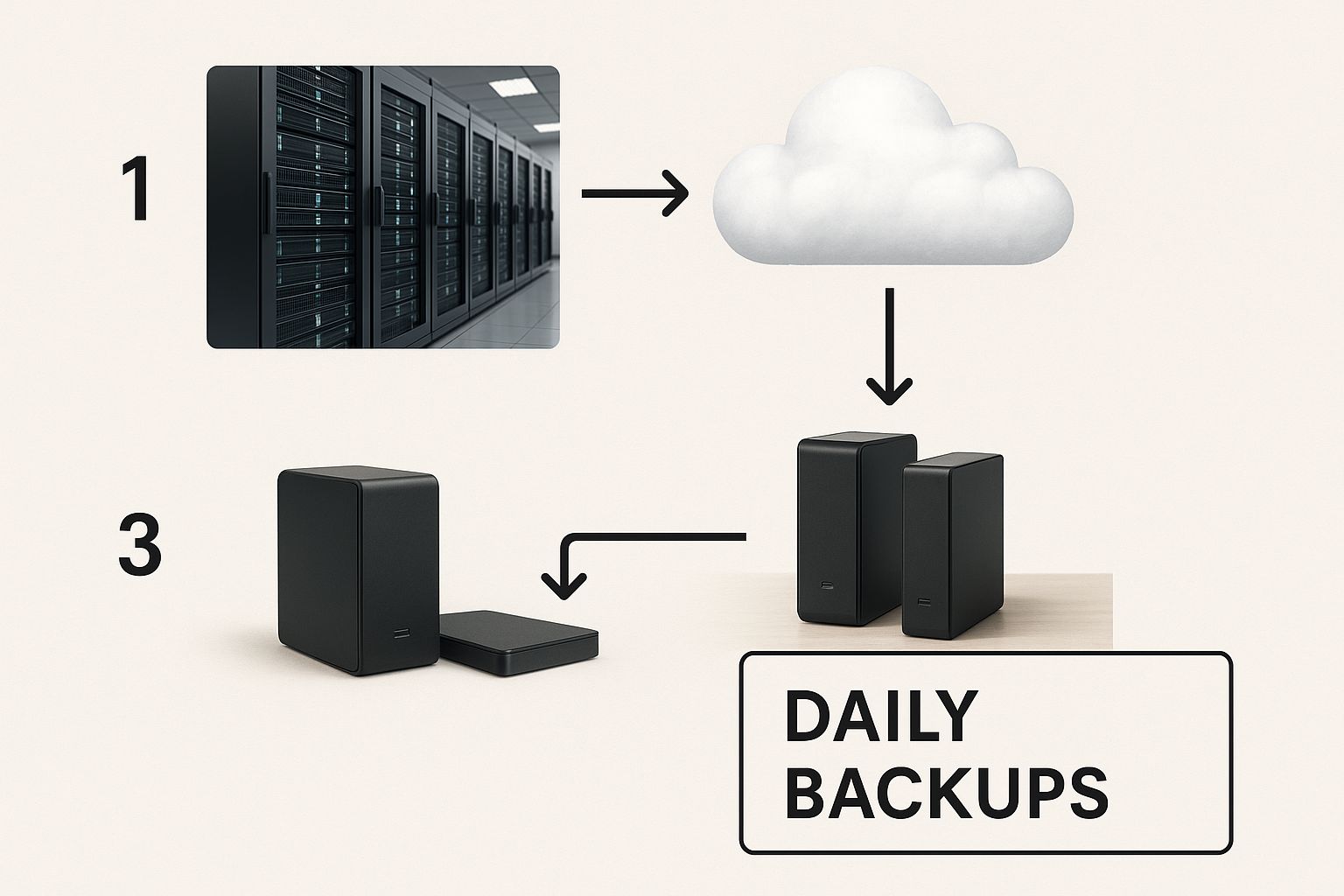
It perfectly illustrates how daily, automated backups saved to a secure cloud location are the cornerstone of any modern disaster recovery plan.
Choosing Your Backup Method
For most people, a dedicated plugin is the way to go. It's the simplest and most effective route. Tools like UpdraftPlus, BackupBuddy, or Jetpack Vault can automatically save your entire site—all the files and the database—on a daily or even hourly schedule.
Here's the golden rule: always store backups off-site.
Sending your backup files to a third-party cloud service like Google Drive, Dropbox, or Amazon S3 is non-negotiable. It ensures that if your whole server goes down or gets hacked, your recovery files are safe and sound somewhere else. You can download backups manually, but it's incredibly easy to forget. Automation is your friend here.
If you want to get into the weeds on this, we've put together a complete WordPress automated backup guide that covers more advanced techniques.
Think of off-site backups like a spare key to your house that you keep at a trusted friend's place. If you get locked out (or your site crashes), you have a foolproof way to get back in without having to break down the door.
Handling Updates Without Fear
Right after backups, updates are the next most critical task. That little "update available" notification can strike fear into the hearts of many site owners. We’ve all heard horror stories of an update gone wrong. This is exactly why a staging environment is your best friend.
A staging site is just a private clone of your live website. It's the perfect, risk-free sandbox to test everything. Most good web hosts offer one-click staging environments these days.
Your process should be simple and repeatable every single time.
- First, clone your site. Create a staging version of your live website.
- Next, update everything on staging. Start with WordPress core, then your plugins, and finally your theme.
- Then, test it thoroughly. Click around the staging site. Check your most important pages, fill out a contact form, and test the checkout process if you have one. Make sure nothing looks broken.
- Finally, push it live. Once you’ve confirmed everything is working perfectly, you can push the updated staging site to your live environment.
Following this methodical approach transforms updates from a stressful gamble into a controlled, routine task. It takes all the risk out of the equation, ensuring your maintenance efforts protect your site instead of accidentally breaking it.
Fortifying Your Site with Essential Security Checks
While having solid backups is your safety net, proactive security is your front-line defense. Let's be honest, WordPress security can feel overwhelming. But the good news is that a few consistent habits can make a huge difference in fending off attacks and keeping your website—and your customers—safe.
Your first move? Get a reputable security plugin. I always recommend tools like Wordfence or Sucuri because they act like a dedicated security guard for your site. They actively scan for malware, block shady traffic with a firewall, and alert you to suspicious activity. Just remember, these aren't "set it and forget it" tools. You have to actually go in and configure them properly to get the full benefit.
Mastering User Access and Login Security
One of the weakest points on any WordPress site is the login page. It's a magnet for brute-force attacks, where bots hammer your site with thousands of password combinations until they get in. This is something your maintenance plan absolutely must address.
Start with a login lockdown feature. It's a standard option in most good security plugins. This feature will temporarily block an IP address after a set number of failed login attempts, which stops automated bot attacks cold. It's a simple fix, but it's incredibly effective.
Next, it's time to take a hard look at your user roles and passwords. Not everyone on your team needs the keys to the kingdom.
- Administrator: This role is for people who need full control—installing plugins, changing core settings, etc. Limit this to just one or two trusted individuals. Seriously.
- Editor: Great for your content manager. They can publish and manage all posts, including those from other users.
- Author: Perfect for your writers. They can write, publish, and manage their own posts, but nobody else's.
- Contributor: Allows someone to write and manage their posts, but they can't hit the publish button. An editor has to review it first.
- Subscriber: Basically just lets someone manage their own profile.
Enforcing strong, unique passwords for every single user is non-negotiable. Push your team to use a password generator. For an even bigger security boost, enable two-factor authentication (2FA), especially for those critical administrator accounts.
A strong password policy and strict user permissions are two of the most powerful, cost-free security measures you can implement. They close the most common doors hackers try to open.
Running Regular Malware and Vulnerability Scans
Your security plugin should be set up to run scans automatically, but I always recommend running a manual scan at least once a month. It’s also a good idea to run one right after any major site changes, like installing a new plugin. These scans check all your core files, themes, and plugins against a huge database of known threats.
If a scan ever flags a suspicious file, don't panic. The plugin will usually tell you exactly what to do, whether that's deleting the file or restoring a clean version from the official WordPress repository. The key is just to act fast.
Staying on top of your security is a foundational part of any good WordPress website maintenance routine. To get a handle on the basics, you can explore our complete website security best practices guide for more in-depth strategies.
To make this easier to manage, here's a simple schedule you can follow. Sticking to a routine like this helps you stay proactive and keeps your site trustworthy.
WordPress Security Maintenance Schedule
A checklist of essential security tasks organized by frequency to help you stay proactive against threats.
| Frequency | Task | Recommended Tool/Method |
|---|---|---|
| Weekly | Review Security Logs | Check your security plugin dashboard (e.g., Wordfence, Sucuri) for blocked IPs and failed login attempts. |
| Weekly | Check for Plugin/Theme Updates | Review your WordPress dashboard under Updates. |
| Monthly | Run a Full Malware Scan | Initiate a manual scan from your security plugin's control panel. |
| Monthly | Audit User Accounts & Roles | Go to Users > All Users in your dashboard and remove old accounts or demote permissions. |
| Quarterly | Force Password Resets | Use a plugin like "Password Policy Manager" or manually prompt users with high-level access. |
| Quarterly | Review Firewall Rules | Check the Web Application Firewall (WAF) settings in your security plugin or hosting panel. |
By turning these checks into a habit, you transform security from a stressful, reactive emergency into a manageable, routine task. It's the best way to gain peace of mind and protect your online presence.
Boosting Speed with Performance Optimization Tasks
https://www.youtube.com/embed/py68mv_vyi8
A slow website is a silent business killer. We all know it. Page speed isn't just some technical metric for developers to obsess over; it's something that directly hits your user experience, your bounce rates, and even where you show up in Google search results.
The good news? A lot of the biggest speed bottlenecks are surprisingly easy to fix with some regular upkeep.
Think of your WordPress database as the engine room of your entire site. Over time, it just gets cluttered. I'm talking about old post revisions, trashed spam comments, and all sorts of temporary data that hangs around long after it's needed. This digital sludge makes your server work way harder than it should, leaving your site feeling sluggish and unresponsive.
Decluttering Your WordPress Database
A clean database is a fast database. One of the easiest wins you can get in your WordPress website maintenance routine is to regularly clear out all that accumulated junk. You don't need to be a database admin to handle this, either. Plugins like WP-Optimize can make this a simple, one-click job.
In just a few minutes, you can:
- Remove old post revisions: Every time you hit "Update" on a post, WordPress saves a copy. It adds up fast.
- Clear out spam comments: Get rid of all the unapproved and trashed comments clogging things up.
- Delete transient options: These are just temporary bits of data that plugins and themes store, but they often don't get cleaned out properly.
I once worked with a client whose blog was crawling after years of consistent publishing. We ran a quick database optimization and found over 5,000 post revisions sitting there. We cleared them out, and it cut their database size by 40%. The speed boost was immediate and seriously noticeable.
Optimizing Images for Faster Load Times
Beautiful, high-quality images are crucial for a great-looking site, but they are almost always the heaviest things on a page. If they aren't optimized, a few big pictures can bring your site to a grinding halt all by themselves.
This is where automated image optimization is a lifesaver.
Tools like Smush or ShortPixel can automatically compress every single image you upload, shrinking the file size without any visible drop in quality. Smaller files mean faster pages. For a deeper dive, there's a lot you can do when it comes to optimizing images for web performance.
Think of it this way: effective maintenance isn't a one-time event but an ongoing process, with some activities requiring daily, monthly, or annual attention. Experts recommend monthly reviews of WordPress websites, including speed tests and immediate updates, because these optimizations directly impact user experience and SEO.
Leveraging the Power of Caching
Finally, let's talk about caching. It’s a huge one. Without it, every time a visitor lands on your site, WordPress has to go to the database, pull all the necessary information, and build the page from scratch. Every. Single. Time.
Caching changes that by creating a static, ready-to-go version of your page. This drastically cuts down on all that back-and-forth with the server, slashing load times.
Plugins like WP Rocket are brilliant at this and require very little setup. It handles page caching, browser caching, and a bunch of other advanced tricks that make a massive difference. Honestly, for most sites I've worked on, installing and properly configuring a good caching plugin is the single most effective performance boost you can make.
Keeping an Eye on Long-Term Website Health

Smart WordPress website maintenance is about more than just what happens in your admin dashboard. It’s about cultivating the habit of checking your site from the outside—seeing it the way your visitors do. This regular check-in is your best defense against small glitches snowballing into big problems that can damage your user experience and reputation.
Think about the classic broken link. There's almost nothing that screams "this site is neglected" louder than clicking a link and landing on a "404 Not Found" page. It’s not just frustrating for your visitors; it's a red flag for search engines, too.
Hunting Down and Fixing Broken Links
Thankfully, you don't have to click every single link on your site by hand. Free tools like the online Broken Link Checker will crawl your entire website and hand you a tidy report of any URLs that need attention. I recommend running this scan at least once a month.
Fixing them is usually as simple as updating the URL or just removing the link altogether. The important part is doing it consistently. A site free of dead ends tells both people and Google that you're on top of things.
An often-overlooked part of maintenance is how the site actually feels to a user. Technical checks are crucial, but they don't always catch a broken layout on a specific phone or a confusing navigation element that only becomes clear through manual review.
Performing Regular Visual Spot-Checks
Get into the habit of doing a quick visual walkthrough of your own website. And don't just check it on the big monitor you use for work. See how it looks in Chrome, Safari, and Firefox. Even more crucial, pull it up on your phone and a tablet.
What are you looking for? The little things that automated tools always miss:
- Layout Issues: Does that hero image look weirdly stretched on a small screen? Is some of your text overlapping a button?
- Functionality Flaws: Go ahead and test your own contact forms. If you have a store, try adding something to the cart. Click around and make sure everything works.
- Mobile Experience: How does it feel to navigate with your thumb? Are the buttons big enough to tap without zooming in?
Monitoring Uptime and Analytics
You can’t stare at your website 24/7, but a good tool can. An uptime monitoring service is a must-have. I personally like UptimeRobot because it's simple and effective. It pings your site every few minutes and shoots you an email or text the second it goes down. This lets you jump on a problem immediately, often before your visitors even know there was one.
Finally, make a habit of glancing at your website analytics. A sudden, sharp drop in traffic that you can't explain might be your first clue to a hidden technical issue. Maybe a recent update is accidentally blocking Google's crawlers, or a new performance bug is making people leave in frustration. When you connect your maintenance routine to these core business numbers, you’re no longer just doing chores—you’re actively protecting your site's stability and growth.
How to Budget for WordPress Maintenance
Figuring out what you should spend on keeping your website healthy is a common headache for business owners. It's not about pulling a number out of thin air. Instead, it’s a practical look at your own time, your comfort level with technology, and how much your website is truly worth to your business.
You really have two ways to go: roll up your sleeves and do it yourself (DIY), or hand the keys over to a pro.
The DIY Maintenance Budget
Going the DIY route looks like the "free" option on the surface, but don't be fooled. Your time is valuable, and you'll need a toolkit of professional software to do the job right.
Think about it—you'll need a premium plugin for automated backups that sends your files to a safe, off-site location. Then there's the robust security plugin to keep the bad guys out and a performance tool to keep things speedy. These aren't one-and-done purchases; they're annual subscriptions that add up fast.
If you decide to manage it all yourself, here’s where the money goes:
- Premium Plugins: Solid tools for backups, security, and caching typically run anywhere from $50 to $300 each per year.
- Quality Hosting: Good hosting is non-negotiable. It often comes with essential features like staging environments and daily backups, which are your safety net for maintenance. This is your foundation.
- Your Time: This is the big one. If you spend five hours a month wrestling with updates and security scans, what’s that time actually costing your business?
Professional Maintenance Plan Costs
When you hire an agency or a freelancer, you’re swapping that time-cost for a fixed monthly fee. It’s predictable, which is a huge plus for budgeting. What you'll pay really depends on how complex your site is.
In 2025, a basic plan for a small business website might run you $100 to $150 per month. But if you're running a busy e-commerce store with all the bells and whistles, you could be looking at anything from $300 to over $5,000 monthly. For a deeper dive, you can learn more about 2025 website maintenance costs and see how different sites stack up.
The great thing about these plans is they bundle everything—updates, backups, security scans, and performance tweaks. You won't have to juggle a half-dozen plugin subscriptions, and you get your time back to actually run your business.
Here's the bottom line: for most businesses, a professional maintenance plan costs far less than a single day of downtime. An e-commerce site that can't take orders or a lead-gen site that's offline for a few hours can lose much more than the entire monthly fee.
So, how do you choose? It all comes down to your resources. If you've got the technical chops and the hours to spare, a DIY approach can work. But if your time is better spent on sales, marketing, and strategy, then investing in a professional service is one of the smartest moves you can make. It’s peace of mind in a monthly payment.
At OneNine, we take the complexity out of website management. We offer expert maintenance and support that fits your business, handling all the technical stuff so you can get back to what you do best. Explore our services at https://onenine.com.


