
Ever wonder what that last bit of a website address is called? That clean, descriptive part of the URL after the ".com"? That’s a WordPress slug.
What Is a WordPress Slug in Simple Terms?
Think of a slug as the title on a file folder. It’s the short, easy-to-read text that tells you exactly what’s inside a specific page or post, without any confusing jargon or random characters.
Here's a simple analogy: if your website's URL is a full mailing address, the domain (yourwebsite.com) is the city and state. The slug is the specific street name that leads you right to the front door of the page you want to visit.
Essentially, it makes your web addresses easy for people to read, remember, and share. For example, in the URL https://example.com/wordpress-slug-guide, the part that says wordpress-slug-guide is the slug.
The Role of Slugs in Your URL
Whenever you create a new post or page, WordPress gives you a hand by automatically generating a slug based on your title. If you write a post titled "My First Blog Post," WordPress will usually create the slug my-first-blog-post to match.
This slug is a key piece of the overall URL structure, which is often called the permalink.
You have full control over this. Right inside the WordPress editor, you'll find a field labeled "URL Slug" located just below the full permalink, giving you the power to customize it.
Why Slugs Matter for SEO
Don't let their simplicity fool you—slugs are a small but mighty part of your website's health. They send clear signals to both your visitors and search engines like Google about what your content is about, which can really impact how well you rank.
To see the bigger picture, it helps to understand What is Search Engine Optimization and how all the pieces fit together. A well-crafted slug is a simple win for your SEO efforts because it helps in a few key ways:
- Boosts Keyword Relevance: Placing your main keyword directly in the slug tells search engines exactly what the page is about.
- Improves User Experience: Clean, descriptive URLs look more trustworthy and get more clicks when they show up in search results.
- Creates Shareable Links: A short, memorable slug is far easier to copy, paste, and share on social media or in an email.
To break it down even further, here's a quick look at the core components of a slug.
Anatomy of a WordPress Slug at a Glance
This table breaks down the essential characteristics of a WordPress slug for a quick and easy understanding of its role.
| Characteristic | Description | Example |
|---|---|---|
| All Lowercase | Slugs should always be in lowercase to avoid potential issues with duplicate content. | my-awesome-post |
| Hyphen Separated | Words are separated by hyphens (-), not spaces or underscores. | how-to-bake-a-cake |
| Short & Concise | Keep it brief and focused on the primary topic or keyword. | seo-best-practices |
| Descriptive | It should clearly communicate the page's content to both users and search engines. | beginners-guide-to-guitar |
As you can see, the rules are straightforward. By keeping slugs lowercase, hyphenated, and descriptive, you create a URL that's both user-friendly and optimized for search from the get-go.
How Slugs Impact Your Website's SEO Success
Think of a well-crafted slug as a direct signal to search engines like Google. It tells them what your page is about at a glance. When that slug includes your main keyword, it's like a big, flashing sign that confirms your content's relevance, which can give your search rankings a nice little boost.

But this isn't just about pleasing the search bots. Clean, descriptive slugs also build trust with actual people. A tidy URL looks professional and tells visitors exactly what they're about to click on, making them much more likely to choose your link over a competitor's.
This simple part of your URL is a cornerstone of on-page SEO. To see how it fits into the bigger picture, you can learn more about https://onenine.com/what-is-search-engine-optimization/.
Boosting Clicks and Improving User Experience
Let's be honest—which of these links would you rather click on in a search result? A URL ending in /how-to-fix-a-leaky-faucet or one that looks like /p?id=123? The choice is obvious.
The second link looks confusing, maybe even a little sketchy. The first one, on the other hand, gives you immediate confidence and clarity. That clarity has a direct impact on your click-through rate (CTR), because users naturally gravitate toward links that match what they're looking for.
It's a small detail, but it makes a huge difference in the user's experience before they even land on your page.
The Role of Slugs in a Crowded Digital Space
Slugs are a surprisingly critical part of any good WordPress SEO strategy, directly influencing both your rankings and how users engage with your site. Considering that WordPress sites publish over 70 million new posts every month, you need every advantage you can get to stand out.
Optimizing your slugs is all part of the larger goal: to increase website traffic. A logical, keyword-rich slug helps both search engines and people make sense of the web, ensuring your hard work gets discovered by the right audience.
How to Find and Edit Slugs in WordPress
Alright, now that you know what a slug is, let's get into the practical side of things: finding and changing it. The good news is that WordPress makes this incredibly easy, whether you're drafting a new blog post or tweaking an old page. Getting comfortable with editing your slugs is a foundational skill for managing your site's on-page SEO.
You can edit your slugs right from the WordPress editor. Where you find the setting might look a little different depending on whether you're using the newer block editor or the classic one, but the idea is the same. The goal is always to create a clean, logical, and effective URL.
Finding the Slug in the Gutenberg Editor
If you're using the modern Gutenberg (block) editor, locating the slug field is a breeze. While editing any post or page, just glance over to the settings sidebar on the right. Under the "Summary" tab, you'll see a section for the "URL."
The slug is simply the editable text that comes after your domain name. This screenshot shows you exactly where to look.
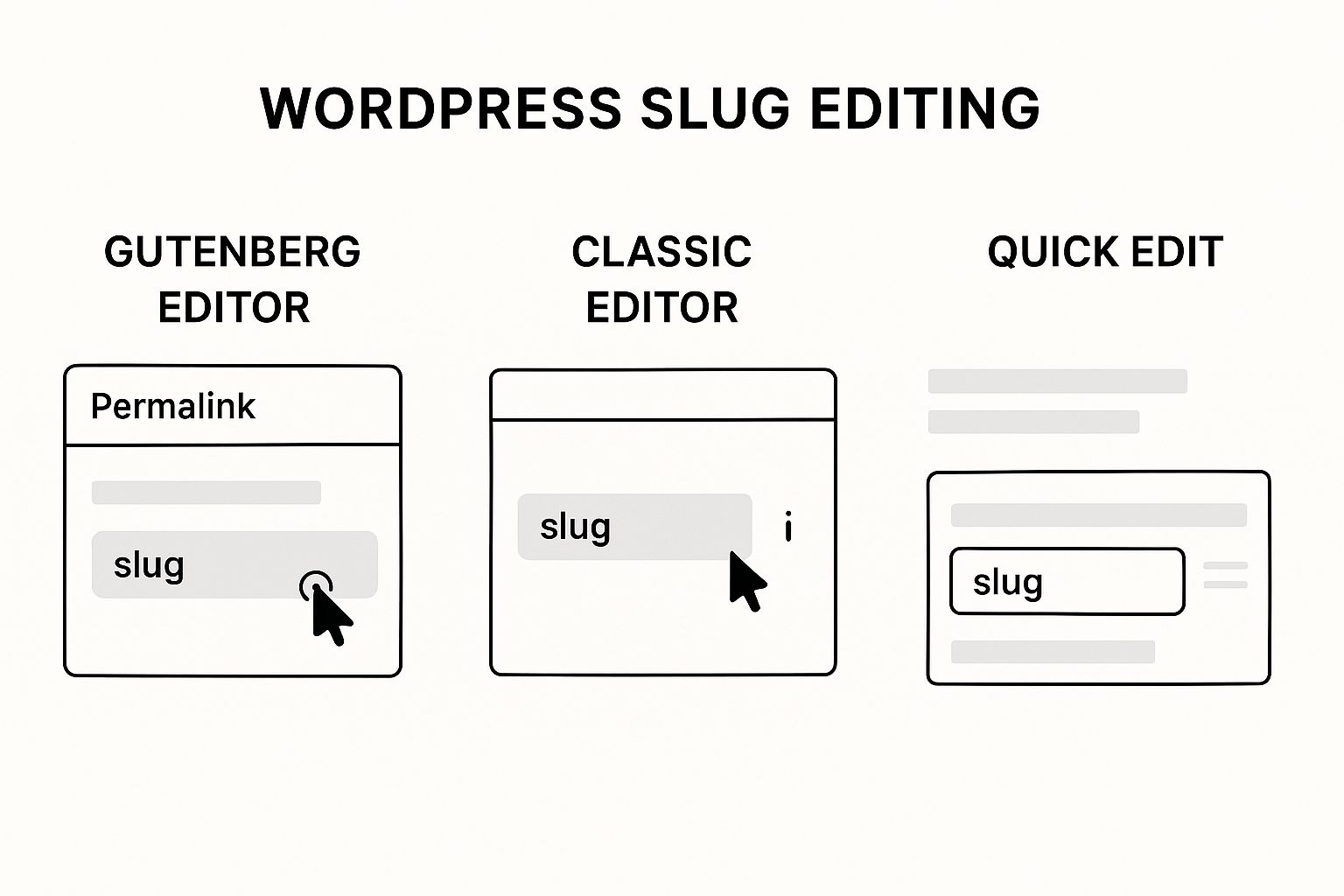
As you can see, all you have to do is click on the URL that WordPress automatically created. An editable box will pop up, letting you type in the new, optimized slug you want to use.
Three Quick Ways to Edit Slugs
There are actually a few different ways to change a slug in WordPress, and each one comes in handy for different scenarios.
- The Gutenberg Editor: Perfect for when you're already writing or editing a page. It gives you full control right where you're working.
- The Classic Editor: If you're still using the older editor, you'll find the permalink and an "Edit" button right below the post title field.
- Quick Edit: This is the fastest method by far. From your main "All Posts" or "All Pages" screen, just hover over the item you want to change and click the Quick Edit link. A small panel will appear with several fields, including one for the slug.
The "Quick Edit" function is a real time-saver when you need to update a slug without loading the entire editor. Mastering these simple actions is a key first step, and you can learn even more about how to edit a WordPress site to build on these fundamentals.
Best Practices for Crafting SEO-Friendly Slugs
Getting your slug right isn't just a box to check—it's a real opportunity to sharpen your on-page SEO. With a few simple tweaks, you can turn the default slug WordPress spits out into a powerful signal that helps both people and search engines understand your content at a glance.
Think of it as giving your page a clean, professional "file name" on the web. It’s a small detail that packs a big punch.

The key is to be intentional. Before you hit that publish button, take just a moment to edit the slug. This quick step makes your URL clean, focused, and primed to perform better in search results.
Your Go-To Slug Optimization Checklist
A great slug gets straight to the point. It’s short, descriptive, and tells the story of the page without any extra fluff. Here are the core rules I follow every time I create a new page or post:
- Keep It Short and Sweet: Long, clunky URLs are hard to read, a pain to share, and just look messy. Aim for three to five words that capture the essence of your topic.
- Include Your Primary Keyword: Make sure your main keyword is in the slug, preferably near the beginning. This is a classic, powerful signal to search engines about what your page is about.
- Use Hyphens to Separate Words: This is non-negotiable. Always use hyphens (
-) between words. Search engines read hyphens as spaces, but they get confused by underscores (_) or other characters. - Remove Stop Words: Cut out common filler words like "a," "the," "and," "on," or "of." They just add length without adding any real value. For example, a slug like
/a-guide-to-the-best-wordpress-slugsbecomes a much cleaner/best-wordpress-slugs.
A clean, descriptive URL does more than just help with SEO rankings. It builds trust. When users see a clear, relevant link in search results, they're more likely to click on it because it looks legitimate and professional.
Optimizing Your Slugs Good vs Bad Examples
Sometimes, seeing the difference is what makes it all click. When you write a post title, WordPress does its best to create a slug for you, but its first attempt is almost never the best one.
Let’s look at a few examples of how a simple manual edit can turn a messy default slug into a lean, SEO-friendly one.
| Post Title | Bad Slug Example (Default) | Good Slug Example (Optimized) |
|---|---|---|
| "10 Easy Ways You Can Improve Your Site's SEO" | 10-easy-ways-you-can-improve-your-sites-seo |
improve-site-seo |
| "What Is a Slug on WordPress? A Beginner's Guide" | what-is-a-slug-on-wordpress-a-beginners-guide |
what-is-wordpress-slug |
| "How to Bake the Best Chocolate Cake Recipe Ever" | how-to-bake-the-best-chocolate-cake-recipe-ever |
best-chocolate-cake-recipe |
See the difference? The optimized versions are tight, focused, and immediately communicate the page's topic. That simple clean-up is one of the easiest SEO wins you can get.
Getting your slugs right is pretty simple, but a few common slip-ups can cause some serious SEO headaches down the road. Learning to sidestep these pitfalls is key to keeping your site healthy, ranking well, and giving your visitors a good experience.
The single biggest mistake you can make? Changing a slug on a live, published page without setting up a proper redirect. When you change that URL, the old one is toast. Anyone who bookmarked it or clicks it from a search result will hit a dreaded 404 error page. This not only frustrates users but can absolutely tank your search rankings.
If you absolutely have to change an existing slug, you must set up a 301 redirect. This is basically a permanent forwarding address that tells search engines the page has moved, carrying over all its hard-earned SEO juice to the new URL.
Other Slug Blunders to Watch Out For
Broken links are the worst offender, but a few other bad habits can quietly sabotage your SEO work. Keep an eye out for these.
- Keyword Stuffing: Don't cram every possible keyword into your slug. Something like
/best-wordpress-slug-seo-slug-guidejust looks spammy to people and search engines alike. It won’t help you rank better and might even get you penalized. Just stick to your main keyword. - Creating Super Long Slugs: By default, WordPress will often grab your entire post title to create the slug, which can get long and unwieldy. Always edit it down to the core essentials—three to five words is the sweet spot. You want it clean and easy to remember.
- Allowing Duplicate Slugs: If you make a new page with the same title as an old one, WordPress will often just add a number to the end, creating a slug like
/about-us-2. This looks unprofessional and can create confusion for search engines trying to figure out which page is the right one. Every page needs its own unique, clear slug.
When you do need to change a URL, it's critical to learn how to properly set up a 301 redirect using .htaccess. Taking this extra step ensures you don't lose the traffic and authority you've already built, keeping your site in good standing with both users and Google.
WordPress Slug FAQs
Let's clear up a few common questions that pop up when people start working with WordPress slugs. Here are some quick answers to help you get it right.
What's the Difference Between a Slug and a Permalink?
This one trips a lot of people up, but it's pretty simple when you break it down.
Think of the permalink as the full web address for one of your pages. It’s the entire thing you see in your browser bar, like https://yoursite.com/blog/my-awesome-post.
The slug is just the very last part of that address. It’s the bit that actually describes the page content—in this case, my-awesome-post. So, the permalink is the full address, and the slug is the specific identifier for that page.
What Happens If I Have Two Posts with the Same Slug?
WordPress won't let your site break. If you try to publish a new post with a slug that’s already in use, it will automatically append a number to the new one to keep it unique.
For instance, if you have a page with the slug contact-us and you try to create another one, WordPress will name the new one contact-us-2. While this prevents a technical error, it just doesn't look great. It’s always better to create your own unique slugs to keep your URLs looking clean and professional.
Key Takeaway: Don't rely on WordPress to add a "-2" to your slugs. Taking a moment to create a unique, descriptive slug from the start makes your site look more credible and helps users know exactly what they're clicking on.
Is It Safe to Change the Slug of an Old Blog Post?
Changing a slug on a post that's been live for a while can be a risky move. The moment you change it, the old URL is dead. Anyone who tries to visit it—whether from a bookmark, a link on another site, or a Google search result—will hit a "404 Not Found" error. This is bad for user experience and can hurt your SEO.
If you absolutely have to change an old slug, you must set up a 301 redirect. A 301 redirect is a permanent forwarding instruction that tells browsers and search engines, "Hey, this page has moved over here." This passes any existing SEO value to the new URL and ensures you don't lose your traffic.
Keeping track of all the technical details like slugs, redirects, and SEO can feel like a full-time job. At OneNine, we handle all the website management so you can get back to what you do best. If you need a hand with maintenance, a redesign, or just expert support, our team is here to help you win online. https://onenine.com


