

When you hear the term 301 redirect htaccess, think of it as a permanent "we've moved" sign for your webpages. It’s a server instruction that tells browsers and search engines that a page has a new, permanent address. This ensures that anyone trying to reach the old URL is automatically sent to the right place, so you don't lose valuable traffic or search engine ranking when your site's structure changes.
Understanding Htaccess 301 Redirects

Before you jump into editing files, it’s really important to understand what a 301 redirect actually does and why using the .htaccess file is the go-to method for so many web professionals. At its heart, a 301 is a permanent command. The moment someone tries to visit an old link, your server intercepts the request and says, "Nope, it's not here anymore. Go here instead." For the visitor, this happens instantly and they often don't even notice.
This isn't just a bit of technical housekeeping; it's a critical part of smart website maintenance and SEO. Over time, your pages earn authority through backlinks and visitor traffic. A 301 redirect is your way of telling Google to pass all that hard-earned value—often called "link equity"—over to the new page.
The Role of the Htaccess File
So, what is this .htaccess file? It's a powerful configuration file used by Apache web servers, which host a huge chunk of the internet. It lets you define rules for your website directly at the server level, and one of its most common uses is setting up 301 redirects.
When a redirect is handled by .htaccess, it’s incredibly fast and efficient—much more so than redirects managed through PHP or JavaScript. This speed is crucial for keeping visitors happy and avoiding those dreaded 404 error pages.
I've relied on this method in countless situations, like:
- Relaunching a website where all the URLs changed.
- Updating a blog post's URL to be more keyword-rich.
- Combining two articles into one stronger, more in-depth piece.
- Moving an entire site from one domain to another.
By setting up redirects proactively, you stop "link rot" in its tracks. You make sure that every click—whether from a search result, a social media post, or another website—gets the user to the correct, live page. It’s a small detail that builds a lot of trust and shows search engines your site is well-cared-for.
Why It Matters for SEO and User Experience
From an SEO standpoint, getting your 301 redirect htaccess rules right is non-negotiable if you want to protect your rankings. Search engines see broken links and 404 "Not Found" errors as signs of a poorly maintained, low-quality site, which can hurt your visibility.
Proper redirects are foundational to a strong digital presence and are a key part of effective https://onenine.com/website-management/. For anyone who wants to dive deeper, brushing up on the technical SEO basics is a great place to start. In the end, using the .htaccess file is a direct, powerful, and clean way to keep both your website and your audience happy.
Comparing Redirect Methods Htaccess vs Other Options
While .htaccess is often the best choice, it's not the only way to redirect a URL. Here’s a quick comparison to help you understand where it fits in.
| Redirect Method | Best For | Performance Impact | SEO Friendliness |
|---|---|---|---|
| .htaccess (Server-Side) | Permanent redirects on Apache servers; best for sitewide rules and performance. | Very low; handled by the server before the page loads. | Excellent; the industry standard for passing link equity. |
| PHP (Server-Side) | Dynamic redirects based on user logic or database info. | Minimal; slightly slower than .htaccess as PHP must execute first. | Good; a 301 header in PHP is recognized by search engines. |
| JavaScript (Client-Side) | When you have no server access; for redirecting after a user action. | Higher; page must load first, which can be slow and clunky. | Poor; search engines may not pass full equity and can be unreliable. |
| CMS Plugins (e.g., WordPress) | Users who want a simple, code-free interface for managing redirects. | Varies; can add bloat and be slower than server-level rules. | Generally good; most plugins implement proper 301s correctly. |
As you can see, for raw performance and SEO effectiveness, nothing beats a well-written .htaccess redirect. However, CMS plugins offer great convenience if you're not comfortable editing server files directly.
How to Find and Edit Your .htaccess File Safely
Alright, let's get our hands dirty with the .htaccess file. It might sound a bit technical, but with a couple of precautions, it's a perfectly safe and straightforward process. The main trick is just finding the file in the first place, as servers usually hide it to keep you from accidentally breaking things.
Your .htaccess file lives in your website’s root directory. Think of this as the main folder for your entire site. Most of the time, this folder is called public_html or sometimes www. You can get there using two common tools: the cPanel your hosting company provides, or a dedicated FTP client like FileZilla.
Locating the File on Your Server
If you’re going the cPanel route, log into your hosting account and find the File Manager. Open it up and click into the public_html directory. Don't panic if you don't see .htaccess right away. You’ll probably just need to check a box in the settings to "Show Hidden Files" (or "dotfiles").
For those of us who prefer using FTP, it's just as simple. Once you connect to your server, you'll see it listed in that same root folder. I find this method a bit more direct, as you can quickly download the file to your computer, edit it, and pop it right back up.
CRITICAL TIP: Before you even think about making a change, back up your existing
.htaccessfile. I can't stress this enough. Just download a copy and rename it to something likehtaccess_backup.txt. One tiny typo can trigger a 500 Internal Server Error and knock your whole site offline. This backup is your lifeline.
Best Practices for Editing
Once you have the file and your backup is safely tucked away, open it with a plain text editor. On Windows, that's Notepad. On a Mac, use TextEdit. Whatever you do, don't use a word processor like Microsoft Word—it adds junk formatting that will absolutely break the file.
When you're ready to add your 301 redirect htaccess rules, stick to either the very top or the very bottom of the file. If you're using WordPress, make sure your rules are outside the # BEGIN WordPress and # END WordPress comments. This is key because WordPress can overwrite anything inside those blocks during an update, wiping out your hard work. Knowing how these redirects work is a core part of effective website hosting management.
While .htaccess is an incredibly powerful tool, it’s not the only way to handle redirects. If you're on WordPress and would rather not touch code, there are plenty of plugins that can do the job. Our guide on how to add plugins to WordPress is a great starting point for finding user-friendly tools that get the job done without the command line.
Getting Your Hands Dirty: Your First Htaccess Redirects
Alright, let's get into the practical stuff. It's time to write the redirect rules you'll actually use day-to-day. We'll start with the most common task you'll face: redirecting an old page to a new one. This is something you'll do all the time—when you refresh an article, merge a couple of posts, or just decide on a better, cleaner URL.
The command itself is surprisingly simple. Here's the basic template you'll use over and over.
Redirect 301 /old-page.html https://www.yourdomain.com/new-page.html
Let's quickly break down what's happening here:
- Redirect 301: This is your instruction.
Redirecttells the server to send the visitor somewhere else, and301clarifies that the move is permanent. - /old-page.html: This is the slug of your old page. Notice it starts with a
/and doesn't include the full domain. The server already knows what site it's on. - https://www.yourdomain.com/new-page.html: This is the final destination. You have to provide the full, absolute URL here, including the
https://wwwpart.
This one little line of code is your best friend for protecting SEO. The 301 status code has been the standard for permanent moves since 1999, and it's still the best way to handle content migration. A proper 301 redirect htaccess rule can pass along up to 99% of a page's link equity, saving you from the dreaded 404 errors that kill both user experience and your rankings. You can find more details on how 301s protect SEO value on victorious.com.
Redirecting an Entire Domain
What if you're doing something bigger, like rebranding your whole site with a new domain? You'll need a sitewide redirect. This makes sure that anyone trying to visit your old site—no matter what page they're looking for—gets sent straight to the new one.
This little snippet is your magic bullet for a full domain move.
RewriteEngine On
RewriteRule (.*) https://www.newdomain.com/$1 [R=301,L]
It looks a bit more complicated, but it's incredibly powerful. RewriteEngine On just turns on the server's rewriting module. The RewriteRule then grabs every incoming request (.*) and forwards it to the exact same path on your new domain $1, all with a permanent 301 status.
This image really helps visualize how these simple commands work their magic.
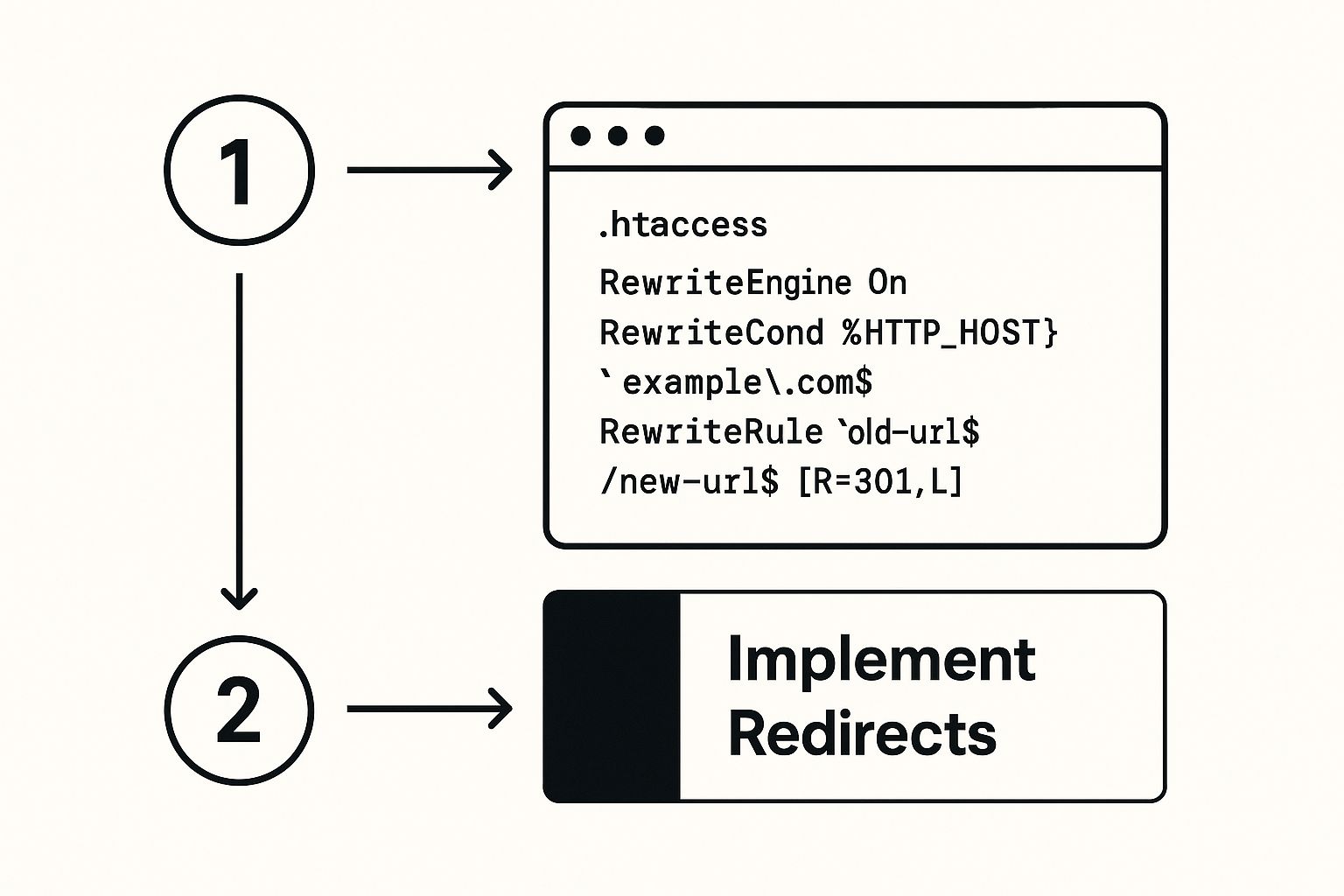
It’s a great reminder of how a few lines of text in a file can completely redirect your website's traffic, all while protecting your hard-earned SEO and keeping visitors happy.
Forcing a Single Domain Version (WWW vs. Non-WWW)
Here’s a classic SEO mistake: letting your site exist at both www.yourdomain.com and yourdomain.com. To search engines, those are two different websites, which can create nasty duplicate content problems and split your SEO authority. You need to pick one and enforce it.
By forcing all traffic to a single "canonical" version of your domain, you consolidate your link equity and present a clear, consistent site structure to Google. This is a foundational SEO best practice.
If you want to make the www version the official one, use this:
RewriteEngine On
RewriteCond %{HTTP_HOST} ^yourdomain.com [NC]
RewriteRule ^(.*)$ https://www.yourdomain.com/$1 [L,R=301]
Or, if you prefer the cleaner non-www version, this is the code for you:
RewriteEngine On
RewriteCond %{HTTP_HOST} ^www.yourdomain.com [NC]
RewriteRule ^(.*)$ https://yourdomain.com/$1 [L,R=301]
Putting one of these rules in place ensures every visitor and search crawler ends up on the one true version of your website. After setting this up, it’s a smart move to update your sitemap with the correct URLs. If you're not sure how, our guide on how to create a website sitemap will walk you through it and help keep the search engines in the loop.
Using Regex for Advanced Redirects
What happens when you need to redirect more than just a handful of pages? I've seen it happen plenty of times: a site overhauls its entire blog structure, moving everything from /articles/ to /insights/, or finally decides to ditch those clunky .php extensions for clean URLs. Writing a 301 redirect rule for every single page would be a nightmare—tedious, slow, and a recipe for mistakes.
This is where the real muscle of your .htaccess file comes into play, thanks to something called regular expressions, or Regex for short.
What Is Regex and Why Should You Care?
Think of Regex as a super-powered "find and replace" for your URLs. Instead of matching exact text, it works with patterns. This lets you write a single, smart rule that can catch and redirect entire groups of URLs at once, saving you an unbelievable amount of time and effort.
To get started with Regex, you’ll need to use a couple of specific commands that are a bit different from the simple Redirect 301 you might have used before.
RewriteEngine On: This is the on-switch. You have to place this line at the top of your redirect rules to tell the server, "Hey, pay attention to the advanced rules I'm about to give you."RewriteRule: This is where the action is. This command defines the pattern to look for in a URL and tells the server what to do when it finds a match.
I know, it can look a bit like gibberish at first. But once you get the hang of a few key symbols, you'll see it’s a surprisingly logical and powerful tool.
Honestly, using Regex is the difference between changing every lightbulb in a skyscraper one by one and just flipping the master switch. It’s all about working smarter, especially when you're managing big changes to your website.
Common Regex Examples for Htaccess
Let's walk through a few real-world scenarios. Seeing these in action is the best way to understand how a few lines of code can solve some seriously complex redirect problems.
Redirecting an Entire Directory
Imagine you've decided to move your whole blog from a /blog/ subfolder directly into the main part of your site. You need every single post, like yoursite.com/blog/my-awesome-post, to now point to yoursite.com/my-awesome-post.
RewriteEngine On
RewriteRule ^blog/(.*)$ /$1 [R=301,L]
Let's break that down into plain English:
^blog/(.*)$: This is the pattern. It tells the server to look for any URL that starts with (^) the/blog/directory and then to capture everything that comes after it(.*)./$1: This is the destination. It creates the new URL by starting at the root (/) and adding whatever was captured in the parentheses ($1).[R=301,L]: These are called flags.R=301tells search engines this is a permanent move. TheL(for "Last") is a neat little trick that tells the server to stop processing any more rules if this one matches, which can prevent conflicts.
Changing File Extensions
Another classic one. You're modernizing your site and want to get rid of old file extensions like .html or .php to create clean, user-friendly URLs.
RewriteEngine On
RewriteRule ^(.*).html$ /$1 [R=301,L]
This rule looks for any URL ending in .html, captures the filename part (.*), and then redirects the user to the same path, just without the extension. That one rule can fix hundreds or even thousands of pages in an instant.
This ability to handle redirects in bulk is exactly why .htaccess is such a valuable tool for any major site update. You can manage huge structural changes, domain moves, or protocol upgrades right at the server level. And because it’s happening on the server, it's far more efficient than relying on slower, script-based solutions. If you want to go deeper, you can discover more insights about server-level redirects on fhoke.com.
Common Redirect Mistakes and How to Avoid Them

Knowing how to write a redirect rule is a great start, but understanding what can go wrong is just as crucial. A tiny mistake in your .htaccess file can create some surprisingly big problems for your site's performance and SEO. Getting your 301 redirect htaccess strategy right means sidestepping these common pitfalls.
One of the most frequent errors I see is getting the order of the rules wrong. The server reads your .htaccess file from top to bottom. Once it finds a matching rule, it often stops looking (especially if you use the [L] flag). If you place a very broad, general rule above a more specific one, that specific rule might never get a chance to run.
Think about it this way: if you have a sitewide redirect at the very top of the file, any single-page redirects you place below it will be completely ignored. Always put your most specific rules first, then work your way down to the more general ones at the bottom.
Dangerous Redirect Chains and Loops
Another major issue to steer clear of is the dreaded redirect chain. This is what happens when one page redirects to another, which then redirects to a third (A → B → C). While a short chain of two might not seem like a big deal, each "hop" adds a little bit of load time and can dilute your SEO juice. Search engines might give up after a few hops, meaning your final page won't get the authority it should.
Even worse is an infinite loop. This is when page A sends users to page B, and page B sends them right back to page A. It's a dead end that confuses browsers and search engines, leading to an error page and a truly awful user experience.
Always aim to redirect an old URL directly to its final destination in a single step. It's the cleanest, fastest, and most SEO-friendly approach. This keeps things simple for both your visitors and search engine crawlers.
Simple but Costly Errors to Watch For
Sometimes, it’s the smallest typos that cause the biggest headaches. A single misplaced character in a URL or a syntax error in your code can break your entire redirect setup.
Here are a few critical mistakes to double-check for:
- Using 302 Instead of 301: This is a big one. Accidentally using a 302 (temporary) redirect tells search engines the move isn't permanent. As a result, they won't pass the link equity to your new page, which can be devastating for your rankings.
- Incorrect URL Paths: Forgetting the leading slash (
/) on a relative path or using a relative path when you really need an absolute URL are common slip-ups that can break things. - WordPress Overwrites: If you’re on WordPress, place your custom rules outside the
# BEGIN WordPressand# END WordPresscomments. WordPress can automatically overwrite anything between those markers, which means your carefully crafted redirects could vanish after an update.
Before you call it a day, always run through a quick testing checklist. Clear your browser cache and try visiting each old URL to make sure it lands on the correct new page. Then, use an online redirect checker tool to confirm the server is sending back a 301 status code, not a 302 or a 404 error. This quick verification step ensures your hard work actually pays off.
Answering Your Htaccess Redirect Questions
Alright, let's wrap this up by tackling some of the most common questions I hear from people wrestling with .htaccess redirects. These are the real-world sticking points that often pop up, so getting these answers straight will save you a lot of headaches down the road.
What’s the Real Difference Between a 301 and a 302 Redirect?
This is probably the most crucial distinction you need to get right. Think of it this way:
A 301 redirect is a permanent move. You're telling search engines, "Hey, this page is gone for good. Send all its traffic and SEO juice over to this new URL from now on." For almost every redirect you'll ever do—like changing a URL or moving to a new domain—this is the one you want.
A 302 redirect, however, is temporary. It says, "This page is just over here for a little while, but I'll be back. Don't update your records." This is useful for specific, short-term situations like A/B testing a new page or redirecting users while you perform site maintenance. Critically, it does not pass along SEO authority.
How Do I Force My Entire Site to Use HTTPS Instead of HTTP?
Making your entire site load over https:// is non-negotiable these days. It's a security basic and an SEO must-have. Thankfully, you can enforce this with a simple, powerful RewriteRule in your .htaccess file.
The rule works by checking if a visitor is trying to access your site on an insecure connection (not on port 443). If they are, the server immediately issues a permanent 301 redirect to the secure https:// version of the exact same page. This catches every URL on your site, ensuring all traffic is encrypted.
A sitewide HTTPS redirect isn't just a good idea anymore; it's a foundational requirement. It’s a clear trust signal for visitors and a ranking factor for Google. Honestly, this should be one of the very first things you add to a fresh
.htaccessfile.
Can Having Too Many Redirects Slow Down My Website?
Yes, it can, but let's be realistic about the impact. While your .htaccess file is processed very quickly, an enormous file bloated with thousands of individual redirect rules can add a tiny bit of processing overhead to every single request. We're often talking milliseconds, but on a high-traffic site, those milliseconds can add up.
To keep things snappy, here’s my advice:
- Keep it clean. Every year or so, do a little spring cleaning. Look for and remove old redirects for pages that get zero traffic anymore.
- Embrace Regex. Instead of writing 50 separate rules to redirect old blog posts, write one smart Regex pattern that can handle them all. It's far more efficient.
- Consolidate your rules. Look for opportunities to combine multiple rules into one. A lean
.htaccessfile is a happy.htaccessfile.
Following these practices ensures your 301 redirect htaccess strategy works for you, not against your site's performance. A tidy file is a sign of a well-managed website.
Mastering the technical details like redirects is key to running a successful website, but it's easy to get lost in the weeds. At OneNine, we handle the complexities of web development and maintenance so you can stay focused on growing your business. Whether you need a fresh design, reliable support, or a partner to guide your digital strategy, we’re here to help. See how our team can elevate your online presence at https://onenine.com.


