
Think of your WordPress site like a car. You wouldn't drive it for years without changing the oil or checking the tires, right? WordPress maintenance is that same essential, ongoing care for your website. It’s a routine of regular checks—backups, updates, security scans—that keeps your site running smoothly and protects your investment from breaking down.
Why WordPress Maintenance Actually Matters
Let's be blunt: ignoring your WordPress site is a surefire way to kill your online presence. A neglected website doesn't just sit there—it rots from the inside out, becoming a liability that can cost you customers, credibility, and a whole lot of money.
The problems start small. A slightly slower load time, a minor glitch. But soon enough, that single outdated plugin becomes a gaping security hole for hackers. Your bloated database grinds your site to a halt, sending visitors bouncing before your page even loads. The consequences of doing nothing are almost always more painful and expensive than the effort of regular upkeep.
The Real-World Impact of Neglect
Failing to stay on top of maintenance creates a domino effect. What starts as a small issue quickly snowballs into a full-blown crisis that's a nightmare to fix.
Here’s where you’ll feel the pain:
- Security Nightmares: Outdated software is practically a welcome mat for cyberattacks. A breach doesn't just mean a broken site; it can lead to stolen customer data, a trashed reputation, and getting blacklisted by Google.
- Plummeting Performance: Slow websites are toxic for business. They frustrate visitors and tank your SEO rankings. Google rewards speed, so a slow site will slowly but surely disappear from search results.
- Broken Features: Ever had a contact form mysteriously stop working? Or a checkout process that freezes? Incompatible plugins or outdated themes are often the culprits, directly sabotaging your ability to make sales or capture leads.
A well-maintained website signals a well-run business. It tells visitors you’re professional and trustworthy. A neglected one screams the exact opposite.
Maintenance Is a Business Strategy, Not a Chore
If you see website maintenance as just another tedious task on your to-do list, you're looking at it all wrong. It's a fundamental business activity that protects your investment and fuels growth.
Regular WordPress maintenance is the bedrock of good security and performance, which directly impacts everything from user experience to your search rankings. Core tasks like updates, security monitoring, and consistent backups aren't optional—they are the essential components of a modern maintenance plan. Skipping them leaves you vulnerable to attacks and guarantees your site will slow down, hurting both your Google ranking and your ability to keep visitors engaged. To really dig into what a solid plan looks like, you can learn more about comprehensive WordPress maintenance strategies.
By being proactive, you ensure your website remains a fast, secure, and reliable engine for attracting customers and hitting your goals.
To help you get started, here's a quick rundown of how often you should be tackling these key tasks.
WordPress Maintenance Task Frequency
This table is a quick reference guide to help you schedule essential WordPress maintenance tasks and keep your site in top shape.
| Maintenance Task | Recommended Frequency | Primary Benefit |
|---|---|---|
| Full Website Backup | Daily or Weekly | Disaster recovery and quick restoration |
| WordPress Core Updates | As they are released | Security and access to new features |
| Plugin & Theme Updates | Weekly | Security patches and improved functionality |
| Database Optimization | Monthly | Faster site speed and performance |
| Security Scans | Weekly | Early detection of malware and vulnerabilities |
| Performance Checks | Quarterly | Improved user experience and SEO rankings |
| Broken Link Scans | Monthly | Better user experience and SEO health |
Treating this schedule as a non-negotiable part of your routine will save you countless headaches and keep your website working for you, not against you.
Building Your Backup Safety Net
Before you even think about clicking that update button, let’s talk about the single most important part of any WordPress maintenance routine: your backups. I can’t stress this enough. Think of it as your digital insurance policy—the one thing that stands between a minor hiccup and a full-blown catastrophe. A simple plugin conflict, a server glitch, or something worse could wipe out years of your hard work in an instant.
Creating a backup isn't a one-and-done task. The goal is to build a dependable system that runs like clockwork, so you always have a recent, clean version of your site ready to restore at a moment's notice.
Manual vs. Automated Backups
First things first, you have to decide how you're going to back up your site. You've got two main paths here, and they come with different trade-offs.
You can go the manual backup route, which usually involves logging into your hosting control panel (like cPanel), downloading your website files, and exporting the database. The upside? It doesn't cost anything extra. The big downside? It's entirely on you to remember to do it. We're all human, and it's far too easy to forget, especially when things get busy.
Then there’s the automated backup approach, typically handled by a WordPress plugin. This is the set-it-and-forget-it solution. You configure it once, and it runs on schedule without you having to lift a finger. That consistency is its greatest strength.
In my experience, while manual backups give you a sense of control, they're just too unreliable for any serious business website. Automation takes human error out of the equation and ensures your safety net is always there.
Choosing Your Backup Plugin
For the vast majority of WordPress site owners, a dedicated backup plugin is the way to go. These tools make the whole process—from scheduling to restoration—incredibly straightforward. One of the most trusted plugins out there is UpdraftPlus. Its free version is more than powerful enough for most people to get started.
Once installed, you’ll find a settings panel where you can tell it exactly how often to back up your files and database.

As you can see, the interface makes it dead simple to set separate schedules and connect to a whole host of remote storage options.
While UpdraftPlus is a fantastic all-rounder, a few other great options include:
- Jetpack VaultPress Backup: A premium service known for its real-time backups, which is a lifesaver for e-commerce sites where every transaction counts.
- BlogVault: Another solid choice that offers super reliable backups and even includes a built-in staging environment for testing changes safely.
If you really want to get into the weeds of automation, our comprehensive https://onenine.com/wordpress-automated-backup-guide-from-basics-to-advanced-strategies/ covers some advanced strategies for a truly bulletproof system.
Where to Store Your Backups
Creating the backup is just half the equation. Where you keep it is just as important. I see this mistake all the time: people store their backups on the same server as their website. If your server crashes or gets hacked, you lose both your live site and your only escape route.
You absolutely must use off-site storage. This just means sending your backup files to a secure location separate from your web server.
Here are the best places to keep them:
- Cloud Storage: Services like Google Drive, Dropbox, or Amazon S3 are perfect for this. They're secure, affordable, and nearly every backup plugin can connect to them seamlessly.
- Your Local Computer: It never hurts to download a copy to your own computer as an extra layer of redundancy. Just make sure your machine is secure.
Most plugins let you connect directly to these services. With UpdraftPlus, for example, you can authorize your Google Drive account with a few clicks, and it will automatically push every new backup to your drive.
Setting the Right Backup Schedule
So, how often should you actually back up your site? The honest answer is: it depends. It all comes down to how often your content changes. There’s no magic number.
- Daily Backups: This is non-negotiable for dynamic sites. If you run an e-commerce store, a membership site, or a blog that gets new content daily, you need daily backups. Losing even 24 hours of orders or posts would be a disaster.
- Weekly Backups: This is a good middle ground for typical business websites that might get a new blog post or have a few pages updated each week.
- Monthly Backups: This is only okay for completely static "brochure" sites where the content almost never changes.
By matching your backup frequency to your site's activity, you dramatically reduce the potential for data loss. It’s a simple adjustment that makes all the difference.
How to Update WordPress Without Breaking Your Site
We’ve all been there. You log into your WordPress dashboard, see that little red circle with a number in it, and feel a slight pang of anxiety. You know updates are important—critical, even—but you also know that one wrong click can send your entire website into a tailspin.
This fear isn’t just paranoia. I’ve seen a simple plugin update take down an entire e-commerce store during a flash sale. The dreaded "white screen of death" is a real thing, and it often stems from a botched update.
But it doesn't have to be a gamble. The trick is to stop thinking of updating as a single click and start treating it like a methodical process. With the right workflow, you can handle updates confidently, catching any issues long before your visitors ever see them.
This handy infographic lays out the ideal process for updating plugins, which is a huge part of keeping your site healthy.
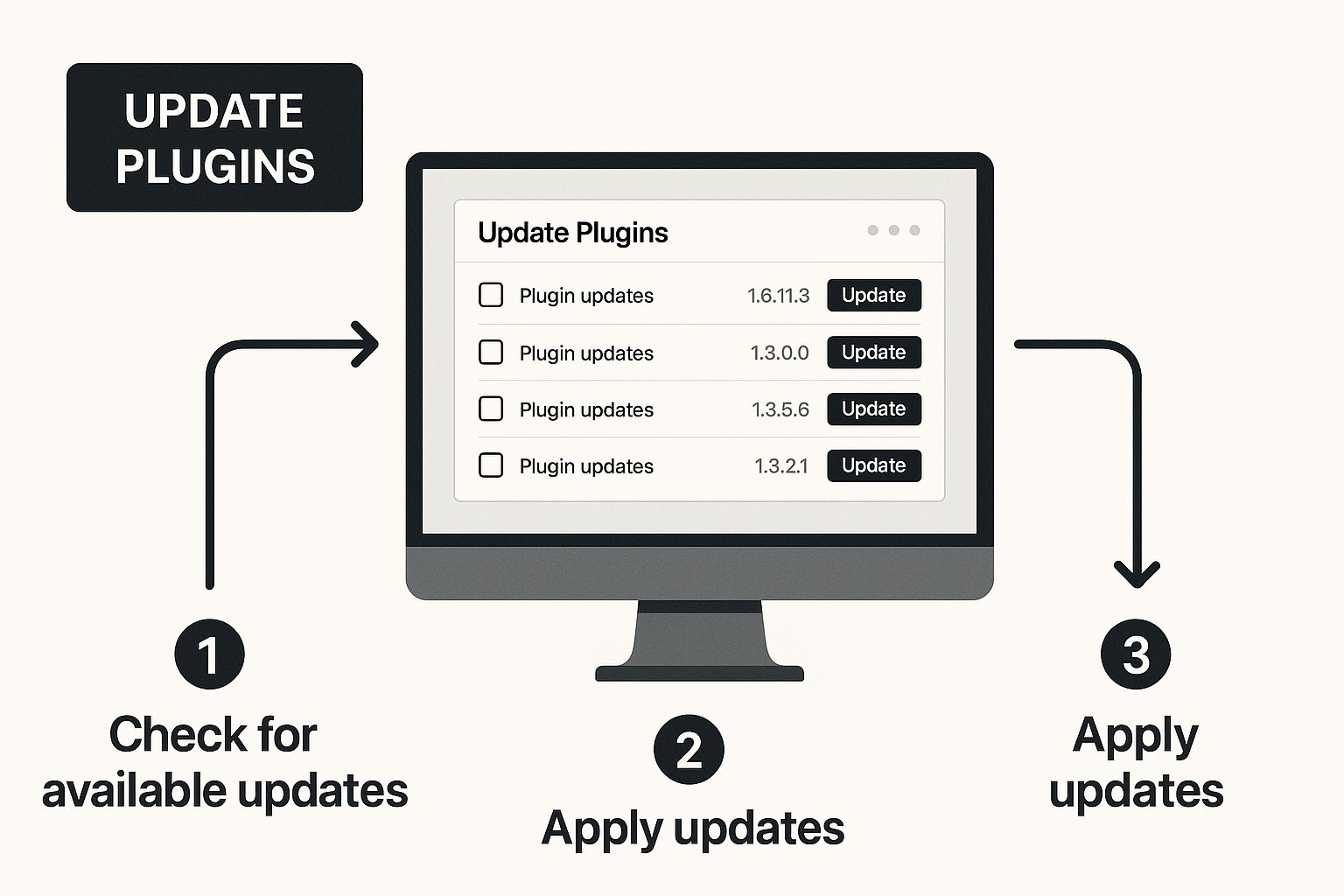
Seeing it laid out visually really drives home the point: updating is a procedure with testing at its heart, not just a button to click.
Your Secret Weapon: The Staging Site
Before you even think about touching your live site, you absolutely need a staging environment. This is your non-negotiable first step.
A staging site is essentially a private clone of your website. It’s a sandbox where you can test updates, mess with settings, and try your best to break things without any real-world consequences. If an update throws an error here, no big deal. Your live site is still humming along, serving visitors and making sales.
Most good web hosts these days offer one-click staging. If yours doesn't, you can use a plugin like WP Staging or BlogVault to create a copy. Trust me, making this part of your routine is the single best thing you can do for safe site maintenance. It turns a high-stakes guessing game into a controlled, stress-free experiment.
The Right Order of Operations
Once you're working safely on your staging site, there’s a specific sequence to follow that dramatically lowers the chance of conflicts. Don't just hit "update all." Following this order helps you immediately identify what went wrong, if anything does.
- Plugins First: Start with your plugins, as they are the most common source of trouble. Update them one by one. Yes, it’s a bit tedious, but it’s way better than spending hours trying to figure out which of the 15 plugins you just updated broke your contact form. Check a key page on your site after each one.
- Themes Second: After all the plugins are updated and you've confirmed everything still works, it's time for your theme. Update the parent theme, and then any child themes you might be using.
- WordPress Core Last: The very last thing you should update is WordPress itself. Core updates are usually very stable, but it's always best to apply them after you've confirmed all your plugins and themes are ready for the new version.
This deliberate, one-at-a-time process isolates every change. If the site breaks right after you update WooCommerce, you've found your culprit instantly.
Here's a pro tip: Always, always check the changelog before you update a plugin or theme. Click that little "View version X.X.X details" link. It tells you exactly what the developer changed. Keep an eye out for phrases like "major refactoring" or compatibility warnings—those are red flags that mean you need to test extra carefully.
What to Do When Updates Go Wrong
Even with the best preparation, things can still break. Maybe a plugin update conflicts with your site’s cache, or a theme change messes with your custom styling. This is where your staging site becomes your hero.
If something breaks, your first move is to figure out what caused it. Since you updated everything one by one, this should be easy. Once you've identified the problem plugin or theme, you have a few options:
- Roll It Back: Use a backup or a plugin like WP Rollback to revert to the previous, working version.
- Contact the Developer: Head over to the support forum for that plugin or theme and let the developer know what happened. Be specific about the error.
- Look for an Alternative: If a plugin is causing consistent problems or seems abandoned by its developer, it might be time to find a better replacement.
Understanding the nuts and bolts of this process is crucial. For a deeper dive, check out our guide on why regular software updates matter for WordPress, which covers the huge security and performance perks. By building a safe update workflow, you get all the benefits without any of the heart-stopping risks.
Getting Practical: Hardening Your WordPress Security
Think of it this way: a well-maintained website is a secure website. While your backups and updates are the bedrock of your maintenance plan, proactively hardening your site's security is what slams the door on hackers looking for an easy target.
The idea isn't to build an impenetrable digital fortress—that’s nearly impossible. Instead, our goal is to add smart, practical layers of defense that discourage the most common attacks. You'd be surprised how many of these steps only take a few minutes but make a huge difference in your site's vulnerability.
Tighten Up User Access Controls
I've seen it time and time again: one of the weakest links in any site's security is human error, especially when it comes to passwords and permissions. By default, WordPress is a bit too trusting, but we can fix that without much fuss.
First things first, enforce strong password policies for everyone, especially Administrators and Editors. A strong password is more than just long; it's complex. You can grab a plugin that forces users to create passwords with a mix of uppercase and lowercase letters, numbers, and symbols.
Even better, set up two-factor authentication (2FA). This makes users prove who they are with a second code, usually from a smartphone app, on top of their password. This one move makes a stolen password almost completely useless to a hacker.
Here are a few other quick wins for locking down user access:
- Ditch the 'admin' Username: If your main admin account is still called "admin," change it right now. It's the very first thing bots try when launching a brute-force attack.
- Use Roles Wisely: Don't hand out Administrator access like candy. Assign each user the lowest permission level they need to do their job, like 'Editor' or 'Author'.
- Boot Idle Users: Automatically log out anyone who's been inactive for a while. This is a simple fix that prevents someone from hopping onto an unattended, logged-in computer.
Stop Brute-Force Attacks by Limiting Logins
A brute-force attack is exactly as aggressive as it sounds. Automated bots hammer your login page with thousands of username and password combinations, hoping one eventually works. It's one of the most common ways WordPress sites get compromised.
Luckily, it's also one of the easiest attacks to shut down. All you have to do is limit the number of failed login attempts allowed from a single IP address. After a few wrong guesses, the system temporarily blocks them, and their automated attack fizzles out.
Most good security plugins have this feature baked right in. You can usually set the number of retries and how long the lockout lasts. It's a simple setting with a powerful impact.
Get a Security Plugin and Actually Configure It
For most of us, a dedicated security plugin is the command center for hardening WordPress. These tools pack a ton of security features into one dashboard, making it easy to manage everything. The two names you'll hear most often are Wordfence and Sucuri, and for good reason.
A solid security plugin offers a whole suite of protections:
- Web Application Firewall (WAF): This is your digital bodyguard, filtering out shady traffic before it can even touch your website.
- Malware Scanner: It regularly combs through your site’s core files, themes, and plugins to find malicious code and other nasty surprises.
- Login Security: This is where you'll find features like 2FA and the login attempt limiter we just talked about.
- File Integrity Monitoring: You get an alert the moment a core WordPress file is changed, which is often a red flag for a hack.
Here’s a snapshot of the Wordfence dashboard. It gives you a clean, at-a-glance overview of your site's security posture.
This kind of central hub makes it easy to see firewall activity, recent login attempts, and any security issues that need your attention.
Proactive monitoring is the difference between catching a threat early and cleaning up a disaster. A good security plugin doesn't just block attacks; it gives you the visibility to understand what’s happening on your site.
Stay on High Alert with Active Monitoring
Hardening your site isn't a "set it and forget it" job. A huge part of ongoing maintenance is actually paying attention to the security logs and alerts. Your plugin will collect the data, but it’s on you to see what it means.
Get into the habit of checking your security dashboard at least once a week. Look for patterns. Are you seeing repeated login attempts from a specific country? Are bots constantly scanning for a particular file? This is gold, as it can help you tweak your firewall rules for even tighter protection. For a more detailed look at protecting your site, you can find great info in guides on WordPress security optimization.
When you get a security alert, act fast. If your plugin tells you a core file was modified or it blocked suspicious activity, don't ignore it—investigate. The quicker you identify and contain a potential breach, the less damage it can do. This vigilance turns your security from a passive shield into an active defense.
Keeping Your Site Fast and Responsive
A slow website is more than just an annoyance—it's a conversion killer. In a world where we expect everything instantly, a sluggish site sends visitors packing and tells search engines you don't offer a great experience. Performance tuning isn't a "set it and forget it" task; it's a vital part of your ongoing WordPress maintenance routine.
Think of your site like a performance car. Fresh off the lot, it's fast and sleek. But over time, without regular tune-ups, it gets bogged down. Keeping your site in top shape ensures it delivers a snappy, enjoyable experience for every visitor.
Tidy Up Your WordPress Database
Your WordPress database is the brain of your website, storing every post, page, comment, and setting. As you add content and plugins, it naturally gets bigger. But it also collects a surprising amount of junk that can seriously slow things down.
One of the worst offenders is post revisions. Every time you hit "save," WordPress squirrels away a copy. This is great for restoring old versions, but it quickly bloats your database with dozens of unnecessary copies of a single post. Another sneaky culprit is transients—temporary data that plugins use to speed things up but often forget to clean out later.
Regularly cleaning out this digital clutter is like spring cleaning your house; it just makes everything run more smoothly. You can automate this chore with a plugin like WP-Optimize or Advanced Database Cleaner. These tools can safely get rid of:
- Old post revisions and auto-drafts
- Trashed spam comments
- Expired transient data
- "Orphaned" data left behind by old plugins
This one simple step can make both the front end and back end of your site feel noticeably faster.
A clean database is the foundation of a fast website. Ignoring it is like trying to run a marathon with a backpack full of rocks—you’re just holding yourself back.
Get Smart with Image Optimization
Images are usually the heaviest things on a web page. Gorgeous, high-resolution photos look fantastic, but they can bring your site’s load time to a grinding halt. The trick is to strike the perfect balance between image quality and file size.
Thankfully, you don't have to spend hours in Photoshop resizing every single picture. Modern plugins like Smush, ShortPixel, or Imagify do the heavy lifting for you. They can automatically compress images on upload, often slashing file sizes by 50% or more with no visible drop in quality.
These tools also come with some other powerful features:
- Lazy Loading: A clever trick that only loads images as the user scrolls down the page. This makes the initial page load feel lightning-fast.
- Next-Gen Formats: They can convert your images to modern formats like WebP, which offers much better compression than old-school JPEGs and PNGs.
Setting up an automated image optimization process is a huge win. Your site stays fast, and you don’t have to think about it again.
Unleash the Power of Caching
If there’s one "magic bullet" for website speed, it’s caching. Put simply, caching creates a static HTML copy of your pages. When a visitor arrives, the server can send them that copy almost instantly instead of having to rebuild the page from scratch every single time. This dramatically cuts down server load and makes your site fly.
Plugins like WP Rocket or W3 Total Cache make setting this up a breeze. With just a few clicks, you can enable page caching, browser caching, and other powerful tweaks that can shave seconds off your load times.
The complexity and traffic of a WordPress site are major drivers of maintenance efforts. High-traffic websites with e-commerce or membership features require more frequent performance tuning, robust caching, and database cleanups to handle the load and defend against increased threats. Discover more insights about how site complexity impacts maintenance on wpkraken.io.
Find and Fix Bottlenecks with the Right Tools
You can't fix what you can't see. That's where tools like Google PageSpeed Insights come in. They’ll scan your site and give you a detailed report card, complete with a performance score and a list of specific things you can do to improve it.
Don’t obsess over getting a perfect 100/100 score. The real gold is in the "Opportunities" section. This is Google telling you exactly what's holding your site back, whether it's massive images, clunky code, or a slow server.
Treat this report as your action plan. If it complains about large images, you know it's time to run your optimization plugin. If it mentions a slow server response time, you might need to have a chat with your hosting provider. To understand how all this ties into getting found online, exploring some general SEO principles can connect the dots.
By making database cleanups, image optimization, caching, and regular performance checks part of your routine, you’re building a solid foundation for a fast site. And if you're ready to go even deeper, check out our complete guide on WordPress website speed optimization. This consistent effort is what keeps your site quick, responsive, and ready to turn visitors into happy customers.
How to Budget for WordPress Maintenance
Figuring out what you should spend on WordPress maintenance is a critical step in protecting your website. It’s not about finding a magic number; it’s about making a smart investment based on how complex your site is and how comfortable you are with the technical side of things.
For a lot of people, the real cost isn't just dollars and cents—it's time. Going the DIY route might look like the cheapest option on paper, but you have to factor in the hours you'll spend tinkering and troubleshooting. That's time you could be using to actually grow your business.
Different Paths to Maintenance
When it comes to keeping your site in shape, you’ve got three main options. Each one comes with a different price tag and level of hands-on work, so understanding them will help you match your budget to what your website truly needs.
- The DIY Approach: This is where you roll up your sleeves and handle everything yourself. Your main expenses will be premium plugins for things like backups, security scans, and performance boosts, which typically run between $15 and $60 per month. This path is a great fit if you're tech-savvy and have the time to dedicate to regular maintenance tasks.
- Hiring a Freelancer: A freelancer can give you a more personal level of service, often for less than what an agency would charge. Rates can vary a lot, but you can generally expect to pay somewhere between $50 and $150 per hour for one-off fixes or a set monthly fee for ongoing care.
- Partnering with an Agency: This is your all-inclusive, worry-free option. Agencies offer complete maintenance packages that cover all the bases—updates, security, performance tuning, and expert support. It’s the best choice for peace of mind.
What Influences the Cost
The price for professional WordPress maintenance isn't just pulled out of thin air. It’s directly tied to what your site does and how complicated it is. A simple brochure website is a whole different beast to maintain compared to a massive e-commerce store processing hundreds of orders a day.
I always tell clients, the question isn't "How much does maintenance cost?" The real question is, "What's the cost of not doing maintenance?" A single security breach or a day of downtime can easily wipe out thousands in lost sales and emergency repair bills. Suddenly, that monthly maintenance fee looks like a pretty good deal.
The costs can swing wildly, from as little as $10 per month for a personal blog to over $10,000 monthly for enterprise-level sites. For example, a basic personal site might land in the $10 to $50 monthly range. In contrast, a complex online store could easily need a budget of $300 to $5,000 (or more) each month to manage its advanced features and high traffic. You can get a deeper dive into how website complexity affects maintenance costs at statewp.com.
In the end, your budget should be a reflection of your site’s importance. If your website is the engine of your business, investing in a solid, professional maintenance plan isn't an expense—it's one of the smartest business decisions you can make.
WordPress Maintenance Questions Answered
When you start digging into WordPress maintenance, you'll find a few questions pop up again and again. Let's tackle some of the most common ones I hear from clients and in workshops. This should clear up any confusion and give you the confidence to handle these tasks yourself.
What Is the First Thing I Should Do?
Before you even think about clicking that "update" button, always, always back up your entire site. Think of it as your digital insurance policy. If a plugin update goes sideways or your site suddenly crashes, having a fresh backup means you can restore everything in minutes. It turns a potential catastrophe into a minor hiccup.
How Often Should I Check for Updates?
For most sites, checking in once a week is a solid routine. You'll find that plugins and themes get patched for security issues all the time, often without much warning. Staying on top of these updates is your best bet for keeping hackers out. Major WordPress core updates are less frequent, but you should install them as soon as they’re released and stable.
The most common source of WordPress hacks isn't some brilliant, complex attack. It's usually just an old, outdated plugin with a vulnerability that everyone knows about. Regular updates are your strongest shield.
Can Maintenance Really Improve My SEO?
It absolutely can, and the effect is more direct than you might think. Search engines, especially Google, reward sites that are fast, secure, and provide a good user experience. The work you do during maintenance—like compressing images, cleaning up your database, and making sure your site is secure—directly impacts these areas. Over time, a well-maintained site is simply more likely to rank higher.
Keeping your website in peak condition doesn't have to be a solo mission. At OneNine, we specialize in comprehensive website management, taking the technical worries off your plate so you can focus on your business. Discover how our team can support your online presence at https://onenine.com.


