

Ever seen an error message pop up and wondered if your internet was on the blink? With a server error, the problem isn't on your end. It’s a sign that something has gone wrong on the website's side of the equation.
It’s completely a server-side issue, which means you, the visitor, can’t directly fix it. The ball is in the website owner's court.
So, What Is a Server Error, Really?
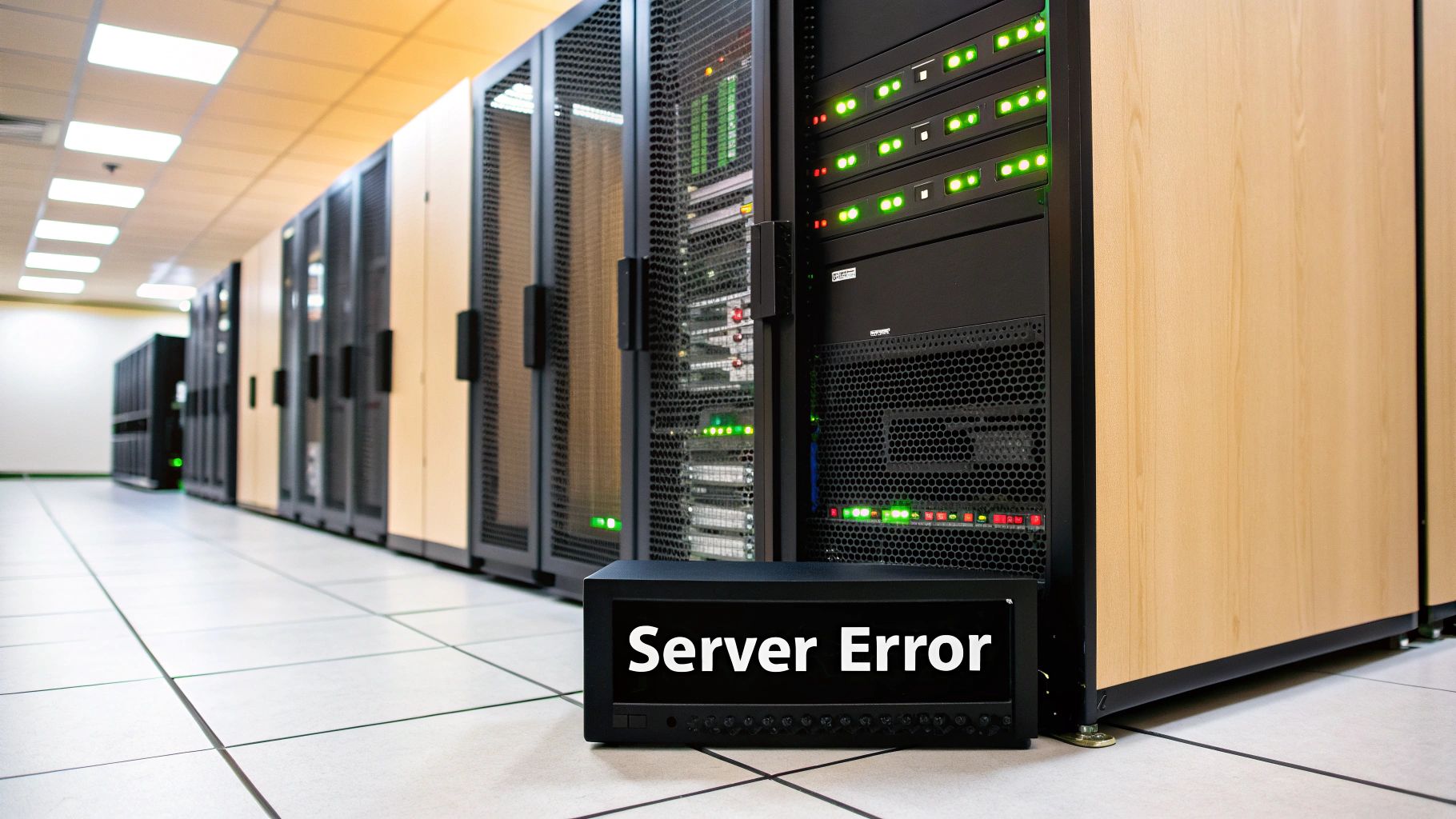
Think of a website like a busy restaurant. When you click a link, you're placing an order. Your browser sends that request to the website's server, which acts like the restaurant's kitchen. Its job is to whip up the webpage you asked for and serve it to you.
A server error is the kitchen sending a message back saying, "Sorry, we can't make that right now." The issue isn't with your order (your request) or the waiter (your browser). The hiccup is happening behind the scenes, deep in the kitchen.
This could be due to anything from a sudden power outage to a key "ingredient" (like a piece of code or a database connection) going missing.
It might surprise you how often these errors trace back to simple human mistakes. In fact, a recent report found that nearly half of all major data center outages are caused by staff not following the proper procedures. It just goes to show how often a "technical" problem is really a people problem. You can dig deeper into the human side of IT downtime and its worldwide effects over at Cybersecurity Ventures.
To put it all in simple terms, here's a quick reference for what a server error means when you run into one.
Server Error at a Glance
| Key Question | Simple Answer |
|---|---|
| What is it? | A technical problem on the website's server. |
| Who is responsible? | The website owner or their technical team. |
| What should I do first? | Wait a minute, then refresh the page. |
Essentially, it's a waiting game. The best first step is usually the simplest: a little patience and a quick refresh.
Decoding Common 5xx Server Errors
Not all server errors are the same. While any "5xx" code points to a problem on the website's end, the specific number is a clue about what’s really going on behind the scenes. Think of it like getting different alerts from a restaurant kitchen when your order hits a snag.
The infographic below breaks down the most frequent errors, showing how they all stem from server-side issues but have very different causes.
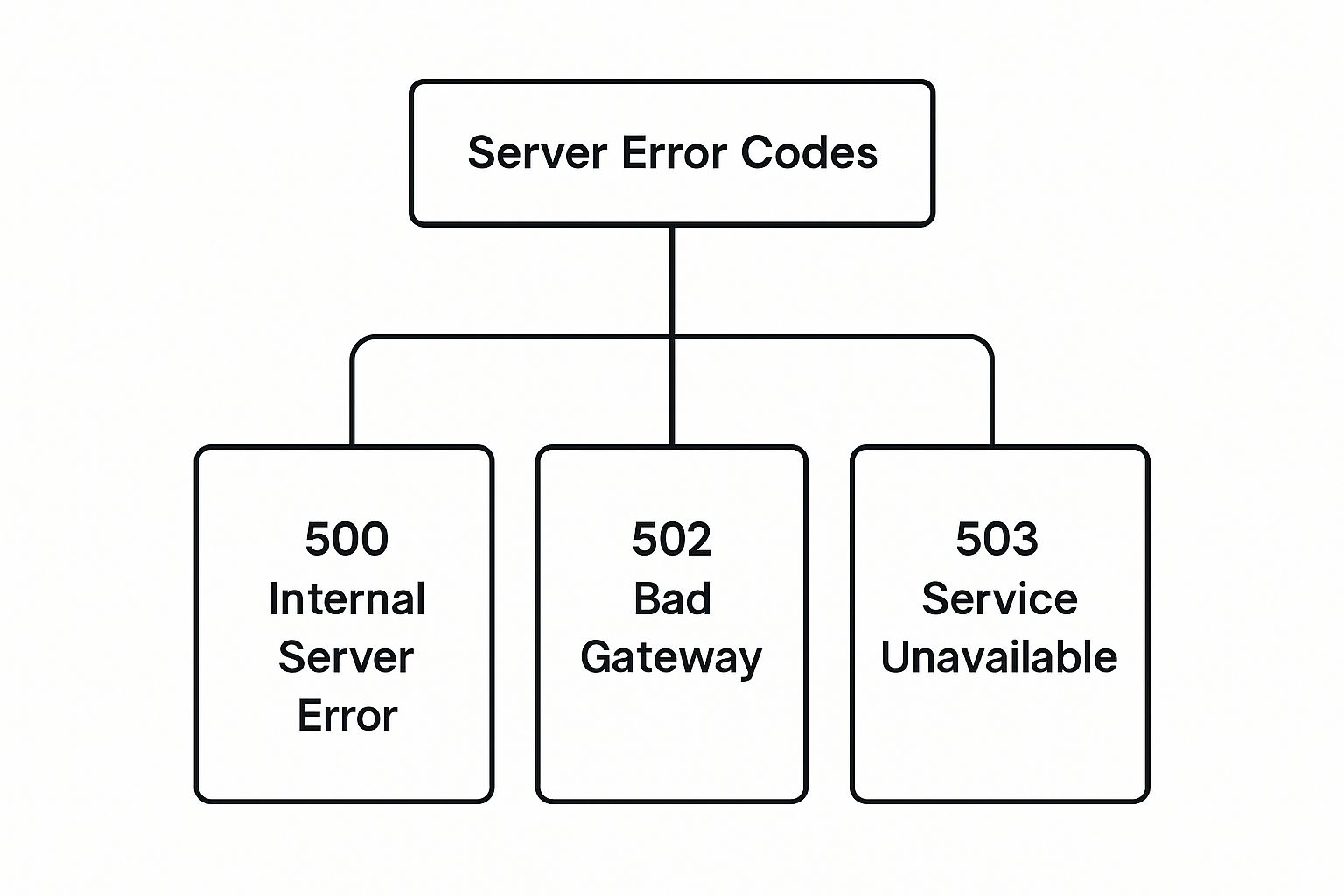
As you can see, the problem is always on the server's side of the conversation. But whether it's an internal breakdown or a communication failure with another system makes a big difference.
The 500 Internal Server Error: A Vague "Something's Wrong"
The 500 Internal Server Error is the most common and, frustratingly, the least specific message. It’s the server’s equivalent of a check engine light. You know there's a problem, but you don't know if it's a loose gas cap or a full-blown engine failure.
This error is a catch-all for unexpected conditions. It could be a simple programming mistake in the website's code, a permissions issue, or a corrupted .htaccess file. From a user's perspective, there's not much to do but wait for the site's technical team to figure it out.
When Servers Can't Talk to Each Other
Some 5xx errors are all about miscommunication between different servers. Modern websites often rely on multiple systems working together. When one part of that chain breaks, you get an error.
- A 502 Bad Gateway happens when one server gets a garbled or invalid response from another server it depends on. It's like asking a colleague for a specific report and getting back a document in a language you can't read. The information is bad.
- A 504 Gateway Timeout means one server asked another for information but never heard back. It waited and waited, then finally gave up. The request simply timed out.
Think of it this way: a 502 error is about getting a bad answer, while a 504 is about getting no answer at all.
The 503 Service Unavailable: "Sorry, We're Closed"
Finally, a 503 Service Unavailable error is pretty straightforward. It’s like showing up to your favorite coffee shop to find a "Closed for Maintenance" sign on the door. The server is up and running, but it's deliberately not accepting requests right now.
This is often intentional. The site might be down for planned maintenance or completely overwhelmed with traffic—like a tiny cafe getting hit with a tour bus of customers all at once. Usually, this is a temporary state.
To make things even clearer, here’s a quick-glance table summarizing these common server errors.
Decoding Common 5xx Server Error Codes
| Error Code | Simple Analogy | What You Can Do |
|---|---|---|
| 500 Internal Server Error | The kitchen shouts, "Something broke!" but won't say what. | Wait for the website team to fix the unknown issue. |
| 502 Bad Gateway | The head chef got bad ingredients from the supplier. | This is a server-to-server problem; you have to wait. |
| 503 Service Unavailable | The restaurant is temporarily closed for maintenance or is too busy. | Try again in a little while; it's usually temporary. |
| 504 Gateway Timeout | The supplier never delivered the ingredients the chef needed. | Another server communication issue. Waiting is the only option. |
These codes give you a starting point for understanding what's happening when a website fails to load. While you can't fix them yourself, knowing the difference can tell you whether to hit refresh in a minute or come back later.
Why Do Server Errors Happen in the First Place?
It’s one thing to know what a server error is, but understanding why they happen is the real key. These errors aren’t just random glitches. They're specific signals that something has gone wrong on the website's server—the powerful computer that hosts the site and sends it to your browser. Think of them as symptoms of a bigger problem.
One of the most common culprits is simple server overload. Picture a small coffee shop suddenly mobbed by a hundred customers at once. The baristas would be overwhelmed, orders would get mixed up, and the whole system would grind to a halt. A web server is no different. When it gets hit with more traffic than it's built to handle, it can't keep up with all the requests and starts to fail. This often happens during a viral marketing campaign or a sudden traffic surge from a news story.
Keeping your server running smoothly under pressure is crucial. If you're interested in the technical side, you can learn more about how to reduce server response time.
Software and Configuration Issues
Another huge source of server errors is the software running the website itself. A website is a complex machine with many moving parts—the core platform, plugins, custom code—all working together. If just one of those parts breaks, the whole thing can fall apart.
Here are some common software-related troublemakers:
- Bugs in the Code: A simple coding mistake can cause the server to crash or respond incorrectly when a user tries to do something specific.
- Outdated Plugins or Themes: Many sites rely on third-party tools for extra features. If these aren't updated, they can clash with new software and trigger an error.
- Messed-Up Configurations: A single typo in a server configuration file can be enough to take an entire website offline. It's a small mistake with a massive impact.
These issues are more than just an inconvenience. According to a study from the University of Maryland, cyberattacks—which often exploit these exact kinds of misconfigurations—happen more than 2,200 times a day. The stakes get even higher when remote work is involved, adding over $173,000 to the average cost of a data breach.
A server error is often just the tip of the iceberg. It signals an underlying issue—be it code, configuration, or capacity—that the website's team must diagnose and resolve behind the scenes.
Finally, not all errors are accidental. Sometimes, you'll see a 503 Service Unavailable error because the site is down for scheduled maintenance. In this case, the error is intentional—it’s just a temporary "We'll be right back!" sign while developers are making improvements.
Your Simple Troubleshooting Checklist

When you run into a server error, it’s easy to feel a bit stuck. After all, the problem isn't on your computer, it's on theirs. But before you throw your hands up, there are a few simple things you can try from your end.
Think of it like checking if a lamp is unplugged before you start taking it apart. These quick checks can often rule out a local glitch or confirm if the site is truly down for everyone.
Start With the Basics
Let’s walk through the easiest and most common fixes first. These steps are surprisingly effective for temporary hiccups and don't require any technical know-how.
-
Refresh the Page: It’s the oldest trick in the book for a reason. Sometimes, a brief network hiccup or a momentary server overload is all it takes to trigger an error. Hitting F5 (or Cmd+R on a Mac) sends a brand-new request, and you might find the server is happy to cooperate this time.
-
Wait and Try Again: A little patience can go a long way. If a site is having issues, its technical team is almost certainly scrambling to fix it. Give it five or ten minutes, then come back and try that refresh again. This is especially true for errors like the 503 Service Unavailable, which are often resolved quickly.
-
Clear Your Browser Cache and Cookies: Your browser can sometimes cling to old, broken data from a previous visit. Clearing your cache and cookies forces it to download a completely fresh version of the site, which can solve the issue if the problem has been fixed on the server's end but your browser just didn't get the memo.
Rule Out Local Problems
If those first steps don't do the trick, the next move is to figure out if the problem is specific to your setup. This helps you know whether to keep trying or just sit back and wait for them to fix it.
The whole point of troubleshooting is to quickly find out if the problem is something you can control. Checking your browser and cache is the fastest way to get that answer.
For a deeper dive into identifying all sorts of website issues, not just server errors, this guide on how to check your website for errors is a fantastic resource.
The Business Impact of Server Downtime
As a visitor, hitting a server error is a minor roadblock—a momentary frustration. But flip the script, and for the business behind that website, the same error is a full-blown crisis with real financial and reputational consequences.
Every moment your site is offline, you're bleeding potential sales. Imagine an online store’s server crashing right as a customer is about to pay. That sale isn't just delayed; it's likely lost forever. Beyond the immediate financial hit, frequent errors chip away at your brand's credibility, making you look unreliable or even insecure to potential customers.
Financial and Operational Costs
The price tag on server problems can be staggering. In 2024, the average cost of a single data breach climbed to an eye-watering $4.88 million globally. While not every server error is a security breach, it can certainly open the door to one. In fact, a whopping 70% of breaches cause major disruptions to business operations.
Frequent server errors send a clear signal to search engines like Google: this website isn't reliable. Over time, this can seriously damage your search rankings, making it much harder for new customers to discover you.
Downtime doesn't just frustrate your current users; it actively harms your ability to attract new ones by tanking your SEO. It's worth understanding how server performance impacts Google crawl rate to see just how deep the connection goes.
This is exactly why businesses invest so much in solid infrastructure and proactive strategies, like the ones we cover in our guide on 7 tips to prevent website downtime.
When and How to Report the Error
So, you’ve tried refreshing the page and clearing your cache, but that pesky error message is still there. Now what? It’s time to shift from basic troubleshooting to reporting the problem.
First, you need to figure out if the problem is on your end or if the whole site is down. This simple step helps you know what you’re dealing with—is it a massive outage affecting everyone, or a more specific glitch hitting just a few people?
A quick way to check is by using a third-party tool like Downdetector. I also find it’s worth checking the company's official social media pages, like X (what we used to call Twitter) or Facebook. Smart companies usually post updates there pretty quickly when something goes wrong.
Writing a Helpful Support Ticket
If it seems like the problem is just you, or if the company hasn't posted any updates, your next move is to contact their support team. A well-written report can make a huge difference. It turns you from just another frustrated user into a valuable partner, giving their technical team the exact clues they need to fix things faster.
A great error report gives the support team the 'what, where, and when' of the problem. The more details you can provide, the easier it is for them to track down and squash the bug.
When you reach out, try to include these key pieces of information in your message:
- The Exact Error Code: Be specific. Instead of just saying "the site is broken," say you're seeing a "500 Internal Server Error" or a "504 Gateway Timeout."
- The Specific Page URL: Copy and paste the full web address of the page that’s giving you trouble.
- What You Were Doing: Give them a little context. Were you "trying to log in," "adding an item to the cart," or "submitting a form"?
- The Time It Happened: A simple timestamp helps them match your report to their server logs, which is incredibly helpful for their investigation.
Providing these details helps them connect the dots. For those who manage their own sites and want to get ahead of these issues, learning how to monitor website uptime effectively is a game-changer. And if you're completely stuck and need a professional to step in, you can always ask experts for assistance.
Got Questions About Server Errors? We’ve Got Answers.
When a website suddenly breaks, it's natural to have questions. What just happened? Is it my computer? Is it dangerous? Let's clear up a few of the most common concerns people have when they run into a server error.
Can a Server Error Give My Computer a Virus?
Nope, not a chance. A server error is simply a message from the website's server saying it can't fulfill your request right now.
Think of it like getting a "return to sender" notice in the mail. The problem is with the sender's address (the server), not your mailbox (your computer). It's a communication breakdown on their end, and it poses no security threat to you.
Isn't a 404 "Not Found" Message a Server Error?
That's a great question, and it's easy to get them mixed up. But they're actually two different types of problems.
A 404 error is a client-side error. The server is up and running just fine, but it couldn't find the specific file or page you asked for. It's like asking a librarian for a book that isn't on the shelf.
A 5xx server error is a server-side error. This means the server itself is having a problem—it's sick, overloaded, or misconfigured—and can't do its job properly. The librarian, in this case, isn't at their desk.
The easiest way to remember it is: a 404 error means "I can't find that page," while a 5xx error means "I can't work right now."
How Long Until a Server Error Is Fixed?
This is the classic "how long is a piece of string?" question. The fix time really depends on what broke.
A minor hiccup, like a quick server restart, might be resolved in just a few minutes. But if the issue is more serious—say, a hardware failure or a complex software bug—it could take the website's technical team several hours to diagnose and repair.
If you're running a business, you can't afford to have your customers greeted by error messages. At OneNine, we provide expert website management and support to keep your site online, running fast, and free of these kinds of issues. Learn more about how we can help.


