

Ever had that sinking feeling when your website traffic suddenly tanks, a key form stops working, or worse, you find a security issue out of the blue? I've been there. More often than not, the culprit is a tiny, untracked change—someone accidentally updated the robots.txt file, a new plugin created a conflict, or a "minor" headline tweak completely destroyed a page's keyword ranking.
This is where proactive website change tracking comes in. It's about getting ahead of problems instead of constantly putting out fires. Think of it less as a technical chore for your dev team and more as a core business strategy to protect your most important digital asset.
Safeguard Your Digital Investment
Your website isn't a static brochure; it's a dynamic, complex machine. Every little tweak can have ripple effects. An unmonitored update might break your checkout flow, costing you real money. A small change to a high-converting landing page could slash its effectiveness, and you might not even notice for weeks.
Having a system to track changes gives you a crucial safety net. It allows you to:
- Protect SEO Rankings: Get an instant heads-up if someone modifies meta titles, headers, or internal links that could torpedo your search visibility.
- Ensure Brand Consistency: Be alerted when fonts, colors, or logos are altered, so you can maintain a polished, professional brand image.
- Improve Security: Quickly spot unauthorized code injections or weird file changes that could be the first sign of a security breach.
By keeping a clear audit trail, you stop guessing and start managing. You'll know exactly who changed what, when, and why, which makes troubleshooting faster and holds everyone accountable.
This kind of systematic oversight is non-negotiable for a strong digital presence. It's just as important to monitor your website's health as it is to monitor your marketing campaigns. For a deeper look into optimizing your ad spend, this guide on mastering advertising effectiveness measurement is an excellent resource.
A Growing Strategic Need
This isn't just my opinion; the market trends back it up. The global demand for Website Change Monitoring Software is exploding. Forecasts predict the market will hit around USD 2,500 million by 2025, with a compound annual growth rate of roughly 15%. This huge growth highlights how critical real-time monitoring and threat detection have become for businesses of all sizes. You can read more about these trends in this market analysis report.
At the end of the day, tracking changes is a core piece of any solid website maintenance plan. It shifts your perspective from being reactive to being strategic. To learn what else should be in your maintenance checklist, check out our guide on what website maintenance should include.
Choosing Your Website Change Tracking Method
Picking the right way to keep an eye on your website isn't a one-size-fits-all deal. A small business owner running a simple blog has completely different needs than a development agency juggling dozens of complex client sites. The best approach for you really comes down to your team's technical comfort level, your budget, and what, specifically, you’re trying to protect.
https://www.youtube.com/embed/w1m6poGgVzU
Let’s walk through the four main ways people tackle this. Each one has its own strengths and is built for different kinds of users and goals. Getting a feel for them will help you land on a strategy that fits your workflow, not one you have to fight with.
Automated Monitoring Tools
For most non-technical users, this is the easiest and fastest way to get started. Automated monitoring tools are essentially watchdogs for your website. You give them a URL, and they periodically check it for any changes—from a single word to a whole new design—and shoot you an alert the moment they spot something different.
The beauty is in their simplicity. You just plug in a URL, maybe highlight the part of the page you care about most, and tell it how often to check. That's it.
- Best For: Marketers, business owners, and agencies who need a simple, set-and-forget solution.
- What It Tracks: Text, images, chunks of code, and even subtle design shifts. No technical setup on your end is required.
- Key Advantage: It’s an absolute game-changer for competitive analysis. Imagine getting an email the second a competitor tweaks their pricing or rolls out a new feature.
This type of monitoring is often called synthetic monitoring because it proactively simulates a user to check for issues. If you're curious about how that compares to tracking what actual visitors experience, our guide on RUM vs. synthetic monitoring breaks down the key differences.
Version Control Systems (Like Git)
When you get into the world of developers and technical teams, version control is the undisputed champion. A system like Git acts as a meticulous history book for your website’s source code. It logs every single line that’s added, deleted, or changed, along with who made the change and precisely when.
This method gives you ultimate control. If a new update goes live and breaks something, you can instantly "roll back" your code to a previous, stable version with a single command.
Think of Git like the "Track Changes" feature in a Google Doc, but for your entire website's codebase. It’s what allows multiple developers to work on the same project without constantly overwriting each other's work.
Deciding what to protect is the first step in choosing your method.
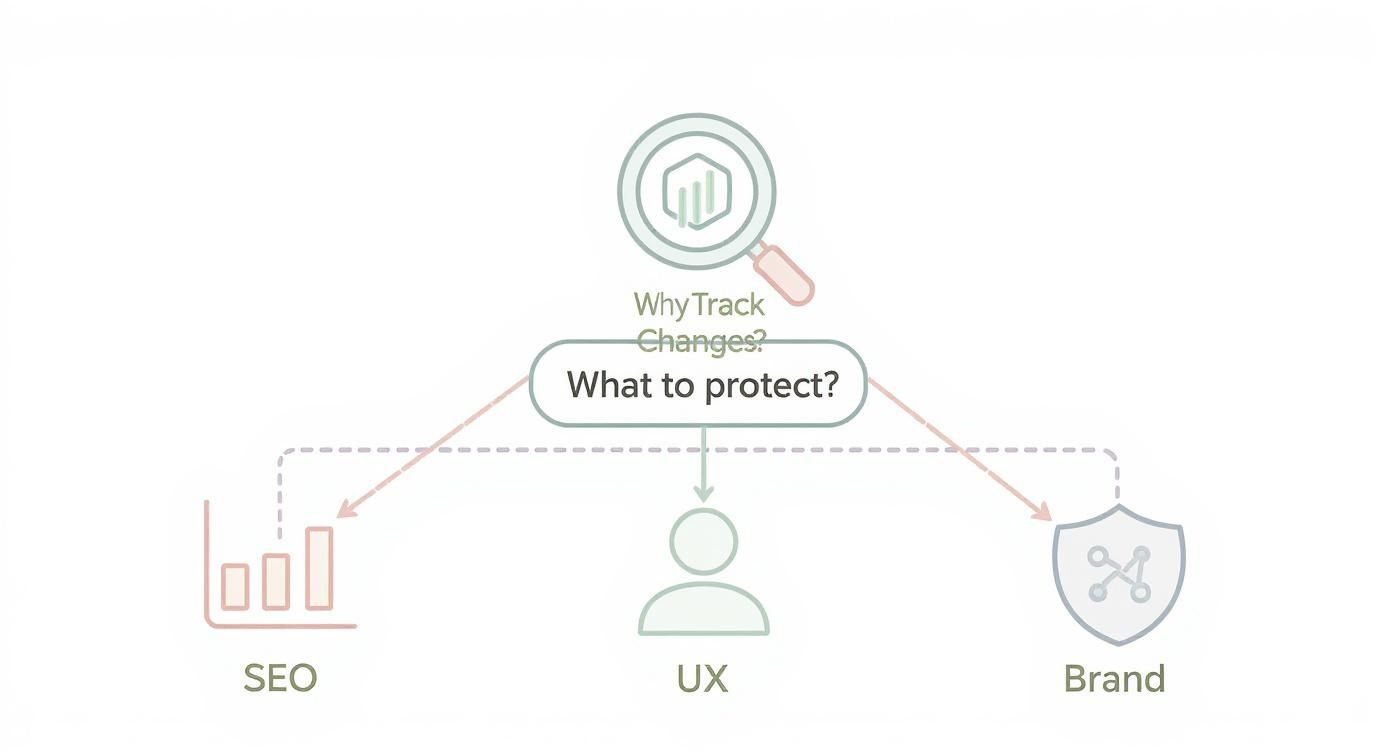
Whether your top priority is preserving your SEO rankings, maintaining a smooth user experience, or protecting your brand's image, a dedicated tracking strategy is your first line of defense.
Platform-Specific Audit Logs
This is one you might already have without realizing it. Most modern content management systems (CMS) like WordPress, Shopify, and Webflow have built-in logs that track user activity. You’ll usually find them under names like "Audit Log," "Activity Log," or "Change History."
These logs give you a straightforward, chronological list of actions taken inside your website’s admin area. You can see who logged in, which blog post was updated, or when a new plugin was installed.
While they aren’t nearly as granular as Git, these logs are incredibly valuable for content teams. They create clear accountability without needing anyone to touch a line of code. For instance, if a page’s SEO title is suddenly changed for the worse, the audit log will tell you exactly which user made the edit and when.
Visual Regression Testing
This is a more specialized, but incredibly powerful, method that focuses entirely on what your website looks like. Visual regression tools work by taking pixel-by-pixel screenshots of your web pages and comparing them over time. If a new update causes even a single pixel to be out of place, the system flags it as a change.
This is a must-have for brands where design consistency is non-negotiable. It catches the subtle visual bugs that other monitoring methods would completely miss, like:
- A button shifting 5 pixels to the left.
- The wrong font loading on Firefox for Mac.
- An image appearing slightly stretched or distorted.
Designers and front-end developers swear by this method to ensure code updates don't accidentally wreck the user interface. It's the ultimate quality check for guaranteeing your site looks exactly how you designed it, every single time.
Comparing Website Change Tracking Methods
Feeling a bit overwhelmed? Don't be. This quick comparison should help you pinpoint the best method based on your skills, goals, and platform.
| Tracking Method | Best For | Technical Skill Required | Primary Use Case |
|---|---|---|---|
| Automated Monitoring | Marketers, SMBs, Agencies | Low | Competitive analysis, uptime checks, simple content/design monitoring. |
| Version Control (Git) | Developers, Technical Teams | High | Tracking code-level changes, collaboration, and safe rollbacks. |
| Platform Audit Logs | Content Managers, Editors | Low | Monitoring user activity and content changes within a CMS. |
| Visual Regression Testing | Designers, Front-End Devs | Medium | Catching visual bugs and ensuring design consistency after updates. |
Ultimately, the goal is to find a system that gives you peace of mind. For some, that’s a simple email alert. For others, it’s a detailed commit history. The best method is the one you’ll actually use consistently.
Getting Your Automated Monitoring System Set Up
If you're looking for the easiest and most direct way to start tracking website changes, automated tools are your best bet. They cut through the technical jargon and give you actionable insights right away. Let's walk through how to get a monitoring system up and running from scratch.
The good news is, getting started is surprisingly simple. Most modern tools like Visualping are built for non-technical folks, so you can have a powerful monitor running in minutes, not hours. The whole idea is to point a digital "watchdog" at a URL, tell it what to look for, and how often to check.
Kicking Off Your First Monitor
It all starts with a URL. Just grab the web address you want to keep an eye on—it could be your homepage, a competitor's pricing page, or a critical product page. Once you plug it into the tool, you'll usually see a visual interface that lets you select the exact part of the page you care about.
This step is crucial. Instead of getting hammered with alerts for every minor change (like a rotating "deal of the day" banner), you can focus on what actually matters.
- For an online store: You might highlight just the price and the "in stock" status.
- For a landing page: You could select the main headline and the call-to-action button.
- For SEO purposes: You can even tell the tool to watch the page's source code for changes to meta tags or canonical links.
By zeroing in on specific elements, you make sure your alerts are meaningful, turning a simple change detector into a genuinely useful business tool.
Dialing in Your Check Frequency and Alerts
Once you’ve told the tool what to watch, you need to decide how often it should check. This isn’t a one-size-fits-all situation. The right frequency really depends on how important and dynamic the page is.
A critical checkout page might need a check every 5-15 minutes to catch issues that could be costing you sales. On the other hand, a static "About Us" page probably only needs a daily check-in.
Next up: alerts. Email is the default, but most services now hook into other platforms. You can often pipe notifications directly to places like:
- A dedicated Slack channel: Perfect for giving your marketing or dev team an instant heads-up.
- Project management software: Automatically create a task in Asana or Trello when a change is detected.
- Custom webhooks: For more advanced workflows, you can send the data to other apps you use.
This flexibility lets you plug change monitoring right into your team's existing workflow, so the right people get the right info at the right time.
Pro Tips for More Advanced Monitoring
Got the basics down? Great. Now you can start monitoring some less obvious, but critically important, parts of your website. These are the kinds of checks that can save you from a major headache later on.
First, keep an eye on your robots.txt file. This little text file tells search engines how to crawl your site. A single accidental change—like adding Disallow: /—can tell Google to stop indexing your site entirely, which would tank your search traffic overnight. Setting up a monitor for yourdomain.com/robots.txt is an essential SEO safety net.
Another powerful move is to use these tools for competitive intelligence. Set up monitors on your competitors' key pages to get instant alerts when they:
- Change their pricing or launch a sale.
- Tweak the messaging on their homepage.
- Publish a new blog post or case study.
This gives you a real-time feed of their strategy, helping you react quickly and stay ahead. Manually tracking this stuff is impossible—as of 2025, an estimated 252,000 new websites launch every single day. This explosion, part of the 50 billion web pages indexed by Google, makes automated detection a flat-out necessity. You can learn more about this growth by exploring the latest trends in website monitoring.
Finally, don't forget to monitor for visual changes, not just text or code. A visual comparison can catch things other methods miss, like a broken image, a button that’s out of place, or a font that didn't load. These small visual bugs can seriously erode user trust. By mixing different types of monitoring, you build a comprehensive safety net that protects your site from every angle.
Using Version Control and Platform Logs
For teams that are a bit more hands-on with their website's code or have a dedicated development process, you can get incredibly detailed by using version control systems and built-in platform logs.
This isn't about just seeing what a page looks like. This is about tracking the very foundation of your site—the code itself and every action taken within your CMS. These methods give you a precise, permanent record of every single update.

It’s the perfect approach for anyone who needs rock-solid stability and accountability. You'll know every modification was deliberate, documented, and, if something goes wrong, completely reversible.
Embracing Git for Code-Level Tracking
At its heart, version control is a time machine for your website's codebase. The most popular system by a long shot is Git. It creates a complete history of every single line of code that gets added, removed, or changed. Just think of it as a detailed ledger that lets developers work together without stepping on each other's toes.
But it’s not just about logging changes; it's about managing them. Git lets multiple developers work on different features at the same time in separate "branches." Once a feature is ready, it's merged back into the main project. This workflow is a lifesaver, preventing one person’s work from accidentally wiping out another's.
Here’s a classic real-world scenario: a developer pushes an update that breaks your checkout process. Total nightmare, right? With Git, there’s no panic. The team can instantly roll the site back to the last stable version with a single command. The site is back online in minutes, and they can figure out what went wrong without the pressure of a live outage.
Git provides the ultimate safety net for development. It’s the difference between a minor hiccup fixed in minutes and a major outage that costs you hours of downtime and real money.
A great practice to adopt alongside Git is maintaining a comprehensive changelog. This serves as a human-friendly summary of all the modifications, complementing Git's technical history. It makes it easy for everyone on the team—not just the developers—to see what’s new in each update.
Diving into Platform Audit Logs
You don't always need a developer-focused tool like Git to get a solid audit trail. Most content management systems (CMS) come with built-in activity logs, and they are incredibly handy for keeping tabs on changes made by the whole team, especially non-technical folks.
These logs give you a straightforward, chronological list of actions taken right inside your website’s admin area. They answer the big questions: who did what, and when?
Here's where you can typically find them on common platforms:
- WordPress: While WordPress core is a bit light on this, fantastic plugins like Jetpack or WP Activity Log fill the gap perfectly. They track everything from user logins and plugin updates to every little content edit.
- Shopify: Shopify has an excellent built-in "Activity log" (just go to Settings > Store activity). It shows every change made to products, orders, themes, and even staff permissions. It's a must-have for busy e-commerce teams.
- Webflow: In Webflow, the Site Activity log (found in Site Settings > Activity) gives you a crystal-clear overview of publishes, backups, and collaborator edits, so you always know who pushed the latest version live.
These logs are the perfect bridge between deep code changes and everyday content updates. They foster a sense of accountability and make it much easier to troubleshoot issues that have nothing to do with code. For instance, if a key headline on a landing page is suddenly wrong, a quick peek at the activity log can show you who made the edit, making it simple to fix and follow up.
Combining Logs for a Complete Picture
For the most robust tracking, the best strategy is often a hybrid one: use version control for your code and platform logs for content and administrative changes. This approach creates a complete, 360-degree view of everything happening on your website, from a developer shipping a new feature to a marketer tweaking a blog post.
When you bring these different streams of information together, you get a much clearer understanding of how your site is evolving.
For teams ready to take this a step further, learning how to configure web server logs for centralized systems can pull all of this data into a single dashboard. This gives you one source of truth, making it even easier to connect the dots between different changes and maintain total control over your website.
Creating a Workflow for Team Collaboration
Just knowing that a website change happened is only half the battle. The real headache, especially when you have a team, is managing how it all gets done. Without a clear process, you’re basically inviting chaos—developers overwriting each other’s work, broken features going live, and marketing campaigns pointing to the wrong landing page. It gets messy, fast.

A solid workflow flips the script. Instead of reacting to problems, you start preventing them. It solves the "too many cooks in the kitchen" issue by creating a predictable path for every single update, whether it’s a tiny typo fix or a massive feature launch.
Defining Roles and Responsibilities
First things first: you need to decide who does what. Ambiguity here is a recipe for disaster. If people don't know what they own, things fall through the cracks.
You don't need a complicated corporate hierarchy. Just clarity. For most teams, it boils down to three core roles:
- Requestor: This is anyone on the team—marketing, sales, support—who spots the need for a change.
- Implementer: The person who actually makes the change. This could be a developer for code, a designer for UI tweaks, or a content editor for a blog post.
- Approver: The final gatekeeper. Think of them as the team lead, manager, or client who gives the final "yes" before anything goes public.
In a small business, one person might wear all three hats. On a bigger team, these roles could be entire departments. The point is to make sure every change has a clear owner at every stage of its life.
Building a Staged Deployment Process
With roles established, you can build a simple but incredibly effective workflow. The whole idea is to push every change through a series of checkpoints to catch mistakes before they hit your live site.
A tried-and-true process looks something like this:
- The Change Request: It all starts with a formal request. This isn't just an email—it’s a ticket in a tool like Asana or Jira, detailing exactly what needs to change and why. This creates a paper trail from the very beginning.
- Staging Environment Test: The Implementer makes the change on a staging site—a private, identical copy of your live website. Honestly, this step is non-negotiable. It’s where you discover that the shiny new plugin you installed completely breaks your checkout process.
- Final Approval: The Approver jumps in to review the change on the staging site. They're checking for accuracy, making sure everything works, and confirming it looks right on different devices. Nothing moves forward without their sign-off.
- Live Deployment: Once approved, the change gets pushed live. This should always be a planned event, preferably during low-traffic hours, to minimize any potential hiccups for your users.
- Post-Launch Monitoring: The job isn't over when the change is live. The team needs to watch the site to confirm everything is working as expected. This means checking analytics, doing a quick user test, and keeping an eye on error alerts.
This staged process might feel like it adds extra steps, but it's an investment that pays off big time. It helps you catch mistakes when they are cheap and easy to fix—not when they are costing you customers and hurting your brand.
Closing the Communication Loop
A great workflow is totally useless if no one talks to each other. Communication is the glue that holds this whole thing together.
For example, if the marketing team requests a new CTA button for a campaign, they absolutely need to know when it goes live so they can launch their ads. This is where real-time visibility becomes so important, especially when you consider that 61% of users will ditch a site if they can't find what they need in five seconds. You can find more data like this by exploring key website statistics.
The solution is often simple. A dedicated Slack channel or automated notifications from your project management tool can keep everyone in the loop. This ensures the technical process is backed by genuine team collaboration.
Frequently Asked Questions About Website Tracking
If you're diving into website monitoring, you've probably got questions. It's a common area of confusion. Are you trying to protect your SEO? Keep tabs on the competition? Or just make sure nothing breaks?
Let's clear up a few of the most common questions we get from clients about tracking website changes.
How Often Should I Check My Website For Changes?
There's no single magic number here. The right frequency really depends on how critical the page is to your business and how often it's meant to change.
Think about it in tiers:
- High-Stakes Pages: For your most important pages—think pricing, checkout forms, or a key landing page—you need to know about changes fast. An accidental edit here costs you money in real-time. Checking every 5 to 15 minutes is a solid approach.
- Crucial SEO Files: Files like
robots.txtor yoursitemap.xmlare the gatekeepers for search engines. A tiny, accidental change can do massive damage to your rankings. We recommend checking these every few hours to be safe. - Static Pages: For content that rarely changes, like your "About Us" page or contact info, a daily check is usually plenty. It's enough to catch anything weird without creating unnecessary noise.
Can I Track Changes On a Competitor's Website?
Absolutely. This is actually one of the smartest ways to use automated tracking tools. Because these services check public URLs, they don't need any special access. You can point them at a competitor’s site just as easily as your own.
This is a game-changer for competitive analysis. Imagine getting an alert the moment a competitor:
- Drops their prices or kicks off a new promotion.
- Rewrites the headline on their homepage.
- Adds a new customer testimonial or product feature.
You get a direct line into their strategy, which lets you make smarter, faster decisions for your own business.
Monitoring your competitors isn't about blindly copying them. It’s about understanding the market. A sudden price change or a new feature can signal a major strategic shift, and knowing first gives you a huge advantage.
What Is The Difference Between Content and Uptime Monitoring?
This is a big one, and it's easy to get them mixed up. The difference is pretty simple but incredibly important.
Uptime monitoring just asks one question: "Is the website online?" It sends a ping to your server, and if it doesn't get a response, it tells you your site is down. That's it.
Content monitoring, on the other hand, looks at what's on the page. It can see if the site is online but the content is wrong. It's much more sophisticated and can spot things like:
- A headline that was changed.
- A new image in a banner.
- A price that jumped from $49.99 to $59.99.
You really need both. Uptime monitoring tells you if your site is available, while content monitoring tells you if it's correct.
At OneNine, we handle the complexities of website management so you don't have to—from initial build to day-to-day maintenance. If you're looking for a partner to help you build and protect your online presence, we're here to help. Learn more about our services at onenine.com


