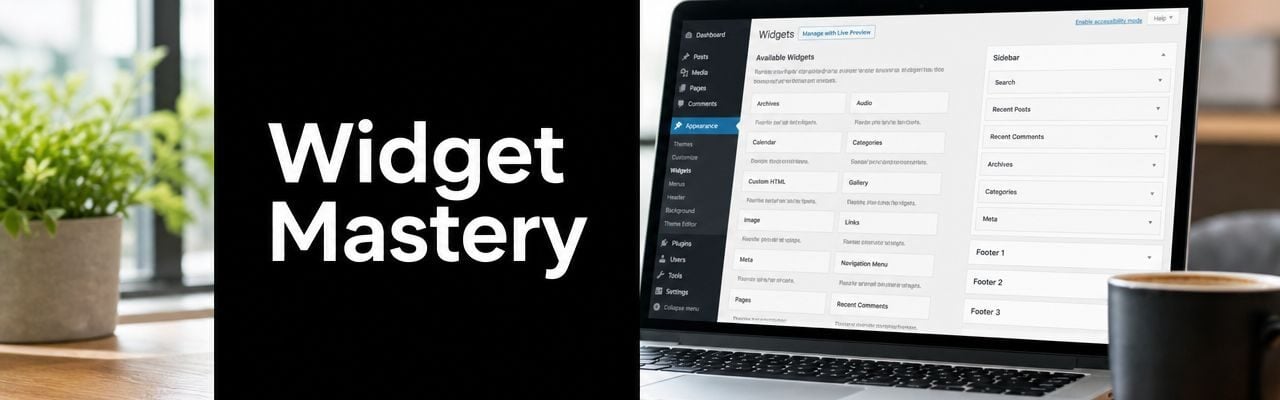

You're probably dealing with a familiar website problem. The business has grown, marketing has added new channels, and now the site needs one more thing: a newsletter signup in the footer, recent reviews in the sidebar, a social feed on a campaign page, or a simple stats panel that makes the site feel active and credible.
Most business owners assume that means custom development. Often, it doesn't.
In WordPress, a plugin widget is usually the fastest path from “we need this feature” to “it's live and useful.” The important part isn't the widget itself. It's choosing a widget that supports the business goal, fits your theme, and doesn't create unforeseen maintenance problems later.
What Plugin Widgets Are and Why They Matter
A common WordPress decision starts like this. The business wants one new feature on the site, but no one wants to slow down a page rebuild or open a larger development project just to add reviews, a signup form, store hours, or recent posts.
Plugin widgets solve that specific problem. They let you add self-contained features from a plugin into designated areas of a WordPress site, such as a sidebar, footer, header, or other theme-defined widget area. In many cases, they also work inside block-based layouts, which matters for companies updating an older site in phases instead of rebuilding everything at once.
For a business owner, the value is not the widget itself. The value is controlled placement. The same testimonial block performs differently in a footer than it does beside a pricing page or below a service description. Good widget decisions put useful information closer to the moment a visitor is deciding whether to trust you, contact you, or buy.
What a plugin widget actually does
A plugin widget is a packaged feature with its own settings and display rules. The plugin provides the functionality. WordPress gives it a place to appear. Your team decides where it supports the page goal.
Los usos comunes incluyen:
- Captura de plomo through email signup forms or promo offers
- Señales de confianza from reviews, testimonials, or badges
- Descubrimiento de contenido with recent posts, related articles, or featured resources
- Detalles operativos such as hours, locations, announcements, or contact info
- Funciones de utilidad like search, filters, event listings, or account prompts
This matters more than it sounds. On client projects at OneNine, widget choices often affect conversion paths, content visibility, and editorial workload more than the underlying plugin feature list. A widget that is easy for marketing to update usually creates more long-term value than a more advanced option buried behind custom logic.
Why they matter on modern WordPress sites
Widgets still matter because WordPress sites rarely live in one system forever. Many SMB sites have a mix of classic widget areas, page builder templates, and newer block-based sections. A plugin widget often becomes the practical connector between those layers, especially during redesigns or phased migrations.
If your team is still working through that transition, it helps to understand how WordPress page builders fit into a modern site workflow. The right setup depends on who manages the site, how often content changes, and whether the business needs speed, design flexibility, or tighter governance.
There is also a real trade-off to manage. Widgets are fast to deploy, but they still add code, settings, and dependencies. A useful widget earns its space by helping visitors act faster or by helping your team publish important information without developer time. If it does neither, it is usually clutter.
The strongest widget strategy starts with that standard. Add the module only if it supports a business outcome, fits the current WordPress setup, and can be maintained without creating new friction later.
How to Choose the Right Widget Plugin
The mistake I see most often isn't installing a widget plugin. It's installing the wrong one because the demo looked polished.
A good selection process starts with the business problem, not the plugin library. If the goal is to reduce bounce on blog pages, a related-posts widget may help. If the goal is to remove friction from checkout, a promotional widget may be the wrong move entirely. Start with the page's job, then decide whether a widget supports it.
The broader plugin model is already well established in WordPress. The ecosystem itself is a mainstream distribution layer for site functionality, and tools in the analytics category illustrate that scale. MonsterInsights is described as trusted by over 3 million website owners, while WP Statistics has más de 600,000 instalaciones activas, according to this roundup of WordPress statistics plugins. That doesn't mean a popular plugin is always the right one. It does mean plugin-based functionality is normal, trusted, and operationally practical for SMB teams.
Start with the business requirement
Before you compare features, answer a few direct questions:
- What must this widget do. Capture leads, show content, display proof, or support navigation.
- Where will it appear. Sidebar, footer, homepage section, blog template, or account area.
- Who needs to manage it. Marketing, operations, a content editor, or a developer.
- ¿Qué pasa si falla?. Minor inconvenience, broken layout, or lost revenue path.
If you can't answer those clearly, keep evaluating. You're not ready to install yet.
Choosing Your Plugin Quick Decision Framework
| Factor | Consider for Free/Niche Plugins | Consider for Premium/Suite Plugins |
|---|---|---|
| Core fit | Often strong for one narrow use case | Often broader, with many features you may not need |
| Experiencia administrativa | Can be simple, but sometimes rough around the edges | Usually more polished, but sometimes overloaded |
| Mantenimiento | Check update history and support responsiveness carefully | Better documentation is common, but complexity can rise |
| Compatibilidad de temas | Test thoroughly with your current theme | Test thoroughly, especially if the suite overlaps with existing tools |
| Rendimiento | A focused plugin can stay lean | A suite may add assets or controls beyond the single widget you want |
| Flexibilidad a largo plazo | Great if the need stays narrow | Better if you expect the site to grow into the platform |
What actually matters during vetting
Reviews and screenshots can help, but they're secondary. What matters most is whether the plugin solves one problem cleanly and can keep doing that without creating a mess in your admin.
Utilice esta lista de verificación:
- Match the plugin to one use case. Avoid installing a large suite when you only need one front-end element.
- Check update activity and compatibility notes. If the plugin feels abandoned, move on.
- Look for support patterns. You want signs that users can get help when something breaks.
- Test the widget on a staging site. Layout issues usually appear quickly.
- Watch for overlap. If your page builder already includes a similar element, adding another widget plugin may create duplicate controls and styling conflicts.
If your site relies heavily on layout tools, it's worth understanding how builder choices affect widget strategy. This guide to the El mejor creador de páginas de WordPress is useful for that evaluation, especially when widget placement and page design start to blur together.
Regla práctica: pick the smallest tool that solves the real problem and still looks maintainable six months from now.
Installing and Adding Widgets in WordPress
Many site owners encounter challenges, not because the process is hard, but because WordPress may show different interfaces depending on the theme and setup. Some sites use the older widget screen. Others use the block-based widget editor. Both can work.
Start with one simple check. Go to Apariencia in the WordPress dashboard and see what your site offers. If you see the classic Widgets screen, follow that path. If you see block-style editing inside widget areas, use the modern path.

Install the plugin first
Before any widget appears, the plugin that provides it has to be active.
Utilice este orden:
- Go to Plugins and add the tool. Search by plugin name or upload the plugin file.
- Activate it and review settings. Some widgets won't appear until a base setting or connection is completed.
- Look for onboarding prompts. Analytics, reviews, forms, and social plugins often need setup before the widget becomes useful.
If you want a refresher on the plugin workflow itself, OneNine's guide on Cómo instalar plugins en WordPress walks through the admin steps cleanly.
Using the classic widget screen
This path is common on older themes or sites using a classic widgets setup.
- En el panel de control, vaya a Apariencia> Widgets.
- Find the widget area you want, such as Sidebar, Pie de página, or another named region from your theme.
- Locate the new plugin widget in the available widgets list.
- Drag it into the target widget area.
- Open the widget settings panel and configure the title, display options, or content source.
- Save the widget, then check the front end.
This method is straightforward because it mirrors the older WordPress admin model. It's especially workable on legacy sites where the layout is stable and widget areas are clearly defined.
A useful walkthrough can help if your team is more visual:
Using the block-based widget editor
Newer WordPress setups may let you manage widget areas with blocks rather than a drag-and-drop legacy panel. The logic is similar, but the interface is closer to page editing.
Utilice esta ruta:
- Abierto Apariencia> Widgets or the related widget area inside the customizer or site editing experience.
- Select the widget area you want to edit.
- Click the block inserter.
- Search for the plugin's widget or related block.
- Add it to the area, then adjust settings in the sidebar controls.
- Save changes and preview the page.
This approach gives you more layout flexibility. You can combine plugin output with headings, spacing blocks, separators, or supporting text in the same widget area.
What to check after placement
Don't stop after clicking save. Confirm that the widget behaves correctly in context.
Review these items:
- Visibilidad: Is it showing on the expected template?
- Espaciado: Does it crowd nearby elements?
- Pantalla móvil: Does it stack cleanly on smaller screens?
- Content logic: Is the widget pulling the right category, feed, or data source?
- Click path: Does it support the page goal or distract from it?
A plugin widget in WordPress is only successful when it fits the surrounding page, not when it merely appears.
Configuring Your Widgets for Business Goals
A widget should earn its space.
Clients often ask about setup options first. The better question is what the page needs to accomplish. A newsletter form in a blog sidebar can support steady list growth. The same form on a checkout page can interrupt a purchase. Good widget configuration starts with business intent, then moves into titles, counts, styling, and display rules.

Match the widget to the page intent
Each page has one primary job. Configure the widget to support that job, not compete with it.
Por ejemplo:
- Páginas del blog often benefit from related posts, email signup, or an author credibility block.
- Páginas de servicio usually need trust signals, a short contact prompt, or proof of results.
- Store pages need restraint. Extra widgets should reduce hesitation, not create new exits.
- Homepage footers are a better fit for secondary offers, social proof, or brand updates.
Classic widgets and block-based widget areas both follow this same rule. The interface has changed, but the decision-making has not. Start with the user's next step, then choose the widget settings that help that step happen.
Configure for clarity, not completeness
More options do not create better outcomes.
A widget that displays ten posts, three icons, and a long title usually asks too much from the visitor. In client builds, I usually get better results by trimming the widget to its smallest useful version. That means fewer items, clearer labels, and one obvious action.
Use these settings with intent:
- Limit content count so the widget is easy to scan.
- Write direct titles such as “Recent Articles” or “Request a Quote.”
- Keep styling consistent with the theme so the widget feels native to the site.
- Point links to a real next step instead of a generic archive or placeholder page.
A good widget should feel like part of the page structure, not a separate tool pasted into it.
Place widgets where decisions happen
Placement has more impact than many plugin settings.
Testimonial widgets belong near quote forms, pricing sections, or service CTAs. Contact widgets work best where a visitor starts comparing options or needs reassurance. Social feeds usually fit lower on the page unless recent activity is part of the sales argument. If the goal is lead capture, compare a sidebar or footer widget against more direct prompts such as these effective popup strategies for websites. In many cases, the quieter widget is better for trust, while the popup gets more responses.
A simple planning model helps:
| Objetivo | Better Widget Placement | Usually a Weak Placement |
|---|---|---|
| Captar clientes potenciales | Footer, blog sidebar, post content area | Checkout or account pages |
| Generar confianza | Near CTA buttons, service pages | Buried below unrelated content |
| Increase page depth | Blog sidebar, resource hub | Tight landing pages with one CTA |
| Compartir actualizaciones | Footer or announcement area | Every page on the site |
Keep ownership simple
Configuration is also an operations decision.
If the marketing team will update the widget, avoid anything that depends on custom code or a manual process spread across multiple pages. If sales needs to swap offers every month, choose a widget tied to categories, tags, or reusable content instead of hardcoded text. If performance matters, avoid loading a heavy third-party feed just to fill a sidebar.
That is usually the difference between a widget that stays useful and one that goes stale after launch.
Advanced Widget Strategies for SMBs
Most WordPress guides stop after “add the widget to the sidebar.” That's where the actual work usually starts.
A professionally managed site treats widgets as living interface elements. They affect performance, accessibility, security, and conversion flow. If you ignore those four areas, the widget may still function, but it can subtly weaken the page.

Control visibility with intent
One of the most useful advanced tactics is deciding where a widget should not appear.
That's why conditional display matters so much. The WordPress plugin directory entry for Widget Options frames this around controlling sidebar widgets and Gutenberg blocks across pages, posts, and custom post types, and it supports targeting by pages, devices, and user roles through Widget Options in the WordPress plugin directory.
For SMB sites, that leads to practical wins:
- Hide promotions on checkout pages so buyers stay focused.
- Show member tools only to logged-in users instead of everyone.
- Swap campaign-specific sidebar content for landing pages tied to ads or email traffic.
- Reduce mobile clutter by hiding widgets that don't help smaller-screen users.
Conditional logic is often the difference between a widget strategy and a widget pile.
Watch the performance cost
Widgets can slow pages down in a few common ways. They may load extra scripts, request data from external services, or inject styling that overlaps with the theme. The problem gets worse when several plugins all compete for the same sidebar or footer space.
Use a simple review process:
- Add one widget at a time.
- Check the front end on desktop and mobile.
- Notice whether the page feels heavier, shifts during load, or becomes harder to scan.
- Remove or replace widgets that don't justify their space.
If a widget depends on outside content, such as reviews, maps, or feeds, be careful. These are often the first items I trim when a page starts feeling slow or unstable.
Better widget strategy often means fewer widgets, placed more deliberately.
Treat widgets as a compliance surface
Accessibility gets overlooked because widgets are often seen as decoration. They're not. Many are interactive. That means they can introduce keyboard traps, unlabeled controls, weak contrast, or other usability problems if no one checks them.
WordPress accessibility tooling increasingly focuses on finding and fixing issues like missing alt text, poor color contrast, and related page-level errors, including recurring scans, as discussed in this WordPress accessibility tooling video. The business takeaway is simple: a widget can create legal and UX risk just as easily as it can add design polish.
Use these checks before launch:
- Keyboard access: Can users tab through the widget cleanly?
- Visible focus states: Can users tell where they are?
- Etiquetado: Are buttons, icons, and form fields understandable?
- Contraste: Does the widget remain readable inside your theme colors?
Security follows the same logic. Install widgets from reputable plugins, keep them updated, and remove anything your team no longer uses.
Troubleshooting Common Plugin Widget Problems
Even well-chosen widgets misbehave sometimes. The key is diagnosing the issue in the right order instead of changing five things at once.
The widget isn't showing up
The first cause is usually simple. The widget may be placed in an inactive area, or the plugin may require a setup step before output appears.
Prueba esto:
- Check the widget area. Some themes include sidebars or footers that only appear on certain templates.
- Confirm the plugin is fully configured. A feed, stats widget, or form widget may need credentials or display settings.
- Review visibility rules. If you're using conditional display, make sure the widget isn't hidden on that page.
The styling looks broken
This usually points to a conflict between the widget output and the theme's CSS, or between two plugins trying to style similar elements.
Use a controlled test:
- View the widget on the front end.
- Temporarily disable the most recently added plugin affecting that area.
- Switch to a default theme on staging if needed.
- Compare the result.
If the layout fixes itself, you've identified a theme or plugin conflict. This guide on how to fix plugin conflicts is a good next step when the source isn't obvious.
The widget disappeared after an update
That often means one of three things: the plugin changed its output, the theme no longer supports the area the same way, or a compatibility issue appeared after WordPress updated.
Comprobar:
- Plugin changelog and settings. Defaults sometimes reset or move.
- Theme widget areas. A theme update can alter or remove expected placement regions.
- Staging behavior. Reproduce the issue safely before making more changes.
The widget works, but it's hard to use
Accessibility becomes part of troubleshooting, not a separate checklist. If a widget traps keyboard users, has poor contrast, or uses unclear controls, the issue isn't cosmetic. It affects usability and can create compliance risk.
When a widget feels awkward, test it the way a visitor would. Tab through it, read it on mobile, and make sure every control is obvious.
For Developers Building a Basic Widget Plugin
For developers, a WordPress widget has a clear architectural pattern. According to the WordPress Widgets API documentation, a widget is a PHP object built by extending the WP_Widget class, then registering that widget on the widgets_init hook. The front-end output lives in the widget() método.

La estructura básica
A minimal widget plugin usually includes four moving parts:
- Widget class definition extendiendo
WP_Widget - Admin form a través de la
form()Método - Saved settings handling through the update flow
- Front-end rendering a través de la
widget()Método
The theme side matters too. WordPress places widgets into registered widget areas, often called sidebars. Those areas need to be available consistently in the theme, and templates need to call them correctly.
What trips developers up
The biggest architectural mistake is treating a widget like broad site functionality without respecting placement constraints. Widgets are meant for local display zones such as sidebars, headers, and footers. If the theme doesn't register those areas consistently, the plugin becomes brittle.
A cleaner approach is to keep widget output modular and predictable:
- Use the widget for contained display logic
- Avoid hard dependencies on one theme layout
- Keep settings simple for non-technical admins
- Test output in both legacy and block-based environments when possible
If the feature needs wide placement freedom across templates and content areas, a block or shortcode may be the better abstraction. If it belongs in a repeatable display area, a widget still makes sense.
If you need help choosing, placing, or troubleshooting a plugin widget in WordPress, Uno nueve helps teams manage the practical side of WordPress changes, including plugin setup, theme compatibility, ongoing maintenance, and feature rollout planning so the site supports the business instead of creating more admin work.


