

If your website feels sluggish, the culprits are almost always the same: massive image files, clunky code, a slow server, or a complete lack of caching. Tackling these four areas head-on is the fastest way to see a dramatic improvement in your site's speed and your visitors' experience.
Why a Slow Website Hurts Your Bottom Line
Before we get into the nuts and bolts of fixing things, let's be clear about what’s at stake. A slow website isn't just a minor inconvenience; it's a direct hit to your revenue, your reputation, and your ability to grow. Every second a visitor has to wait is another chance for them to leave and never come back.
Put yourself in their shoes. You see an ad for a product you love, click through to the online store, and hit "buy," only to be met with a spinning wheel of death. How long do you wait before you give up? For most people, it's not very long. Frustration kicks in, and they're off to a competitor's site that just works. That's a real sale, lost in a matter of seconds, all because of poor performance.
This isn't just an e-commerce problem, either. A B2B company can lose a six-figure lead because its contact form took too long to appear. A photographer’s portfolio, bogged down by huge, unoptimized images, might time out on a potential client's phone. These aren't just technical hiccups; they're business failures.
The Real Costs: Money and Reputation
The damage from a slow website snowballs. A single lost sale is bad enough, but the long-term effects are even worse. Visitors start to see your brand as unprofessional and unreliable. They won't be back, and they certainly won't recommend you.
On top of that, search engines like Google despise slow websites. Page speed is a known ranking factor, and a site that delivers a poor user experience will get pushed down in the search results. All that time and money you've poured into SEO and content marketing? It's all for nothing if your landing page sends visitors running for the hills.
The data on this is crystal clear and frankly, a little terrifying.
A delay of just 1 second can drop your page views by 11% and slash customer satisfaction by 16%. Even worse, 47% of people will abandon a website entirely if it takes more than two seconds to load. With most traffic coming from mobile devices today, this is a massive problem. You can dig into more global page speed reports to see the full picture.
The Business Impact of Website Speed
To make it even clearer, let's look at a quick comparison. The difference between a fast and slow site isn't just a few seconds—it's the difference between success and failure.
| Metric | Fast Website (<3 seconds) | Slow Website (>3 seconds) |
|---|---|---|
| Conversion Rate | Significantly higher as users complete actions without friction. | Dramatically lower due to user frustration and abandonment. |
| Bounce Rate | Lower because visitors can quickly access the content they want. | Much higher as impatient users leave before the page loads. |
| User Engagement | Higher, with more page views per session and longer visit durations. | Lower, with visitors viewing fewer pages and leaving quickly. |
| SEO Ranking | Favorable, as Google rewards sites that provide a good user experience. | Penalized, leading to lower visibility in search results. |
| Brand Perception | Positive, associated with professionalism, efficiency, and reliability. | Negative, associated with being untrustworthy and frustrating. |
In the end, it’s simple: a fast website isn't a "nice to have" anymore. It's a fundamental requirement for staying in business online. It’s one of the most powerful tools you have for driving sales, earning customer loyalty, and staying ahead of the competition.
How to Accurately Test Your Website Speed
You can't fix a problem you don't understand. Before you start messing with code or compressing images, you need a solid baseline of how your site is actually performing in the wild. Just plugging your URL into a random online tool might give you a score, but it won’t tell you the full story.
To get a real diagnosis, we need to dig into the "why" behind the slowness. The best tools for this, like Google PageSpeed Insights and GTmetrix, are thankfully free. They don’t just spit out a number; they break down the entire loading process so you can see exactly where the logjams are.
This isn’t just a technical exercise. A slow website has a direct, and often immediate, impact on your bottom line.
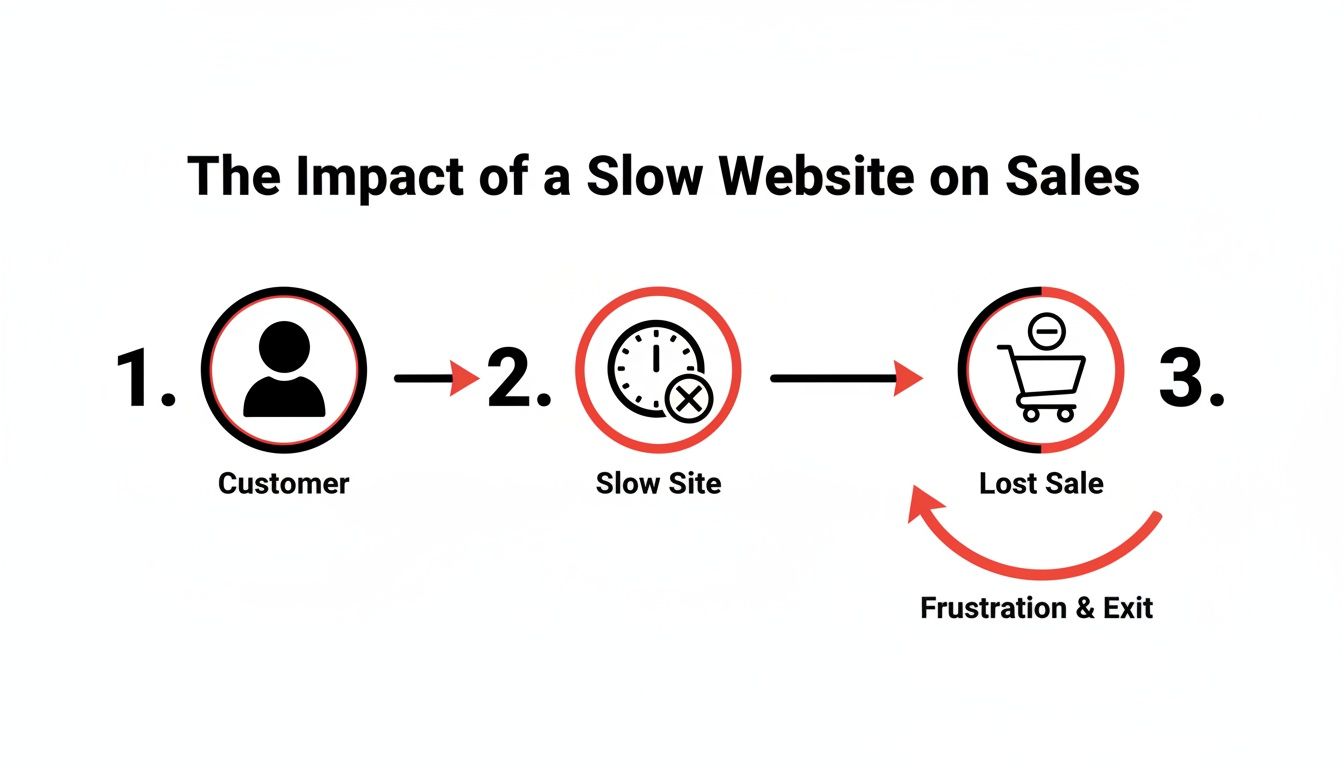
As you can see, the moment a user hits that wall of waiting, you risk them bouncing for good. Every second of delay increases the odds they’ll abandon their cart and you'll lose a sale.
Understanding the Key Speed Metrics
When you run your first test, you’ll see a bunch of acronyms and technical terms. Don't get overwhelmed. You only need to focus on a few key metrics to understand what your visitors are experiencing.
Largest Contentful Paint (LCP): This is all about perceived speed. It measures how long it takes for the main event—the largest image or text block—to appear on the screen. A good LCP is under 2.5 seconds because that’s the point where a user feels like the page has basically loaded.
Time to First Byte (TTFB): Think of this as the server's reaction time. It's how long your browser waits to get the very first piece of data after it makes a request. A high TTFB (anything over 800 milliseconds) is a huge red flag that often points to slow hosting or an overworked database.
First Contentful Paint (FCP): This marks the very first moment something from your page appears on the screen, even if it's just the header text. It’s an important psychological signal to the user that says, "Hey, I'm working!"
These aren't just abstract numbers; they directly reflect how a real person perceives your website's performance. You can get a much deeper look into how to use Core Web Vitals tools for better performance in our more detailed guide.
Running Your First Diagnostic Test
Let's start with Google PageSpeed Insights. It’s the perfect place to begin because it uses performance data straight from Google, giving you a glimpse into what your actual users are seeing.
Just pop your website's URL into the tool and hit "Analyze." You’ll get a detailed report for both mobile and desktop, complete with an overall score and a list of specific things you can improve.
Pay very close attention to the difference between your mobile and desktop scores. It can be a real eye-opener.
It's easy to forget just how wide the performance gap is. While top desktop sites might load in around 2.5 seconds, the average mobile page takes a painful 15.3 seconds. Some data suggests it's even worse, with mobile pages taking over 70% longer to display than their desktop versions.
This is exactly why you have to test for mobile first. Chances are, most of your audience is visiting from their phones, and their experience is probably a lot clunkier than what you see on your powerful office computer.
Interpreting the Results and Finding the Bottlenecks
Once the test finishes, scroll down to the "Opportunities" and "Diagnostics" sections. This is the goldmine. Instead of a vague "your site is slow," you get a specific, actionable punch list.
PageSpeed Insights might tell you to:
- Serve images in next-gen formats (like WebP) to save on file size.
- Reduce unused JavaScript that’s being loaded by old plugins you forgot about.
- Eliminate render-blocking resources, which are files that stop the rest of your page from loading until they’re finished.
Best of all, each suggestion comes with an estimated time saving. This lets you prioritize. If you see that "Properly size images" could shave 4 seconds off your load time, you know exactly where to start. This data-driven approach removes all the guesswork from optimization. You're not just throwing solutions at the wall to see what sticks; you're following a clear roadmap to fix what's actually broken.
Optimizing Your Images for Immediate Speed Gains
If your website feels sluggish, unoptimized images are almost always the number one offender. They're usually the heaviest things a browser has to download, and tackling them is the quickest way to see a dramatic improvement. You can easily shave seconds off your load time with just a few minutes of work.
This isn't about making your website look bad with pixelated photos. Modern tools and formats let you shrink file sizes significantly without anyone noticing a difference in quality. It's all about being smart with your visual assets.

Choose The Right Format Every Time
Before you do anything else, make sure you're saving your images in the right file format. Using the wrong one can instantly bloat your page. For years, JPEG was the go-to for photos, but we have much better options today.
Choosing the right format is a simple but powerful step. This table breaks down the most common choices to help you pick the right one for any situation.
| Format | Best For | Key Feature |
|---|---|---|
| JPEG | Complex photos with many colors. | Good compression for photos, but can lose quality. |
| PNG | Graphics needing a transparent background. | "Lossless" quality but results in larger files. |
| WebP | The all-around best choice for most web images. | Offers 25-34% smaller files than JPEG with the same quality. |
| SVG | Logos, icons, and simple illustrations. | Vector-based, so it scales perfectly with a tiny file size. |
By selecting the most efficient format from the start, you're already halfway to a faster page. If you want to dive deeper, you can explore our guide on the best image formats for the web.
Compress Images Without Losing Quality
Once you've got the right format, it’s time to compress the image. This process cleverly strips out unnecessary data from the file, making it much smaller. You don't need fancy software like Photoshop for this, either.
Free online tools like TinyPNG are fantastic and dead simple to use. Just drag and drop your images, and the tool does all the hard work for you.
You'll often see file size reductions of over 70% with no visible drop in quality. It’s a total game-changer. And remember, knowing how to edit images effectively can also help you start with a more optimized file before you even get to compression.
Think about that big, beautiful hero image on your homepage. It might look great, but if it's a 3MB file, it’s a performance killer. By saving it as a WebP and running it through a compression tool, you could easily get it under 300KB. That single fix could slash seconds off your load time.
Implement Lazy Loading
Finally, let’s talk about a smart trick called lazy loading. By default, a web browser tries to load every single image on a page right away—even the ones way down at the bottom that the user can't even see. This is a huge waste of resources.
Lazy loading changes that behavior. It tells the browser, "Hey, only load the images that are on the screen or about to scroll into view." This makes the initial page load feel lightning-fast because the browser has far less work to do upfront.
If you're on WordPress, many performance plugins will enable this for you with a single click. On other platforms, it might involve adding a simple attribute to your image code. Either way, the performance boost is well worth it, as it directly improves how fast the page feels to your visitors.
Strengthening Your Site's Foundation with Caching and CDNs
If you've already tackled the low-hanging fruit like image optimization and your website is still loading too slow, it's time to look under the hood. The technical foundation of your site—things like caching and your content delivery strategy—plays a massive role in performance.
These might sound intimidating, but the concepts are actually pretty straightforward and can deliver some of the biggest speed gains you'll see.
Let's start with caching. I like to explain it with a coffee shop analogy. The first time you go in, you place your complicated, custom order. The next day, the barista remembers you and starts making it the moment you walk through the door. That's exactly what caching does for your website.
When someone visits your site for the first time, their browser has to download all the assets: logos, CSS files, fonts, you name it. With caching turned on, the browser stores these files. On their next visit, instead of re-downloading everything from scratch, it just pulls the files from its local memory. The result? A near-instant load time.

Is It Time to Upgrade Your Digital Real Estate?
Of course, before a browser can cache anything, the files have to be delivered from your server in the first place. This is where your hosting plan becomes a critical speed factor. So many businesses start out on cheap shared hosting, and for a while, it's fine.
But shared hosting is like living in a big, crowded apartment building. You're sharing all the utilities—server memory, processing power, bandwidth—with hundreds of other websites. If one of your "neighbors" suddenly gets a massive wave of traffic, your site can slow to a crawl. It’s cheap, but the performance is unpredictable.
If your speed tests show a slow TTFB (Time to First Byte), that’s a massive red flag. It’s often the clearest sign that your hosting is the bottleneck. It might be time to move.
- VPS (Virtual Private Server) Hosting: Think of this as a townhouse. You’re still in the same building (the server), but you have your own dedicated resources. No more noisy neighbors hogging the bandwidth.
- Dedicated Server: This is the equivalent of owning a private house. The entire server and all its resources belong to you. It offers the absolute best performance, though it comes at a premium price.
Bring Your Content Closer to Your Visitors with a CDN
A Content Delivery Network (CDN) is one of the single most effective upgrades you can make, especially if you have a global audience. It’s all about solving the problem of physical distance. If your web server is located in New York, a visitor from Tokyo has to wait for all your site's data to travel halfway around the world. That delay adds up.
A CDN solves this by creating a global network of mini-servers that store copies of your website's static files (images, CSS, JavaScript). These servers are called Points of Presence (PoPs) and are strategically located all over the world.
When that user from Tokyo visits your site, their request doesn't go all the way to New York. Instead, the CDN serves the files from the closest PoP—maybe one in Japan or Singapore. This simple change drastically reduces travel time and can shave seconds off your load times.
For any site with an international audience, a CDN isn't a luxury anymore; it's essential for providing a fast, consistent experience for every user. If you need a hand getting started, we break it all down in our guide on how to set up a CDN for faster websites.
How to Clean Up Your Website’s Code (Even if You’re Not a Developer)
Think of a website cluttered with old plugins and bloated code like trying to run a marathon with a backpack full of rocks. Each unnecessary script adds a little more weight, slowing you down one millisecond at a time. The good news? You don't need to be a developer to start shedding that weight.
This isn’t about learning to write code. It’s about being a good digital janitor and tidying up what’s already there. You’ll be amazed at how much faster your site can get just by getting rid of the digital junk that’s been piling up.
This cleanup is especially critical for your mobile visitors. In 2023, data showed that while 74% of sites hit their target for Largest Contentful Paint (LCP) on desktop, that number dropped to just 61.4% on mobile. That gap is where bloated code really hurts—especially when 47% of mobile users expect a page to load in two seconds or less. You can dive deeper into these website statistics to see just how much performance matters.
First, Conduct a Ruthless Plugin and App Audit
If your site runs on a platform like WordPress, Shopify, or Webflow, your plugins and apps are the number one place to start your search. It’s shockingly easy to accumulate dozens of them over time. Some you tried once and forgot about, others are now totally obsolete.
Every single active plugin loads its own code (CSS and JavaScript), which adds to your page size and the number of things a browser has to download.
Your mission is simple: go through your list of installed plugins and be brutally honest. Ask these questions for every single one:
- Is this absolutely essential? If it’s just a minor convenience but isn't critical for your customers or your business, it’s a prime candidate for deletion.
- Are we still even using this? Plenty of sites still have plugins active for things they no longer do, like a giveaway that ended two years ago. Deactivate and delete them.
- Is there a lighter alternative? Some plugins are known for being heavy and slow. A quick search might uncover a more streamlined option that does the same job without the performance penalty.
Once you’ve deactivated and deleted everything that didn’t make the cut, run your site through a speed test again. You might see a noticeable improvement from this one step alone.
Embrace the Simple Magic of Minification
"Minification" might sound like a super technical term, but the idea behind it is incredibly simple. Your website's code files—the CSS, JavaScript, and HTML—are often full of extra characters that help developers read them, like comments, spaces, and line breaks. These are great for humans, but a web browser couldn't care less about them.
Minification is just the process of automatically stripping out all that extra stuff. It’s like taking a big document and zipping it into a much smaller file. The content is exactly the same, but it's now in a much smaller, faster-loading package.
The best part is, you don't have to do this by hand. Most good caching and performance plugins, like WP Rocket for WordPress, handle minification for you. You just tick a box in the settings, and it automatically cleans up your code files. It’s one of the easiest performance wins you can get.
This process can shrink your file sizes significantly, which means faster download times and a much snappier website for your visitors.
Tame Your Third-Party Scripts
Finally, let’s talk about third-party scripts. These are little snippets of code you add to your site from other services, and they are notorious performance killers. You’re definitely using some of these right now.
Common culprits include:
- Google Analytics for tracking visitors
- The Facebook Pixel for ad retargeting
- Live chat widgets for customer support
- Heatmap tools like Hotjar
Each of these scripts has to "call home" to an external server, which adds its own delay. If you have too many, they can bring your site to a screeching halt.
The solution isn't to get rid of them—many are vital for marketing and sales. Instead, you need to manage them intelligently. Tools like Google Tag Manager can help you load them more efficiently. Some performance plugins can also delay these scripts from loading until a user actually starts scrolling or clicking. This smart trick ensures your most important content loads first, pushing the non-essential stuff to the back of the line.
Answering Your Lingering Questions About Website Speed
Even after you’ve rolled up your sleeves and implemented a bunch of fixes, some questions always seem to linger. Let's tackle a few of the most common ones I hear from clients to help you keep your site running smoothly for the long haul.
“Doesn’t My Platform like WordPress or Shopify Handle Speed for Me?”
This is a big one, and it's a classic "yes, but…" scenario. Platforms like Shopify and many managed WordPress hosts give you a fantastic starting point. Think of it like they've handed you the keys to a high-performance car engine—it's powerful, but you're still the one driving.
That powerful engine can get bogged down pretty quickly. You're still in control of the things that really impact speed day-to-day:
- Image Optimization: Uploading a beautiful but massive 5MB photo will slow down any site on any platform.
- App & Plugin Management: Every app or plugin you install adds more code and complexity. It’s like putting more weight in the car.
- Theme Choice: Some themes are sleek and lightweight, while others are packed with features you’ll never use, making them notoriously heavy.
So, while these platforms handle a ton of the backend heavy lifting, your choices in content, apps, and design will ultimately make or break your site's performance.
“Are High-Resolution Designs Always Bad for Performance?”
Not at all—but you have to be smart about it. A beautiful, visually rich website is a huge asset for your brand, and you shouldn't have to sacrifice that for speed. The problem isn't the high-resolution design, it's the unoptimized assets that bring it to life.
You can absolutely have stunning visuals without a sluggish website. The key is to be meticulous with your media. Use modern image formats like WebP, compress everything without sacrificing quality, and make sure to lazy-load images that appear below the fold.
I see this all the time: a team uses a massive, print-quality PNG for a hero image just because it looks crisp on a 5K monitor. A properly compressed WebP file can achieve the exact same visual impact at a fraction of the file size. That one change can make a night-and-day difference in load time.
“How Often Should I Really Be Checking My Website Speed?”
Website performance isn't a "set it and forget it" task. Think of it more like regular maintenance on your car. You don't just wait for it to break down; you check the oil and tire pressure periodically.
A good rule of thumb is to run a full performance audit at least once a quarter.
More importantly, you should run a quick test after any significant change. This is crucial. Get in the habit of checking your speed immediately after you:
- Install a new plugin or app.
- Change your website’s theme.
- Add a new third-party script, like a chatbot or analytics tool.
- Launch a major redesign or a new, media-heavy landing page.
Testing right after these events helps you pinpoint if a specific change introduced a bottleneck. It’s a proactive habit that stops small issues from snowballing into a major slowdown that costs you customers.
“What Is a Good Page Load Time to Aim For, Realistically?”
While "as fast as possible" sounds nice, you need a concrete target. For most sites, the gold standard is getting your Largest Contentful Paint (LCP) under 2.5 seconds. That's the benchmark Google uses for a "Good" Core Web Vitals score.
But context is everything. An e-commerce product page loaded with high-res images and reviews will have a tougher time hitting that mark than a simple, text-based blog post.
What really matters is being faster than your direct competitors and meeting user expectations. If your page takes more than three seconds to load and become interactive, you are absolutely losing visitors, and with them, potential revenue.
Keeping your website fast is a continuous effort, but it's one of the best investments you can make in your online presence. If you'd rather have a partner manage the technical side so you can focus on your business, OneNine is here to help. We simplify website management with expert development, maintenance, and support. Learn how we can keep your site running at peak performance.


