

At its core, fixing a broken link is pretty straightforward. You have to find the dead link, diagnose why it’s not working (was the page deleted? Is there a typo?), and then repair it. That usually means either updating the URL or setting up a 301 redirect to a new, relevant page.
While the process is simple, the reasons why you need to do it are critical for both your users and your SEO.
Why Broken Links Are Hurting Your Website

It’s easy to write off a broken link as a small technical glitch, but those dead ends are doing real damage to your website's health. Every "404 Not Found" error is a digital roadblock, stopping visitors dead in their tracks and creating a genuinely frustrating experience. This is more than just an inconvenience; it's a direct hit to your credibility and your bottom line.
Just put yourself in your user's shoes for a second. They click a link expecting to find helpful information or a product they want to buy, but instead, they hit a wall. That instantly chips away at their trust and is a surefire way to send your bounce rate skyrocketing, which tells search engines your site isn't delivering a good experience.
The Impact on SEO and User Trust
Broken links are a direct punch to your search engine optimization efforts. When Google's crawlers keep hitting 404 errors, it messes with their ability to properly index your site. If they find too many, it can signal that your website is old or poorly maintained, which can absolutely drag your rankings down over time.
This isn't just a theory. A recent analysis found that slow load times, weak keyword targeting, and broken links are some of the biggest culprits when websites start losing traffic. For an e-commerce store, a broken link to a product page is a lost sale, right then and there. For a blog or a resource hub, dead links to sources can completely tank your authority on a topic.
A broken link is more than just a technical error; it's a broken promise to your user. It tells them the information they were seeking is gone, damaging their perception of your brand's reliability.
More Than Just a Technical Chore
Ultimately, fixing broken links isn't just a cleanup task you hand off to a developer. It's a fundamental part of running a healthy business online. Keeping your links in good shape protects the SEO authority you’ve worked so hard to build and gives visitors a smooth, seamless journey through your site. A well-maintained website signals professionalism and shows you respect your audience's time.
For a deeper dive into how seemingly small technical issues can create big problems, you might find this article on the hidden cost of bad IT insightful. When you look at it that way, link maintenance stops being a tedious chore and becomes a strategic priority for protecting your brand and your revenue.
How to Find Every Broken Link on Your Site
You can't fix what you can't find. So, before you do anything else, you need a solid plan to hunt down every single broken link. For any site bigger than a handful of pages, trying to do this manually is a recipe for frustration.
Thankfully, there are some incredible tools that do the heavy lifting for you, giving you a clear roadmap for your cleanup job.
Your First Stop: Google Search Console (It's Free!)
The best place to begin your search is with a tool you should already be using: Google Search Console (GSC). It costs nothing and gives you a direct look at how Googlebot sees your website. This isn't just a list of potential problems; it’s a report straight from the source telling you which pages it couldn't reach.
The image above shows the main GSC dashboard, which is your command center for site health.
From here, you'll want to head over to the "Pages" report, which you'll find under the "Indexing" section. This is where Google flags any URLs that triggered a "Not found (404)" error during its last crawl.
Once you’re in that report, GSC hands you a list of every URL returning a 404. But here's the best part: click on any of those broken URLs, and GSC will show you the exact "Referring pages"—the pages on your own site that contain the dead link.
That information is pure gold. It takes all the guesswork out of the equation and points you directly to where the fix is needed.
Pro Tip: Make checking your Google Search Console coverage report a regular habit. I set a monthly calendar reminder to review 404 errors. This helps you catch issues early, long before they start hurting your SEO or annoying your visitors.
For a Deeper Dive: Advanced Site Crawlers
While GSC is a fantastic starting point for understanding how Google sees your site, it won't catch everything. It’s particularly limited when it comes to outbound links pointing to other websites. For a truly exhaustive audit, you need a dedicated site crawler.
Choosing Your Broken Link Checker
Not all crawlers are built the same. Some are powerful desktop applications meant for deep technical SEO, while others are quick online tools perfect for a fast checkup. Here’s a look at some of the most popular options to help you decide.
| Tool Name | Best For | Key Feature | Cost |
|---|---|---|---|
| Screaming Frog | Deep technical SEO audits | Extremely detailed, customizable crawls | Freemium (up to 500 URLs) |
| Ahrefs Site Audit | All-in-one SEO platforms | Integrates link data with other SEO metrics | Paid Subscription |
| Semrush Site Audit | Comprehensive site health checks | Provides prioritized lists of issues to fix | Paid Subscription |
| Online Checkers | Quick spot-checks | Web-based, no installation needed | Often Free |
Each tool has its place. For a routine check on a small site, a free online checker might be enough. But for serious, ongoing website maintenance, a dedicated tool like Screaming Frog or the audit function within Ahrefs is a must-have.
These crawlers act just like a search engine bot, methodically crawling every page and following every link they find, both internal and external.
Here’s why they’re so effective:
- Complete Error Reporting: They spit out a detailed list of every URL that returns an error, from 404 Not Found and 410 Gone to even sneaky 302 redirects that shouldn't be there.
- Pinpoint Source Location: Just like GSC, they show you the exact source page where the broken link lives, so you know precisely where to go to make the fix.
- Anchor Text Analysis: You get to see the actual anchor text used for the broken link. This context is incredibly helpful when you're trying to figure out the best way to repair it.
Running a full crawl gives you a complete inventory of every broken link across your entire website. This is a fundamental part of any serious website maintenance strategy. In fact, a broken link check is often one of the first things I do when performing a complete content audit for your website, as it immediately highlights outdated or missing content that needs attention.
By combining the free, top-level view from Google Search Console with the granular detail from a dedicated crawler, you can be confident you've found every last broken link. With that list in hand, you’re ready to start fixing things.
Deciding How to Fix Each Broken Link
Once you have your list of broken links, the real work begins. You can’t just apply a one-size-fits-all solution; every 404 error has a story. Choosing the right fix is about understanding the context—what the link was supposed to do and what your visitor expects to find. The goal is always to preserve your hard-earned SEO value while giving your users a smooth experience.
Essentially, you have three main paths you can take: redirect, update, or remove.
Redirecting When Content Has a New Home
Your go-to tool for most fixes will be the 301 redirect. Think of it as putting a permanent mail-forwarding notice on an old web address. It tells both users and search engines, "Hey, this page isn't here anymore, but you can find it at this new URL."
A 301 redirect is your best bet in a few common scenarios:
- You've moved a page. Maybe you updated a blog post's URL to be more descriptive or moved a product into a different category.
- You've consolidated similar content. It’s a great SEO strategy to combine a few older, weaker articles into one comprehensive guide. You can then redirect all the old URLs to the new, more powerful one.
- A product is gone for good. Instead of leaving users at a dead end with a "sold out" page, you can redirect them to a similar product or the parent category page.
The real power of a 301 redirect is that it passes most of the original page's authority (often called "link equity") to the new page. This means you don't lose the ranking power you've built over time. If you're comfortable with the technical side, you can learn more about how to set up a 301 redirect using your .htaccess file, which is a standard method for many websites.
Updating the Link at the Source
Sometimes, the solution is much simpler. A broken link isn't always a sign of a missing page—often, it's just a simple typo. This happens a lot with internal links, the ones you have full control over.
An update is the right move when:
- You spot a clear typo. A link to
yoursite.com/servcesinstead ofyoursite.com/servicesis a five-second fix. - An external site changed its URL. If a resource you linked to has a new address, just find the new page and edit the link on your site.
- A link points to a draft or staging URL. It happens more than you'd think. A link accidentally gets published pointing to an internal preview URL that no one outside your company can access.
This approach is beautifully straightforward. You just log into your CMS, navigate to the page with the bad link, and correct the URL. No redirects needed.
When you find a broken link, always ask yourself, "Does this content still exist somewhere else?" If the answer is yes, a redirect or a simple update is almost always the right call. Deleting a link should be the exception, not the rule.
Removing the Link as a Last Resort
There are times when the best—and only—option is to just remove the link entirely. This should always be your last resort, saved for situations where the linked content has truly vanished without a trace.
You should only consider removing a link if:
- The source is gone forever. The website you linked to is offline, and there’s no good, high-quality alternative to point to.
- The linked content is now irrelevant. The link may have been useful years ago, but now the information is so outdated that it offers no value to your readers.
- The link adds no real value. If it was a minor citation and its absence doesn't weaken your content, sometimes the cleanest solution is to just snip it out.
Deleting a link is a final move because it creates a dead end for both users and search engine crawlers. Before you do it, always do a quick search to make absolutely sure a suitable replacement doesn't exist.
A Practical Guide to Implementing Fixes
Alright, you’ve got your prioritized list of broken links. Now it's time to get your hands dirty and start fixing them. The exact steps will change a bit depending on your website's platform, but the general game plan is always the same. Don't worry, this is less technical than it sounds.
I find it helps to think of it as a simple decision tree. This handy visual breaks it down perfectly.
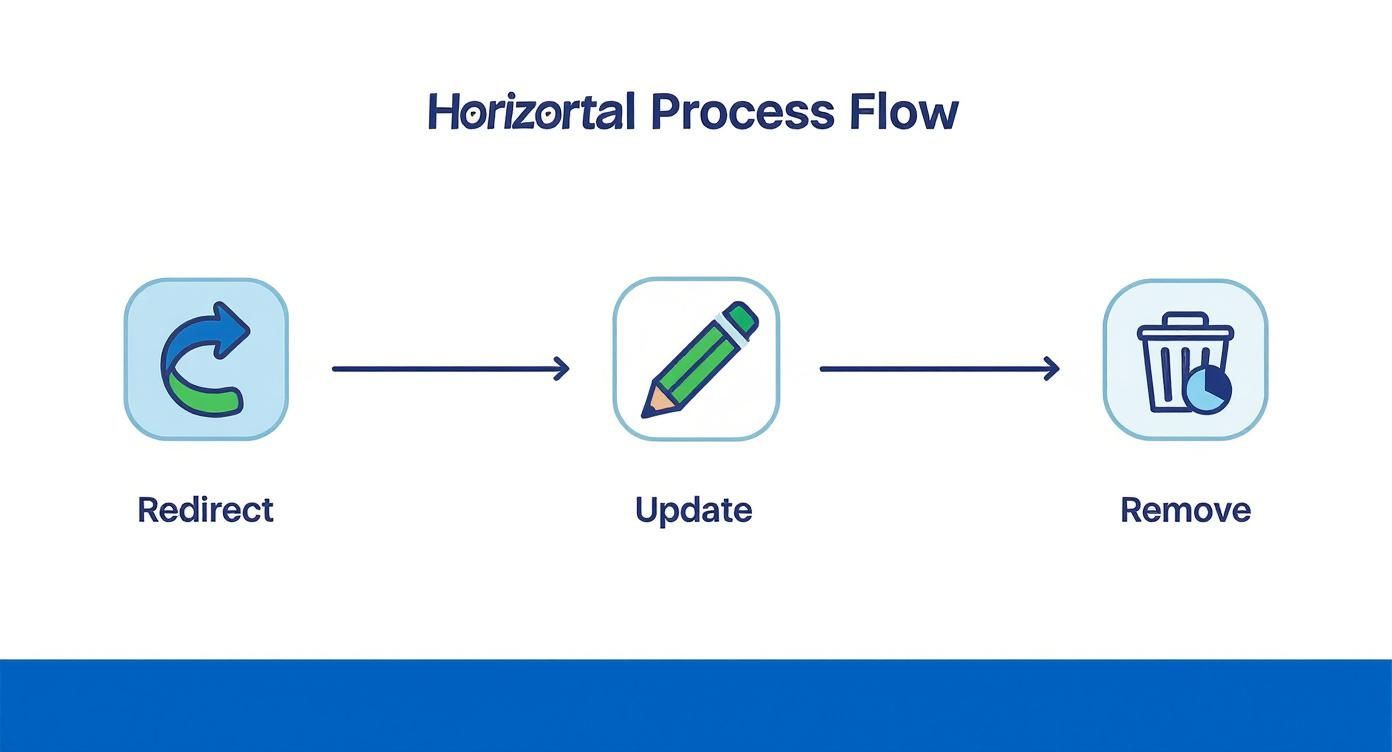
As you can see, the main goal is to keep the user moving. You either redirect them to the next best page or you fix the link right where it lives.
Fixing Links on WordPress Sites
If you're one of the millions using WordPress, you're in luck—managing broken links is pretty straightforward. You'll typically choose between two routes: redirecting a dead URL or just updating a bad link.
- For Redirects: The easiest method by far is using a dedicated plugin. Tools like Redirection or the premium version of Yoast SEO give you a simple interface. You just pop the old, broken URL in the "source" field and the new, correct URL in the "destination" field. That’s it. The plugin does all the heavy lifting.
- For Updates: Sometimes, it’s just a simple typo or an old link that needs refreshing. In that case, just navigate to the post or page in your WordPress editor, find the link, click the little "edit" icon, and paste in the correct URL. It's a quick, direct fix for simple mistakes.
Managing Fixes on E-Commerce Platforms Like Shopify
On e-commerce platforms like Shopify or BigCommerce, broken links are often a side effect of managing inventory. Products get discontinued, collection URLs change, and suddenly customers are hitting dead ends. How you handle this is crucial for keeping sales flowing.
When a product is deleted, never just let it lead to a 404 error page. Instead, jump into your platform’s redirect manager (on Shopify, it's under "Navigation") and set up a 301 redirect. Send that traffic to a similar product or, better yet, the main category page. For instance, if a specific red t-shirt is sold out for good, just redirect its old URL to your main "T-Shirts" collection. This keeps the shopping journey alive.
This issue of "link rot" is a bigger deal than most people think. A Pew Research Center study found that a staggering 23% of pages on major news sites had at least one broken link. It goes to show that even the pros struggle with this, so staying on top of it can give you a real edge. You can dig into their fascinating report on how online content disappears over time for more context.
Implementing Server-Level Redirects with .htaccess
For those who aren't using a CMS or just prefer having more direct control, you can set up redirects directly at the server level by editing the .htaccess file. This is a powerful little configuration file that lives in the root directory of your website.
Heads Up: Always, and I mean always, back up your .htaccess file before you touch it. One tiny syntax error in this file can bring your entire website down.
Once you have a backup, adding a simple 301 redirect is easy. You just add a new line to the file with this format:Redirect 301 /old-broken-page.html https://www.yourwebsite.com/new-relevant-page.html
Just swap out /old-broken-page.html with the path to your broken page and the full URL with your new one. This method is incredibly fast because the server handles the redirect before anything else even loads. It’s the clean, efficient solution that developers often prefer.
Building a Proactive Link Maintenance Routine
Let's shift our thinking from being reactive to proactive. Of course, you have to fix broken links when you find them, but preventing them from happening in the first place is the real win. It saves you a ton of time down the road and, more importantly, ensures your visitors never hit a dead end.
This is all about creating a simple, repeatable process for checking on your site's health. Think of it as a quarterly check-up for your website. You wouldn't wait for a major health scare to see a doctor, so why wait for users to complain about 404 errors? A regular, scheduled audit keeps your site clean and builds trust—both with your audience and with search engines.
Set a Consistent Audit Schedule
Consistency is everything. For most websites, a quarterly audit is the perfect rhythm. It’s frequent enough to catch issues before they snowball but not so often that it feels like a chore.
Put it on your calendar and treat it like any other critical business appointment. When the time comes, run a full crawl of your site using a tool like Screaming Frog or the site audit feature in Ahrefs. This will give you a complete picture of both internal and external dead links.
The web is always in flux. It's a bit shocking, but research found that 66.5% of links created over the last nine years are already dead. This really drives home the point that proactive checks aren't just a "nice-to-have"—they're essential for fighting natural link rot.
Future-Proofing Your Linking Strategy
Beyond just running audits, you can prevent a lot of headaches by adopting better general website maintenance practices. A huge part of this is just being more intentional about the links you create.
Here are a few habits that make a massive difference:
-
Be Selective with Outbound Links: Link out to sources that are built to last. A link to a major industry publication or an established authority site is far less likely to break than one pointing to a small personal blog that might vanish next year.
-
Keep Your Sitemap Updated: A clean, current sitemap is like a clear roadmap for search engines. It helps them understand your site and can make it much easier to spot indexing problems. Our guide on how to create a website sitemap can walk you right through it.
-
Establish a Clear URL Structure: When you create new pages, think about longevity. Use simple, logical URLs that feel permanent. Try to avoid putting dates or other temporary terms in your slugs, which might tempt you or your team to change them later on. A stable URL is a happy URL.
Answering Your Top Questions About Broken Links
Once you get the hang of fixing broken links, a few practical questions always come up. Let's tackle some of the most common ones I hear from clients, because getting these details right can make all the difference in your site maintenance routine.
How Often Should I Run a Link Check?
For most websites, a quarterly check is a great starting point. It’s frequent enough to catch issues before they snowball and start negatively impacting your visitors or your SEO rankings.
But, if you're running a massive site or one that changes constantly—think a large e-commerce store with rotating products or a news site that publishes multiple articles a day—you'll want to be more vigilant. In those cases, a monthly audit is a much safer bet. For those who want instant notifications, many SEO tools can be set up to send you alerts for 404 errors as they happen.
Do Broken External Links Really Hurt SEO?
Yes, they definitely can. While a broken internal link is usually a bigger red flag for search engines (it points to a sloppy site structure), a page riddled with dead outbound links isn't a good look either.
Think of it this way: it signals to Google that your content is outdated or poorly maintained. Even more importantly, it creates a terrible experience for your readers. They click a link expecting a helpful resource and hit a dead end, which can erode the trust they have in your site. Keeping those external links fresh is a simple but powerful way to show you're a high-quality, reliable source of information.
Pro Tip: Always lean towards redirecting a broken link instead of just deleting it. A 301 redirect is your best friend here, as it preserves SEO value and keeps the user experience seamless. Deleting a link should be your absolute last resort.
So, Should I Redirect or Just Delete a Broken Link?
My rule of thumb is to always try to redirect first. If you have another relevant page on your site that can serve as a good replacement, set up a 301 redirect. This simple action passes along most of the link equity (the "SEO juice") from the old URL to the new one, which is fantastic for your rankings.
The only time you should really consider hitting the delete button is when the original content is gone forever and there’s absolutely no suitable alternative to send visitors to. Think of removing the link as the final option, not your go-to move.
At OneNine, we handle the nitty-gritty of website management, like ongoing link maintenance, so you don't have to. See how our expert team can help you maintain a flawless, healthy site at https://onenine.com.


