

We’ve all seen it: you click a link, and instead of the page you wanted, you’re greeted with a stark white screen and the words "500 Internal Server Error." It’s frustrating, but here’s the good news—it’s not you, it’s them.
This error is a generic message from the website's server, signaling that something went wrong on its end. Your computer and internet connection are working just fine; the server simply hit an unexpected snag and couldn't load the page you asked for.
What an Error 500 Actually Means
Think of it like this: a web server is like a well-oiled machine in a factory. When you request a webpage, you’re asking the machine to assemble a product for you. If a critical part of that machine suddenly breaks, it can’t complete your order. That's a 500 error—the server knows it failed, but it can't tell you exactly why.
The HTTP 500 Internal Server Error is a catch-all code. It's part of the 5xx family of status codes, which have been around since the early days of the web to indicate server-side failures. The server is essentially throwing its hands up and saying, "I have a problem, but I’m not sure what it is."
To get a handle on what's happening, here's a quick summary.
Error 500 At a Glance
| Aspect | Explanation |
|---|---|
| Error Type | A general-purpose server-side error. |
| What It Means for Users | The problem is with the website, not your device or connection. |
| What It Means for Owners | An unexpected condition on the server is preventing it from fulfilling the request. |
| Common Cause | Vague by design; could be anything from bad code to resource limits. |
Ultimately, the vagueness of the error means it's up to the website owner to play detective and figure out the root cause.
Because the problem is on the server, there's not much you can do as a visitor besides try a quick refresh. For website owners, however, it's a clear signal that something needs immediate attention. Digging into server logs is usually the first step to figuring out what broke.
Understanding what a server error means is the starting point for any real fix. From here, we'll dive into the common culprits behind this error and how to get things back online.
Finding the Common Causes of a 500 Error
https://www.youtube.com/embed/JuWQWRj2iS4
When a 500 error pops up, the server is basically telling you, "Something went wrong, but I can't tell you exactly what." It’s a generic message, which means we have to do a little detective work to pinpoint the real problem. Most of the time, the issue is one of a few usual suspects.
A lot of these errors come from simple mistakes in how the web server is set up. For instance, a hiccup during a GTM server setup for WordPress is a classic trigger for an unexpected 500 error. It only takes one tiny misstep in a critical configuration file to throw a wrench in the works.
Misconfigurations and Permission Issues
One of the most frequent culprits is a messed-up .htaccess file. This little file is like the traffic cop for your website, telling the server how to handle requests. If even a single line of code is wrong, it can stop traffic entirely and bring down your site. This often happens right after you install a new plugin or tweak server settings.
Another common problem is incorrect file permissions. Think of these as digital keycards for your website's files and folders. If the permissions are wrong, the server can't get the access it needs to load your site, and it throws a 500 error in frustration. As a rule of thumb, directories should be set to 755 and files to 644.
Faulty Plugins and Themes
Plugins and themes are fantastic for adding new features, but they don't always play nicely together. It’s like running two apps on your phone that just can't co-exist. A poorly written plugin or an outdated theme can clash with other software on your site, causing a fatal error the server can’t resolve.
You'll often see this problem rear its head right after an update. A change in one plugin can suddenly make it incompatible with another or even with WordPress itself, triggering the error. A standard troubleshooting step is to deactivate all your plugins and turn them back on one by one to find the one causing the trouble.
"A 500 error is the server's equivalent of saying 'I've run into a problem I can't solve.' More often than not, the issue is a simple conflict between different pieces of software trying to run at the same time."
Scripting Errors and Resource Limits
The code that powers your site, usually written in a language like PHP, is what makes everything dynamic. But it's also fragile. A single typo, a misplaced semicolon, or a reference to something that doesn't exist can bring the whole script to a screeching halt. The server hits the broken code and simply doesn't know what to do next.
Finally, every server has its limits. A very common reason for a 500 error is hitting the PHP memory limit. If a script or plugin tries to grab more memory than the server is allowed to give, it crashes. In fact, some studies show that in managed WordPress hosting, maxing out the PHP memory limit is behind as many as 25% of all internal server errors. This is especially true on shared hosting plans where resources are carefully rationed.
How to Investigate the Source of the Error
When a 500 Internal Server Error pops up, it’s time to put on your detective hat. The worst thing you can do is start making random changes, hoping something sticks. A methodical approach is your best friend here—it helps you find the root cause without accidentally making things worse. We'll start with the simplest checks and work our way down.
The infographic below gives you a solid roadmap for tracking down what's behind that 500 error, from the first glance to the deeper dives.
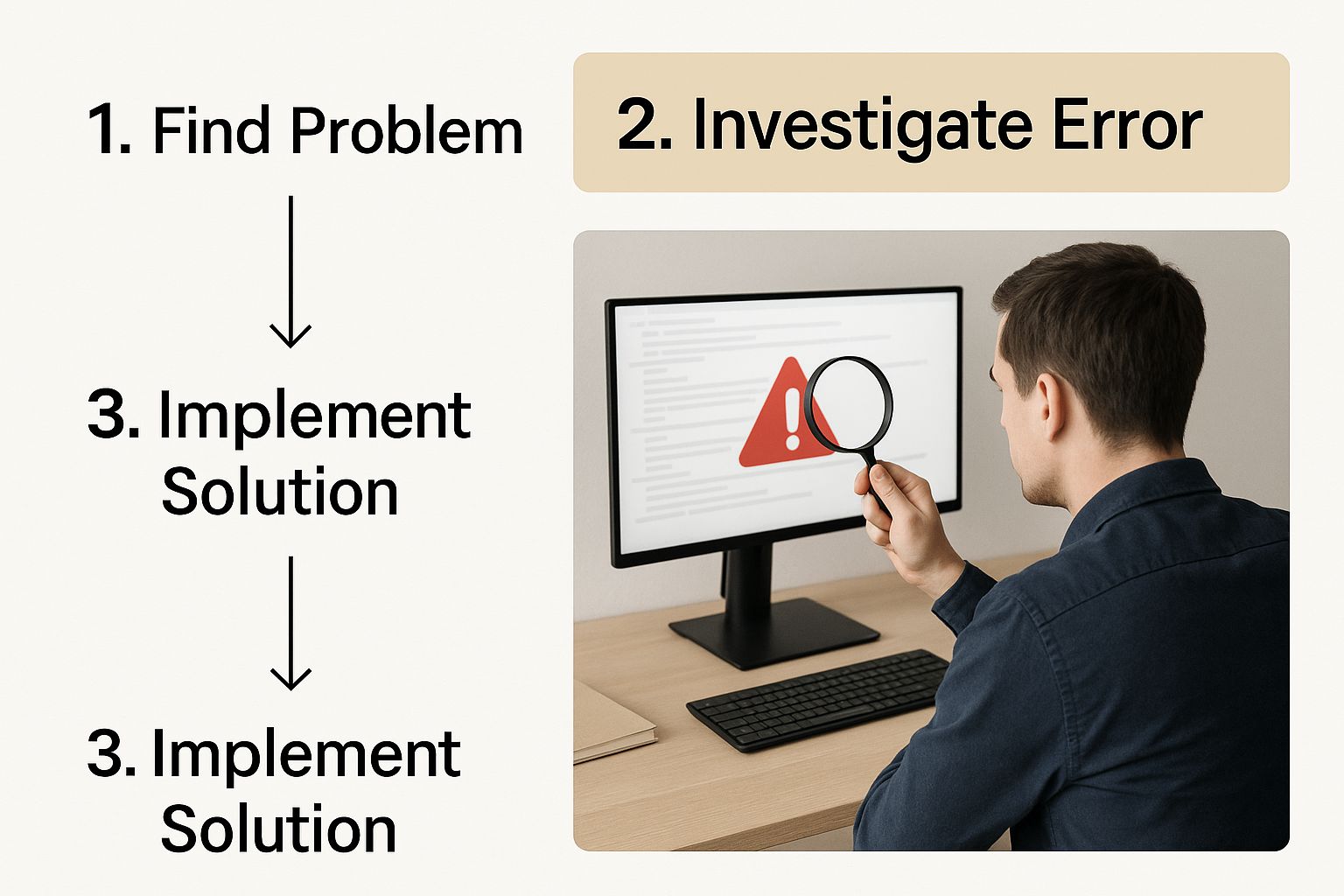
As you can see, the single most important clue is almost always waiting for you in your server's error logs.
To help you stay organized, here’s a simple checklist to follow. This step-by-step process ensures you cover all the bases without getting lost.
500 Error Troubleshooting Checklist
| Step | Action to Take | What to Look For |
|---|---|---|
| 1. Review Recent Changes | Did you just update a plugin, theme, or code? | The error likely started right after a specific change. Reverting it can be a quick fix. |
| 2. Check Server Logs | Access your server's error logs via cPanel, Plesk, or FTP. | Look for timestamps matching the error. You'll often see "PHP Fatal error" messages pointing to a specific file and line number. |
| 3. Enable Debug Mode | In your CMS (like WordPress), turn on debugging. | The generic 500 error page should now display a detailed error message, telling you exactly what's broken. |
| 4. Deactivate Plugins | Deactivate all plugins or add-ons. | If the site comes back online, a plugin is the culprit. Reactivate them one by one to find the faulty one. |
| 5. Switch to a Default Theme | Temporarily activate a default theme (e.g., Twenty Twenty-Four). | If this fixes the issue, your theme is causing the conflict. |
| 6. Check File Permissions | Ensure your files and folders have the correct permissions (usually 644 for files, 755 for folders). | Incorrect permissions can block the server from reading necessary files, triggering a 500 error. |
By working through these steps methodically, you’ll be able to isolate the problem much faster than just guessing.
Check the Server Logs
Think of your server as keeping a detailed diary of everything it does, good or bad. This diary is called the error log, and it's the absolute best place to start. It contains the raw, unfiltered story of what went wrong, often pointing a finger directly at the problematic script or file.
You can usually find these logs in your hosting control panel (like cPanel) or by connecting to your server via FTP and looking for a "logs" folder. Getting comfortable with logs is a game-changer; you can even learn how to monitor website errors effectively to get ahead of these problems.
Enable Debug Mode
Most content management systems, including WordPress, have a built-in debug mode. Activating it is like asking the server to stop being so vague. It replaces that unhelpful "500 Internal Server Error" page with a much more useful message, often spelling out the exact PHP error and the file that caused it.
In WordPress, you can do this by editing your wp-config.php file and adding these lines:
define( 'WP_DEBUG', true );define( 'WP_DEBUG_LOG', true );define( 'WP_DEBUG_DISPLAY', false );
This configuration smartly tells WordPress to write the errors to a private log file instead of showing them to your visitors, which is essential for keeping your site secure.
Debug mode turns a frustrating dead-end into a clear starting point. It takes the guesswork out of the equation by giving you the exact coordinates of the problem.
Isolate Plugins and Themes
More often than not, the culprit behind a 500 error is a misbehaving plugin or theme, especially right after an update. The only way to know for sure is to isolate the problem with a process of elimination.
First, deactivate all of your plugins. Does the error go away? If so, you've found your problem area. Now, reactivate them one by one, checking the site each time, until the error comes back. The last one you turned on is your troublemaker.
If the plugins aren't to blame, try switching to a default theme like Twenty Twenty-Four. If that solves it, you know your theme is the issue. It's a simple, methodical process that works every time.
Actionable Steps to Fix a 500 Internal Server Error
Alright, you've done the detective work and have a good idea of what’s causing that dreaded 500 error. Now it's time to roll up our sleeves and fix it. Rather than taking shots in the dark, we can now zero in on the real problem—be it a wonky file, a resource bottleneck, or a server setting that’s gone astray.
Fixing a 500 error often comes down to the same core skills you'd use to troubleshoot network issues, where a calm, step-by-step process is your best friend. Let's get into the most common fixes.
Regenerate Your .htaccess File
One of the most common culprits is a corrupted .htaccess file. This can happen after installing a new plugin or making a manual edit that went wrong. Thankfully, the fix is usually quick and painless.
- Rename the Old File: Hop into your site’s files using an FTP client or your host's file manager. Find the
.htaccessfile in the main (root) directory and simply rename it to something like.htaccess_old. This takes the old file out of commission and keeps it as a handy backup. - Create a New File: Did the error vanish after renaming the file? Perfect, you've found the problem. If you're running WordPress, just log into your admin dashboard, head to Settings > Permalinks, and click "Save Changes." WordPress will automatically generate a brand-new, clean
.htaccessfile for you.
Correct File and Folder Permissions
Sometimes, the server throws a 500 error because it literally can't read the files it needs. This is an access issue caused by incorrect file permissions. The good news is that there’s a standard, secure setup that usually clears this right up.
- Folders and Directories: Should be set to 755.
- Files: Should be set to 644.
You can typically change these with your FTP client by right-clicking a file or folder and looking for an option like "File Permissions." Applying these settings to all your files and folders can often get your site back online in minutes.
Increase Your PHP Memory Limit
If your server logs are screaming about memory exhaustion, it means a script is trying to gulp down more resources than your server is willing to give. Giving your website a bigger PHP memory limit provides the extra horsepower it needs to run properly.
This is a classic problem on shared hosting, where you're splitting resources with other websites. A quick code tweak is often all you need.
A simple way to do this is by adding define('WP_MEMORY_LIMIT', '256M'); to your wp-config.php file. Just place it right before the line that says, "That's all, stop editing!" If that doesn't solve it, you might have to reach out to your hosting provider and ask them to bump it up on their end.
After you've made the change, remember to clear your website’s cache so the new setting can kick in. If you're not sure how, our guide on how to clear your WP cache walks you through it.
How to Stop 500 Errors From Happening Again
Fixing a 500 error is a good feeling, but making sure it never comes back is the real win. A few smart, proactive habits can make your website far more resilient, saving you from future headaches and downtime.
The single most important thing you can do is set up regular, automated backups. Seriously, think of a backup as your website's safety net. When a bad update or a line of buggy code takes your site down, you can simply restore a recent, clean version. What could have been a catastrophe becomes a minor hiccup.
Always Test Changes in a Safe Space
Another game-changer is to get comfortable with a staging environment. A staging site is basically a private copy of your live website. It's your personal sandbox where you can test out anything—a new plugin, a theme change, a custom code snippet—without any risk to your actual site.
If something goes wrong, it breaks on the staging site where no visitor will ever see it. This lets you catch and fix potential 500 errors before they ever go live. Once you've confirmed everything is working smoothly, you can push the changes to your public-facing site with total confidence.
Preventing errors isn't just a technical task; it's about protecting your brand and keeping your visitors happy. User habit surveys suggest that about 58% of internet users will leave a website immediately after hitting an error like HTTP 500. You can read more about these user behavior findings on Sitelock.com.
Common Questions About the 500 Error
After you've sorted out a 500 error, you're often left wondering what just happened and what it means for your site's health. Let's clear up some of the most common questions people have.
Will a 500 Internal Server Error Tank My SEO?
The short answer is: yes, but only if you don't fix it quickly. A brief outage that lasts a few hours probably won't do any real damage. Google’s crawlers are smart enough to just come back later, and they'll likely find your site up and running.
But if your site stays down for a day or more, that's a different story. Search engines will see your site as unreliable because they can't access your content. This can lead to your pages being temporarily dropped from the index, which will cause a noticeable dip in your rankings until everything is back to normal.
As a Visitor, Did I Cause the 500 Error?
Nope, not at all. When you see a 500 error, the problem is 100% on the website's end. It's a server-side issue, which means something went wrong with the website's internal systems. Your computer, your browser, and your internet connection are all in the clear.
Hitting refresh might solve it if the server was just having a momentary hiccup, but it won't fix the root cause. It's up to the website owner to dive in and resolve the problem.
Here's a simple way to think about it: A 404 error means the server is working but can't find the specific page you asked for. A 500 error means the server itself is broken and can't even begin to look.
What’s the Difference Between a 500 and a 404 Error?
It all comes down to where the problem is happening.
-
A 404 Not Found error means the server is working just fine, but the page you’re trying to reach doesn’t exist. Think of it like asking a librarian for a book that the library simply doesn't own.
-
A 500 Internal Server Error means the server itself is having a meltdown. It's so broken that it can't handle any request, not even for pages that you know are there. This is like the library’s entire catalog system going offline—no one can find any book at all.
Constantly putting out website fires can be exhausting and pull you away from what you do best. The team at OneNine offers expert website management and support, letting you focus on your business while we ensure your site runs flawlessly. Learn more about how we can help at https://onenine.com.


