

That sinking feeling you get when your website displays a '500 Internal Server Error' is all too familiar. But don't panic. While it looks alarming, it's just a generic signal that something went wrong on your website's server. It's a server-side issue, not a problem with your visitor's computer.
Think of it this way: your browser asked the server for a webpage, but the server hit a snag and couldn't figure out how to fulfill the request. It’s like a chef in a kitchen who gets an order but suddenly realizes a key ingredient is missing or a piece of equipment is broken. They can't make the dish, but they can't tell you the exact reason why at that moment.
The good news? The problem is almost always fixable. For a deeper dive, you can learn more about what a server error means in our detailed guide.
What Usually Causes a 500 Error?
So, what's really happening behind the scenes? Even though the error message is vague, my experience has shown that the culprit is usually one of a few common suspects. Once you know where to start looking, troubleshooting becomes much more straightforward.
Here are the most frequent issues I see that trigger a 500 error:
-
Plugin and Theme Conflicts: This is a big one, especially on WordPress sites. You install or update a plugin, and suddenly your site goes down. It's often because the new code doesn't play nicely with another plugin, your theme, or the version of PHP your server is running.
-
A Corrupted
.htaccessFile: This little file is powerful. It acts like a traffic cop for your server, but if it gets corrupted (often by a misbehaving plugin or a manual edit gone wrong), it can bring everything to a halt. -
Exhausted PHP Memory Limit: Your server dedicates a certain amount of memory to running your site's code. If a script or plugin tries to use more memory than is available, the server shuts it down to protect itself, resulting in a 500 error.
-
Incorrect File and Folder Permissions: Every file and folder on your server has permissions that dictate who can read, write, or execute it. If these are set incorrectly, the server can't access the files it needs to load your site.
The "500 Internal Server Error" often results from issues like corrupted
.htaccessfiles, PHP errors, and database connection problems. For sites using PHP, like WordPress, a simple syntax error can stop the server process and trigger the error. You can discover more insights about these issues and how plugin clashes contribute on Elementor.com.
Fixing the error is a process of elimination. The key is to work through these potential causes one by one, starting with the most likely culprits. By taking a methodical approach, you can quickly pinpoint the root cause and get your site back online.
Your First Moves: Finding the Real Problem
When a 500 internal server error pops up, it’s easy to panic and start thinking about complex server configurations. Hold on a second. More often than not, the fix is surprisingly simple, and starting with the basics will save you a world of headache.
The very first thing to try is the easiest: reload the page. Seriously. Hit CTRL+F5 (or CMD+R on a Mac) for a hard refresh. Sometimes, a server just gets temporarily overloaded or times out for a moment. You'd be surprised how often this clears the glitch right up.
If a refresh doesn't do the trick, the next quick check is to clear your browser cache. Your browser holds onto local copies of website files to make things load faster, but occasionally, one of these files gets corrupted and can mimic a server error. Clearing the cache ensures you’re pulling a fresh copy directly from the server, which helps rule out any issues on your end.
Diving Into the Server Logs
Okay, so the simple stuff didn't work. Now it's time to play detective. Your single most valuable clue is hiding in the server error logs. These logs cut through the vague "server error" message and often point you to the exact file—and even the specific line of code—that’s causing the breakdown.
Think of the 500 error as a smoke alarm. The server logs are the security footage showing you where the fire started. Without them, you're just guessing in the dark.
So, where do you find these logs? They usually live in a few common spots:
- Hosting Control Panel: Log into your hosting account (like cPanel or Plesk) and look for an icon labeled “Error Logs,” “Logs,” or something similar. This is usually the quickest, most user-friendly way to see what's gone wrong.
- FTP or SFTP: You can also connect to your server with an FTP client. Error logs are often in a root-level folder called
/logsor tucked away in the/var/logdirectory. - WordPress Debug Mode: If you're on WordPress, you can turn on a dedicated debug log. Just add a few lines to your
wp-config.phpfile, and WordPress will start writing all errors to adebug.logfile in your/wp-content/folder.
"The server encountered an internal error or misconfiguration and was unable to complete your request." This classic message is your cue. It’s the server’s way of telling you that the real story is waiting for you in the error logs.
Making Sense of Log Entries
Once you've got the logs open, you'll see a list of timestamped entries. Don't let the technical jargon intimidate you. You're hunting for entries marked “Fatal Error” or “Parse Error” that match the time your site went down.
A typical entry might look a lot like this:PHP Fatal error: Cannot redeclare special_function() in /public_html/wp-content/plugins/some-plugin/functions.php on line 42
This one line is a goldmine of information. It tells you:
- The Problem: A fatal PHP error.
- The Cause: A function name is being used twice, which isn't allowed.
- The Location: A file named
functions.phpinside the "some-plugin" folder. - The Exact Spot: Line 42 of that file.
Bingo. You now know the problem is almost certainly with "some-plugin." Your next move is obvious: deactivate that plugin and check if the site comes back. This targeted approach is infinitely better than randomly turning plugins off and on, hoping for the best.
By starting with these diagnostic steps, you can troubleshoot network issues fast and determine if the issue is with your server or something else entirely. You’ll move from a state of panic to a position of control, armed with the exact information you need to get things fixed.
Solving Common Causes of 500 Errors
Alright, if you've managed to pull some clues from your server logs, you're on the right track. Now it's time to roll up our sleeves and tackle the usual suspects behind that frustrating 500 error. Most of the time, the fix is simpler than you think. We just need to work through the most common problems one by one.
This quick-glance guide shows the general path from diagnosis to fix. It's all about a logical process of elimination.
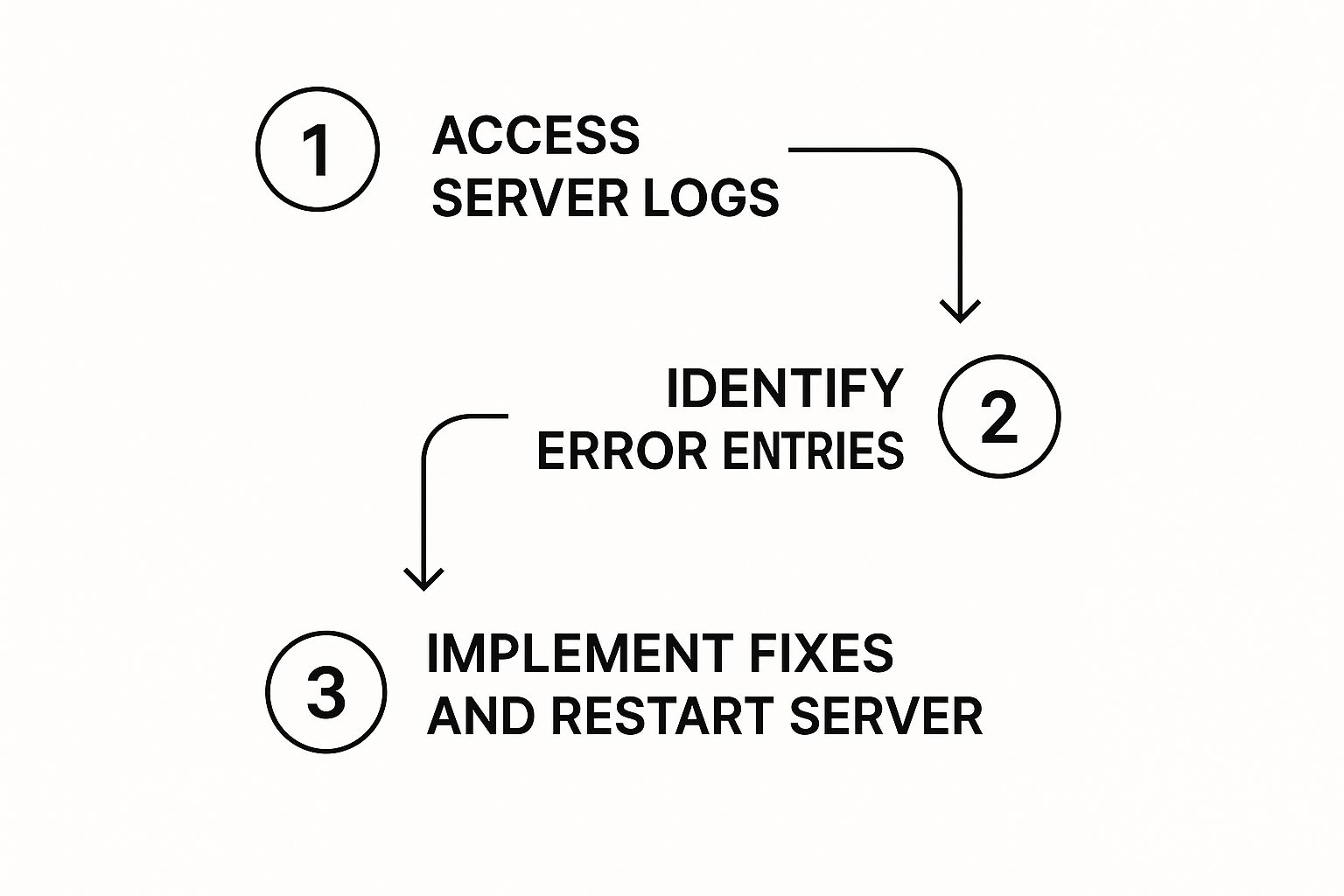
As you can see, the game plan is simple: find the evidence in your logs, pinpoint the likely cause, and then apply a specific solution.
To help you get started, I've put together a quick-reference table. It covers the most frequent culprits I see in my own work and points you toward the right fix.
Common 500 Error Causes and Quick Fixes
| Potential Cause | Primary Solution | Difficulty |
|---|---|---|
Corrupted .htaccess File |
Rename the file to deactivate it, then generate a new one. | Easy |
| Insufficient PHP Memory | Increase the WP_MEMORY_LIMIT in wp-config.php. |
Easy |
| Plugin or Theme Conflict | Deactivate all plugins/themes, then reactivate one-by-one. | Medium |
| Incorrect Permissions | Reset file permissions to 644 and folder permissions to 755. |
Medium |
This table should give you a solid starting point. Now, let's dive into the specifics of how to apply these fixes.
Test a Corrupted .htaccess File
I can't tell you how many times a 500 error comes down to a wonky .htaccess file, especially on Apache servers. This tiny text file holds powerful server rules, and a single bad character from a plugin update or a manual edit can bring your whole site down.
Thankfully, the fix is incredibly simple. You just need to rename it to take it out of commission.
- Log into your site's files using an FTP client (like FileZilla) or your hosting cPanel's File Manager.
- Find the
.htaccessfile in your website's main (root) directory. You may need to enable "Show Hidden Files" to see it. - Right-click the file and rename it to something like
.htaccess_old.
Now, refresh your website. If the 500 error is gone, you've found your culprit! If you're on WordPress, head to your admin dashboard, go to Settings > Permalinks, and just click "Save Changes." WordPress will automatically generate a fresh, error-free .htaccess file for you.
Increase Your PHP Memory Limit
Is your website loaded with features, plugins, or a heavy-duty theme? It could be hitting its memory ceiling. When a script needs more memory than the server is configured to provide, the server shuts it down, often triggering a 500 error. This is a classic growing pain for sites that are becoming more complex.
You can usually fix this by giving PHP a bit more memory to work with.
For WordPress sites, the most direct way is to edit your wp-config.php file. Add the following line right before the /* That's all, stop editing! Happy publishing. */ comment:
define('WP_MEMORY_LIMIT', '256M');
If you're not on WordPress or that doesn't solve it, you can look for a php.ini or .user.ini file on your server and increase the memory_limit directive there. Just save the file and re-upload it.
A 500 internal server error isn't just a glitch; it's a symptom. Resolving it often comes down to a process of elimination, checking for issues with plugins, memory limits, or file permissions until the root cause is uncovered.
Track Down Plugin and Theme Conflicts
A buggy plugin or theme is another prime suspect. A recent update or new installation can easily introduce code that clashes with your server, WordPress core, or another plugin. If your error logs mentioned a specific plugin's folder, start there.
If the logs didn't give you a clear lead, you'll have to do a manual check. The strategy is to disable everything and see if the site comes back to life.
- If you can access your dashboard: Go to "Plugins," check the box to select them all, and use the bulk action to "Deactivate." If the error vanishes, start reactivating them one by one, reloading the site each time. The last one you turn on before the error returns is the problem.
- If you're locked out of your dashboard: Use FTP to navigate to the
wp-contentfolder. Find thepluginsfolder and rename it toplugins_old. This deactivates everything. Check your site—if it works, you know a plugin is to blame. Rename the folder back toplugins, then go inside it and start renaming each individual plugin's folder until you find the one causing the error.
You can follow the exact same process for your theme. Just activate a default theme like "Twenty Twenty-Four." If that fixes it, the problem is in your theme's code.
Frankly, many of these headaches can be avoided by investing in a comprehensive website care plan that handles this kind of routine maintenance and monitoring for you.
Correct File and Folder Permissions
Every file and folder on your server has a set of permissions telling the server who gets to read, write, or execute it. If these permissions get messed up—which can happen during a site migration or from a faulty script—the server might be blocked from accessing critical files, throwing a 500 error.
The correct permissions are almost always the same industry-wide standard:
- Folders (Directories):
755 - Files:
644
You can easily check and change these permissions with your FTP client or File Manager. Just right-click on a file or folder and look for an option called "File Permissions" or "CHMOD." From there, you can enter the correct numeric values. Start with your main folders, then move to the files within them.
Advanced Fixes for Different Server Setups

Alright, so you’ve tried the usual suspects—checking .htaccess and disabling plugins—but that stubborn 500 error is still there. This is when it's time to roll up your sleeves and dig deeper into the server environment itself. These next steps are for folks who are a bit more comfortable working directly with server configuration files or who manage their own hosting.
When you get to this point, a 500 internal server error usually signals a more fundamental problem with the server software or how it's talking to your site's code. The generic error message won't tell you much, but a little investigation into your specific server setup can uncover the real culprit.
Investigating Apache and Nginx Configurations
Most websites run on either Apache or Nginx. They're the two most common web servers, and each has its own quirks that can trigger a 500 error. The fix almost always depends on which one you're using.
If you’re on an Apache server, a misconfiguration in the main httpd.conf file can be a hidden source of trouble. I've seen situations where a required Apache module was disabled or misconfigured, which stopped a critical script from running. You’ll want to carefully inspect that file for any recent changes or conflicting directives.
For those running on an Nginx server, a common point of failure is the PHP-FPM (FastCGI Process Manager) service. This is what actually processes your site's PHP code. If php-fpm crashes or is misconfigured and can't handle the traffic, Nginx has nothing to serve and throws back a 500 error. Checking the status of this service and restarting it can often resolve the issue. Don't forget to check its specific error log, which is separate from the main Nginx log and often gives you direct clues.
Pro Tip: For these kinds of advanced fixes, understanding how specialized teams work is a game-changer. Learning about DevOps team roles and responsibilities gives you a great window into how the pros manage and knock out these exact types of server issues.
Addressing Script Timeouts
Another classic cause of a persistent 500 error is a script timeout. Your server has a built-in timer that limits how long any single script can run—a safety net to stop broken scripts from hogging all the resources.
But sometimes, a perfectly legitimate process just needs more time. Think of complex database queries, big data imports, or a backup process. When the script hits that time limit, the server kills it, and you get a 500 error.
You can usually give your scripts more breathing room by tweaking a value in your php.ini file:max_execution_time = 300
This value is in seconds, so setting it to 300 bumps the timeout limit to five minutes. That’s often enough to let a resource-heavy script finish its job. Of course, slow scripts are a symptom of a deeper issue, so it's always a good idea to learn https://onenine.com/how-to-reduce-server-response-time/ to prevent timeouts from happening in the first place.
Verifying Database Connection Details
One final thing to check is your site's connection to its database. If your application can't talk to the database, it can't fetch the content to build the page, which can definitely result in a 500 error. This is a common headache after a site migration or server change when the database credentials weren't updated.
For WordPress users, this information lives in your wp-config.php file. You'll need to open that file and confirm these four values are 100% correct:
DB_NAME: The name of your database.DB_USER: The username for accessing the database.DB_PASSWORD: The password for that user.DB_HOST: The server where your database resides (this is oftenlocalhost).
Even a tiny typo in one of these lines will break the connection and bring your site down. It’s always worth taking a moment to double-check these details against what your hosting provider gave you.
How 500 Errors Can Wreck Your SEO

A 500 internal server error is more than just a temporary headache for your visitors. It’s a huge red flag for search engines, and if you don't jump on it quickly, it can seriously undermine all the hard work you've put into your SEO.
Imagine you're Googlebot. You show up to index a page, but instead of content, you hit a brick wall. A 500 error isn't like a "be right back" sign (that's a 503 error). To a crawler, a 500 error suggests your site is unstable and unreliable at a fundamental level.
Crawl Budget and Ranking Hits
Search engines don't have unlimited time to spend on your site; they work with a "crawl budget." When crawlers keep finding 500 errors, they learn to stop visiting as often. Why would they waste their limited resources on a page that’s never available?
But a slower crawl rate is only the start of your problems. The real damage is to your search rankings. A page that serves a 500 error is a dead end for users, and Google won’t hesitate to drop it in the rankings to protect its own users from a bad experience.
A prolonged 500 Internal Server Error can have severe implications beyond user inconvenience, notably impacting a website's search engine optimization (SEO). Persistent downtime exceeding 6 hours can signal systemic server problems to search engines, potentially harming rankings.
This kind of server instability makes Google wary. It might crawl your site less frequently or just demote your pages across the board. The full research on this from the experts at Kinsta is a must-read if you want to understand the deep connection between server health and SEO.
The Ultimate Penalty: De-Indexing
If that 500 error sticks around for days or, even worse, weeks, you’re heading for a much bigger problem. Google might eventually conclude the page is gone for good and remove it from its index entirely.
Once a page gets de-indexed, clawing your way back into the search results is a long, frustrating process. You’re essentially starting from scratch with that URL.
This is exactly why fixing a 500 error fast is non-negotiable. You aren't just squashing a technical bug; you're protecting your site's visibility, traffic, and bottom line. A healthy website is the bedrock of good SEO, and regular upkeep is your best defense. Having a solid website maintenance guide is so valuable for optimal performance and can help you stay on top of these potential disasters.
Your Top Questions About 500 Errors, Answered
Once you’ve wrestled a 500 internal server error into submission, you’re often left with a few lingering questions. Getting these cleared up is key, not just for peace of mind, but for making sure you don't have to go through the same stressful fire drill again. Let's tackle some of the most common ones I hear from clients.
Can a Visitor’s Computer Cause a 500 Error?
I get this question all the time, and it's a great one. The answer is a simple and definitive no.
A 500 internal server error is exactly what it sounds like: an internal problem on your server. It has absolutely nothing to do with a visitor's device, their browser, or their internet connection. When you see this error, your server is essentially raising its hand and saying, "Hey, something broke on my end."
Think of it this way: if you try to call a business and get a busy signal, the issue isn't with your phone; it's that their line is tied up. It's the same principle. The browser made a valid request, but the server couldn't fulfill it because of an internal meltdown.
This is a crucial distinction. It means you can stop asking visitors to clear their cache or try a different browser. The error message is a direct signal that the problem is on your turf and requires you to investigate your own server logs, plugins, and configurations.
Knowing this saves you from chasing ghosts and lets you get straight to the real source of the trouble.
How Can I Prevent 500 Errors in the Future?
Fixing a problem is one thing, but preventing it from ever happening again is the real win. While you can't guarantee you'll never see another 500 error, a little proactive work goes a long way in making them incredibly rare. It's all about good website hygiene.
Here are a few habits that will keep your site stable and happy:
- Always Use a Staging Site. I can't stress this enough. Never, ever test updates on your live website. A staging site is just a private copy of your live site where you can break things without any real-world consequences. Test your plugin, theme, and core updates there first. If something goes wrong, your visitors will be none the wiser.
- Invest in Quality Hosting. Bargain-basement hosting often means your site is crammed onto an overcrowded server, fighting for resources. This is a common trigger for memory limit errors. A reliable managed host might cost a bit more, but you're paying for performance, stability, and expert support when you need it most.
- Keep Everything Updated. Don't let those update notifications pile up! Outdated plugins, themes, and even the core WordPress software are some of the biggest culprits behind conflicts and security holes that lead to 500 errors. Make weekly or bi-weekly updates a non-negotiable part of your routine.
Building these practices into your workflow shifts you from a reactive, panicked "fix-it" mode to a calm, proactive "prevent-it" mindset.
When Should I Contact My Hosting Provider?
Knowing when to throw in the towel and call for backup is a skill in itself. While you can solve many 500 errors on your own, sometimes the problem is simply out of your hands or beyond your technical comfort zone.
It's time to get your hosting provider's support team on the line if:
- You've Hit a Wall. You've gone through the whole checklist—you checked the
.htaccessfile, disabled plugins, increased the memory limit, and verified file permissions—and you're still staring at that error screen. - The Error is Random. If the site works one minute and is down the next, with no rhyme or reason, it often points to a deeper issue with server health or resource allocation. That's a problem only your host can properly diagnose.
- The Logs Are Speaking a Foreign Language. If your error logs are filled with messages about Apache, Nginx, PHP-FPM, or other server components you don't recognize, that's your cue. The support team has the keys to the kingdom and can investigate these core systems for you.
When you do reach out, give them a head start. Tell them the exact time the error began and everything you've already tried to fix it. This helps them cut through the basic troubleshooting steps and dig right into the real problem.
Dealing with server errors is a major headache when you're trying to run a business. At OneNine, we handle all the technical heavy lifting, from development and design to ongoing maintenance and support. Let us manage your website so you can focus on what you do best. Explore our services at https://onenine.com.


